

Apple has released macOS 27 Golden Gate, its latest software update for Mac. The update is available from September 14 and brings Siri AI, Apple Intelligence features, design changes and improvements to everyday apps.
Before you install it, check whether your Mac is supported and make a Time Machine backup. After installing, Launchpad is gone and Spotlight’s Apps view replaces it.
What is new in macOS 27 Golden Gate?
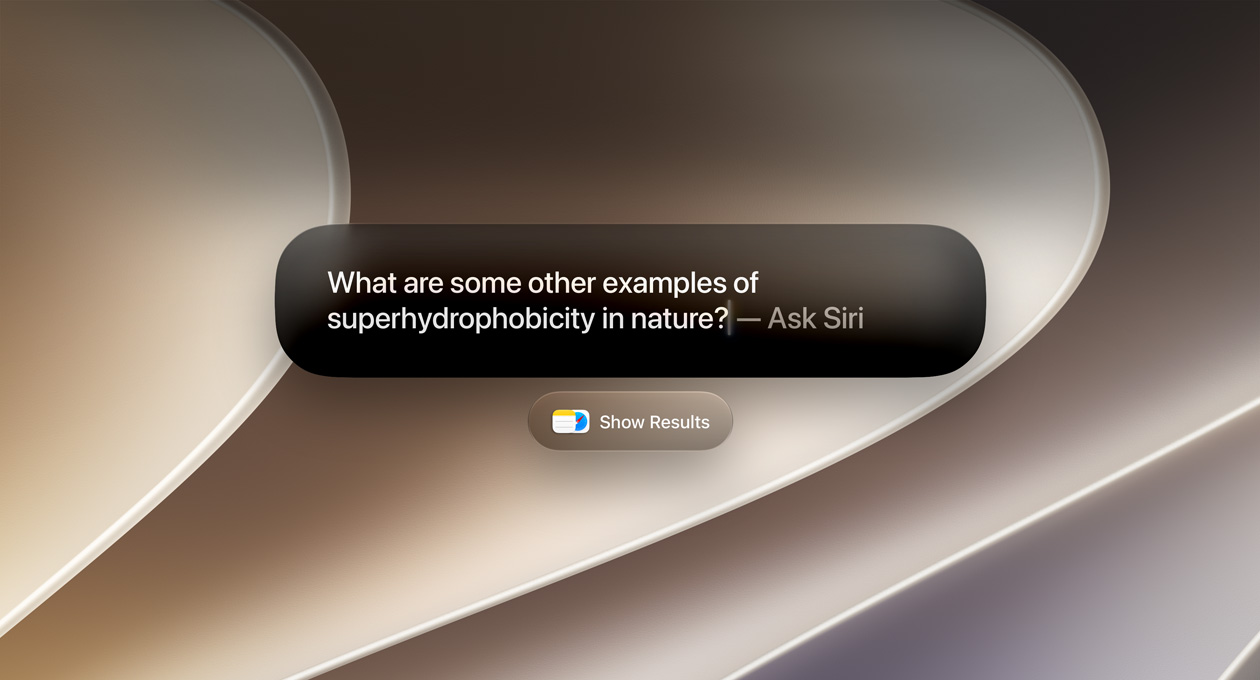
The biggest change is Siri AI. Apple says the new assistant can handle more natural conversations, understand personal context and take actions across supported apps. Siri AI is rolling out in English first, and some features may depend on language, device and region.
macOS 27 also adds Apple Intelligence features to Safari, Photos, Mail and Messages. You can use Visual Intelligence to learn more about items on your screen, create shortcuts with a description and use improved tools for editing photos.

macOS 27 compatible Macs
macOS 27 supports Macs with Apple silicon across these ranges:
- MacBook Neo from 2026
- MacBook Air with Apple silicon from 2020 onwards
- MacBook Pro with Apple silicon from 2020 onwards
- iMac with Apple silicon from 2021 onwards
- Mac mini with Apple silicon from 2020 onwards
- Mac Studio from 2022 onwards
- Mac Pro with Apple silicon from 2023
If you are unsure which Mac you have, click the Apple menu, choose About This Mac and check the model information.
How to install macOS 27 Golden Gate
Install macOS 27 Golden Gate from Software Update after a backup, with the Mac plugged in.
- Back up your Mac using Time Machine or another backup method.
- Connect your Mac to power and use a stable internet connection.
- Open System Settings.
- Click General, then Software Update.
- Choose Upgrade or Update beside macOS 27 Golden Gate.
- Follow the instructions and allow your Mac to restart.
The update may take some time, especially on older Apple silicon Macs. Keep enough free storage available and avoid closing the lid or disconnecting power during installation.
Should you install macOS 27 now?
If your Mac is supported and you need the latest security updates, installing macOS 27 makes sense. Users who rely on specialist work apps, audio tools or older accessories should check compatibility before updating.
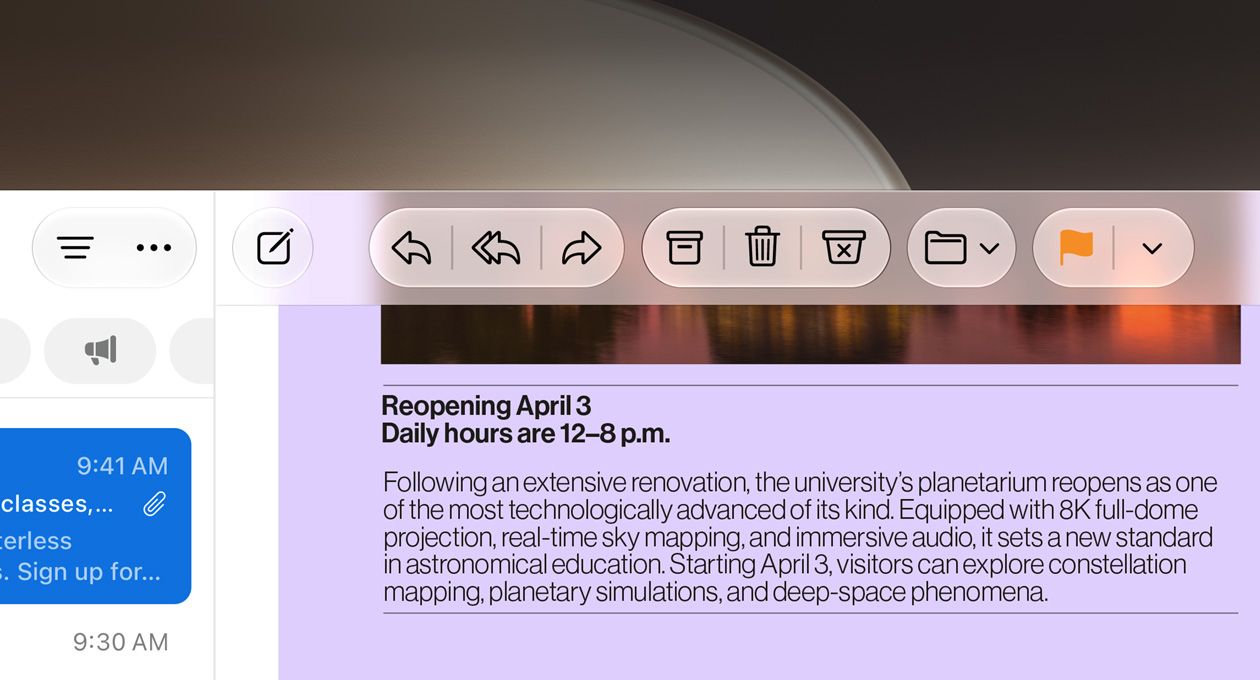
My advice is to back up first, install the update when you have time to troubleshoot and wait a few days if your Mac is essential for work. The new Siri AI features are interesting, but the more useful improvements may be search, Safari tools, Mail features and design refinements.
- SourceApple macOS 27 features





5 responses to “macOS 27 Golden Gate Update: Compatible Macs, New Features and How to Install”
[…] you are still getting used to the update, read our macOS 27 Golden Gate update guide for compatible Macs, the headline features and the safest way to install […]
[…] fails, an app behaves badly or a file goes missing afterwards. Before installing macOS 27, use the Golden Gate install guide, and if the app grid is gone afterward, see where Launchpad […]
[…] Apple silicon, although the wider app supports Macs running macOS 14 Sonoma or later, including macOS 27 Golden Gate. Macs without a notch, including external displays, get a small pill at the top of the […]
[…] about what is on screen. If you are on an older Mac and want the same features, our guide to the macOS 27 Golden Gate update lists which machines qualify. For setup tips, see how to turn on Siri AI in […]
[…] has not turned macOS into iPadOS. The laptop ships with macOS 27, and existing apps work with touch because macOS translates a tap into a click. Apple’s own […]