

Launchpad is gone in macOS 27. To open an app, use Spotlight; to browse your apps visually, use its Apps view or Finder’s Applications folder.
Where did Launchpad go?
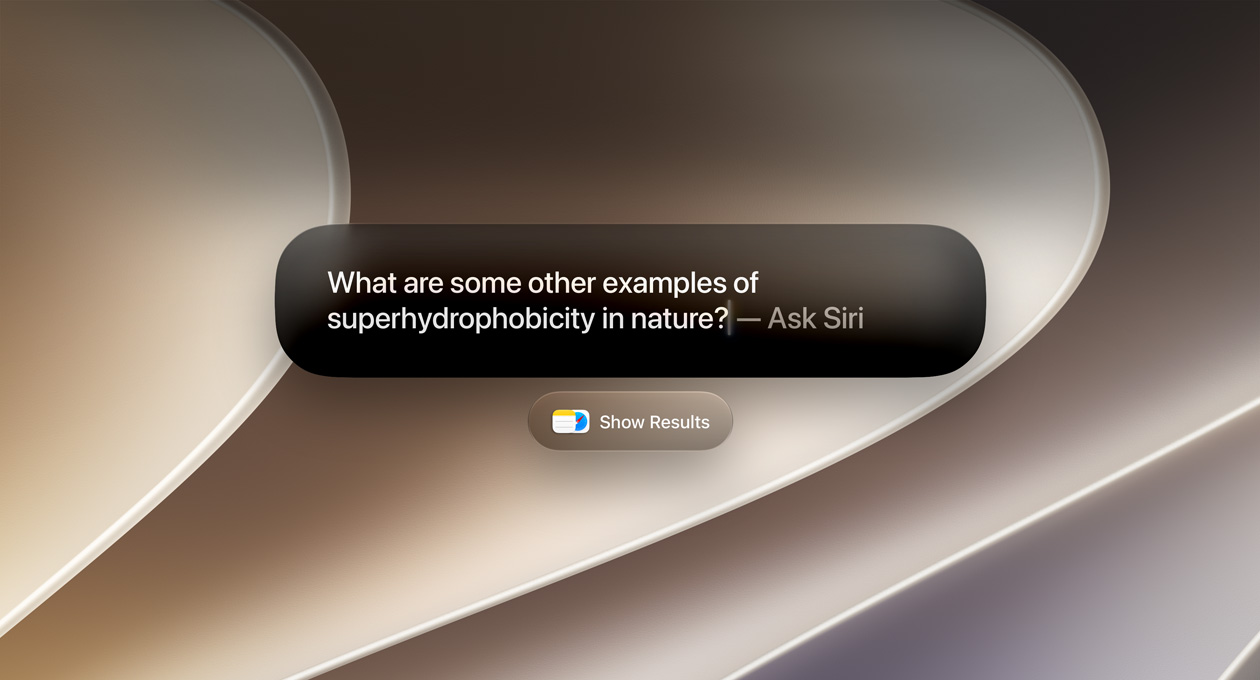
The old, dedicated Launchpad screen is gone in macOS 27. The practical replacement is inside Spotlight, which is now meant to be the starting point for finding apps, files, settings and actions.
If you only want to open an app, press Command + Space, type a few letters of its name and hit Return.
If you liked Launchpad because it showed everything visually, open Spotlight and switch to the Apps view. It gives you an app-first browsing experience without needing to open Finder and dig through the Applications folder.
How to find all your apps in macOS 27
- Press Command + Space to open Spotlight.
- Type the name of the app you want, such as Safari, Notes or Photoshop.
- Press Return when the app appears at the top of the results.
- For a broader browse, use the Apps view in Spotlight instead of searching for one name.
This also makes it easier to launch an app you installed months ago and forgot about. You do not need to remember which Launchpad folder it lived in. Type a few letters and move on.

Want a proper app grid? Use the Applications folder in Finder
If you want to see a simple visual list of everything installed on your Mac, open Finder and choose Applications from the sidebar.
I would drag the Applications folder to the right side of the Dock. That gives you a one-click menu of your apps whenever you need it, without turning your Dock into a mess. It is not as pretty as Launchpad, but it gets the job done.
You can also keep the few apps you use every day in the Dock, then rely on Spotlight for everything else. That is probably the cleanest setup after updating.
What happens to old Launchpad shortcuts?
A keyboard shortcut, mouse button or trackpad gesture that used to open Launchpad will not bring back the old screen. Change it to open Spotlight, or map it to the Applications folder if that is closer to how you work.
A simple setup I would use after upgrading
- Keep Safari, Messages, Mail, Notes and your main work apps in the Dock.
- Use Command + Space for anything you do not open every day.
- Drag Applications to the Dock if you miss browsing a list of apps.
- Do not install a third-party launcher immediately. Give the new setup a few days first.
A replacement launcher can be useful if you really need folders, a large app grid or a specific gesture. But most people will be fine with Spotlight once they stop looking for the old Launchpad button.
If you are still getting used to the update, read our macOS 27 Golden Gate update guide for compatible Macs, the headline features and the safest way to install it.
The dedicated Launchpad screen has been replaced by Spotlight’s Apps view.
Press Command + Space to search for an app, or switch to the Apps view to browse.
Finder’s Applications folder provides a visual list. Add it to the Dock for quick access, or consider a third-party launcher if you need folders and gestures.





2 responses to “Where Did Launchpad Go in macOS 27?”
[…] Before you install a major macOS update, take a proper backup. It is the least exciting part of updating your Mac, but it is the part that saves you if an install fails, an app behaves badly or a file goes missing afterwards. Before installing macOS 27, use the Golden Gate install guide, and if the app grid is gone afterward, see where Launchpad went. […]
[…] a Time Machine backup. Here is what you need to know about the macOS 27 update. After installing, Launchpad is gone and Spotlight’s Apps view replaces […]