
Gemini skills can now be shared with Viewer or Editor access, and you can add files from Google Drive, Photos and Gemini Notebook when building one. Google announced the changes on 16 November. The rollout began on 12 November and may take up to 15 days to reach eligible accounts, including personal and Workspace accounts.
Sharing and Drive files were familiar parts of Gems, but missing when Google began replacing Gemini Gems with skills. You can use both now. Check file access separately before you share a skill with someone else.
What changed
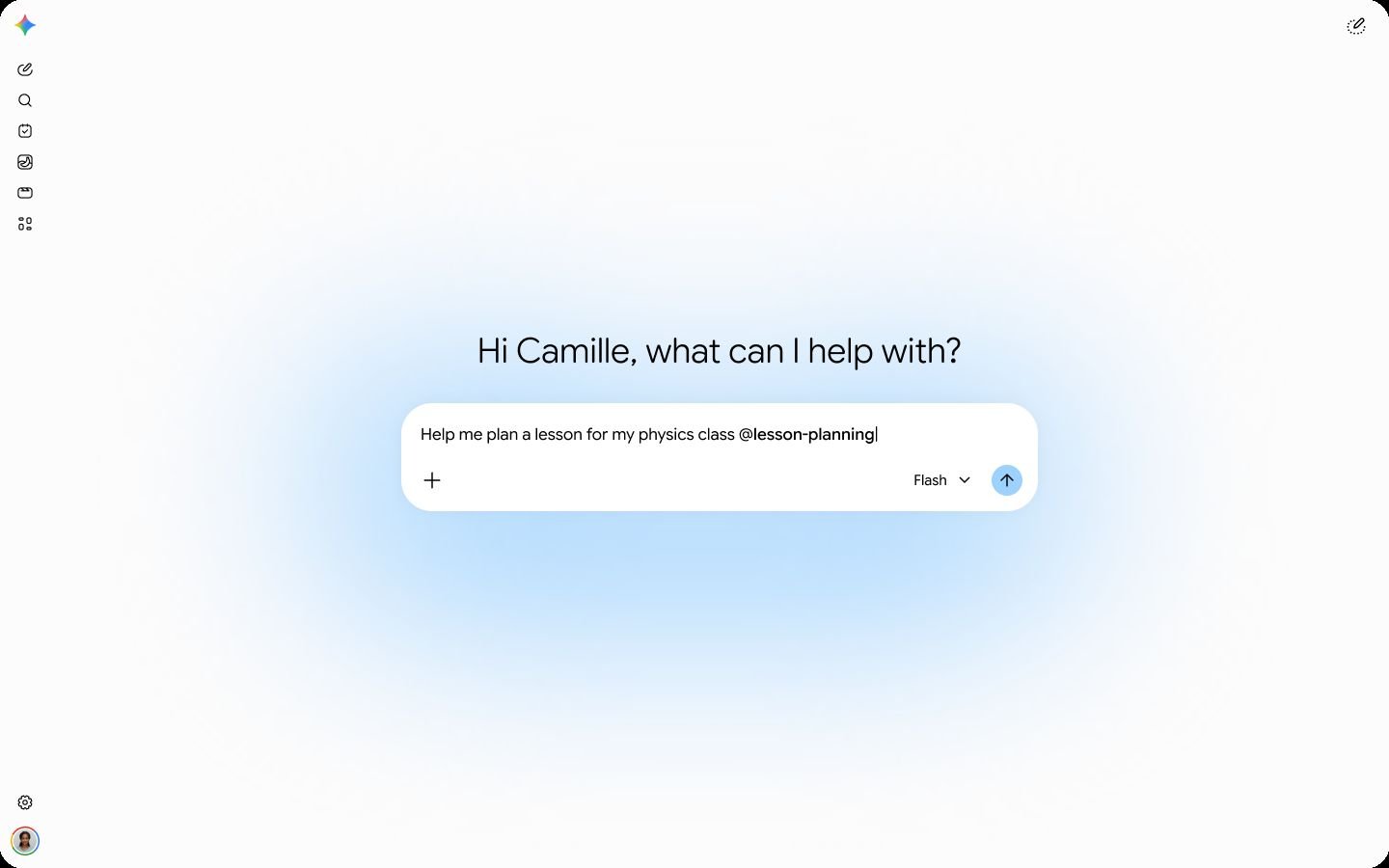
- Shareable skills. Any skill you own, or can edit, can be shared by email with View or Edit permission. The other person gets a notification, reviews the skill and adds it. After that, Gemini can use it automatically when relevant. They can also call it in a chat with /, or @ if the updated shortcut is available.
- Files from Google apps. When you create a skill manually or upload one, you can add files from Drive, Photos and Gemini Notebook alongside files from your device. Drive files and notebooks stay connected, so the skill always works from the latest version.
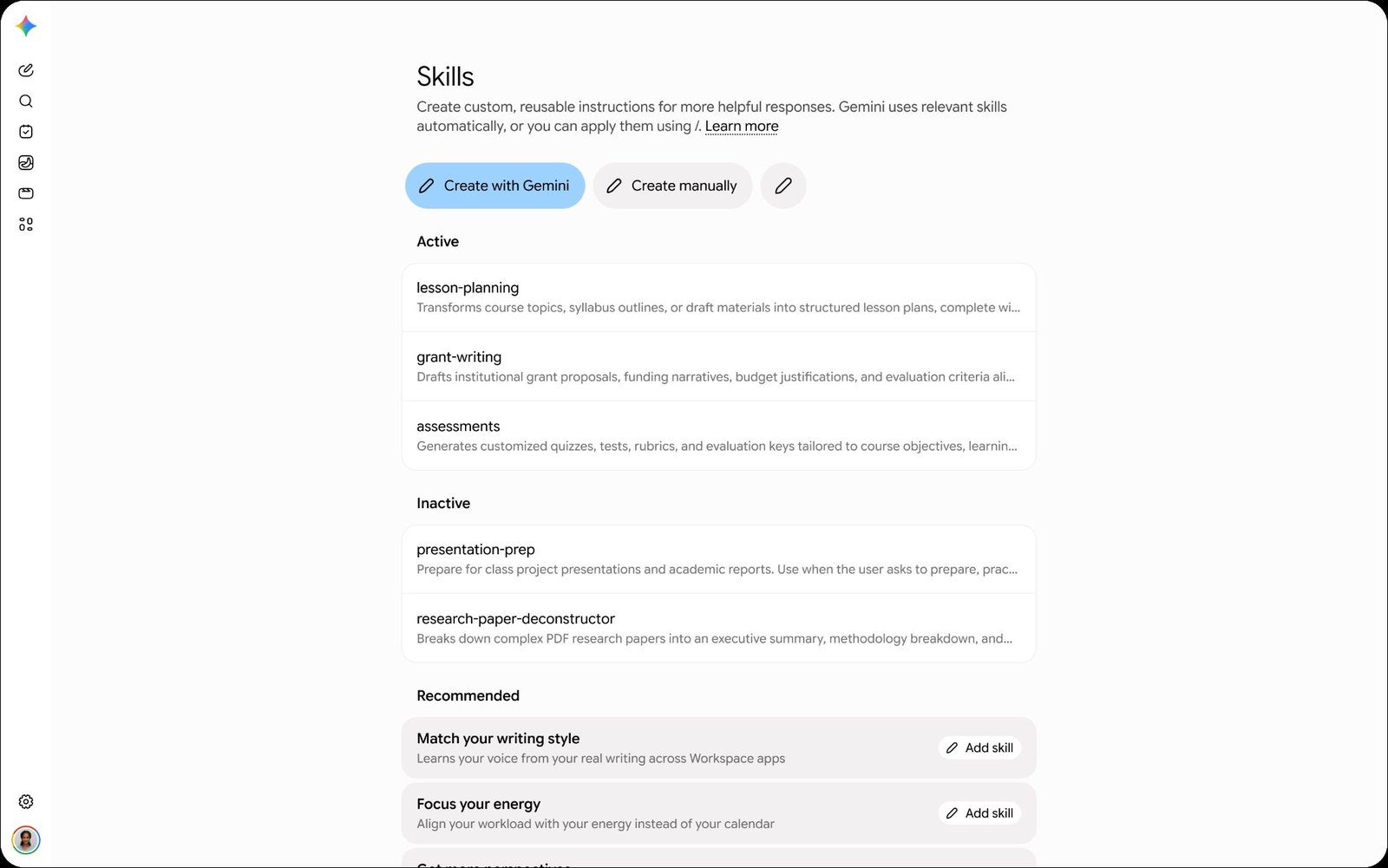
Google’s own examples are practical: a marketing team sharing a brand-voice skill tied to its brand guidelines doc, a team lead sharing an onboarding skill built on the handbook, and a teacher sharing a lesson-planning skill that reads from a curriculum notebook.
How to share a Gemini skill
Sharing only works in the Gemini web app for now, not the mobile app, and only the owner or someone with Editor access can share a skill.
- On a computer, go to gemini.google.com.
- In the sidebar, click Customize, then Skills. If you do not see Customize, click More first.
- Hover over the skill, click More, then Share skill. Gemini creates a copy of the skill in Google Drive.
- Enter the email address of the person you want to share with.
- Choose Viewer or Editor.
- Optionally, add an access expiry date, untick Notify people to skip the email, or type a short message.
- Click Send.
If the skill uses Drive files, share those files with the same people as well. Google is clear that sharing the skill does not share the files inside it, so a colleague could end up with your instructions but not the style guide they depend on.
| What they can do | Viewer | Editor |
|---|---|---|
| Use the skill in chats | Yes | Yes |
| See the description, instructions and files | Yes | Yes |
| Change instructions and uploaded files | No | Yes |
| Share the skill with others | No | Yes |
What the other person sees
A shared skill arrives as inactive under All on the recipient’s Skills page, plus an email if you left notifications on. Clicking Open in that email takes them to the skill in Gemini, and Add skill puts it on their Skills page with a Shared icon. Viewers who want to make changes can open the skill and click Request edit access.
Name clashes are handled sensibly. If they already have a skill with the same name, they can save a copy, which stops syncing with your version, or rename the shared skill if they have edit access. Renaming changes the name for everyone with access, so agree on names before you share widely.
Removing things works differently depending on who you are. If the owner deletes a shared skill, it disappears for everyone. If anyone else deletes it, it is only removed for them. To pause a skill without losing it, deactivate it instead. From the same Share skill screen, owners can remove a person’s access or transfer ownership to someone the skill is already shared with.
How to add Drive, Photos and Notebook files to a skill
- On the Skills page, click Create, then Create manually, or pick a template under Recommended.
- Enter a name, a description and the instructions.
- At the top, click Add, then choose Google Drive, Google Photos or Notebooks. For files on your computer, choose images or files.
- Click Upload, then Create.
A Drive file or notebook stays connected to the skill as it changes. Point a skill at a Google Doc with your writing rules and you can update the doc without adding it again. Those connected files are left out when you download a skill as a .zip. Files uploaded from your device do not update automatically; replace them when they change.
A few limits apply. Each skill can hold up to 100 MB of files, and only 100 skills can be active at once. Legacy Office formats (.doc, .xls, .ppt), audio and video are not supported. Skills need Keep Activity turned on to reach Drive and other Workspace services. If you already keep class notes in Gemini Notebook, attaching that notebook to a study skill is the cleanest way to put this to work.
Who gets it, and does it cost anything?
Google says the update is available to all Google Workspace customers and to personal Google accounts. You need to be 18 or older and signed in, and Google’s help page says skills work without a Google AI subscription. Google has not announced anything India-specific, so free Gemini users in India should see sharing once the rollout reaches their account. Our guide to free AI chatbot limits in India covers what the free Gemini plan includes.
For Workspace admins, skill sharing is on by default and can be turned off in the Admin console. Skills follow your organisation’s Drive sharing rules, so if Drive files can go outside the domain, skills can too. There are no admin controls for adding files to skills.