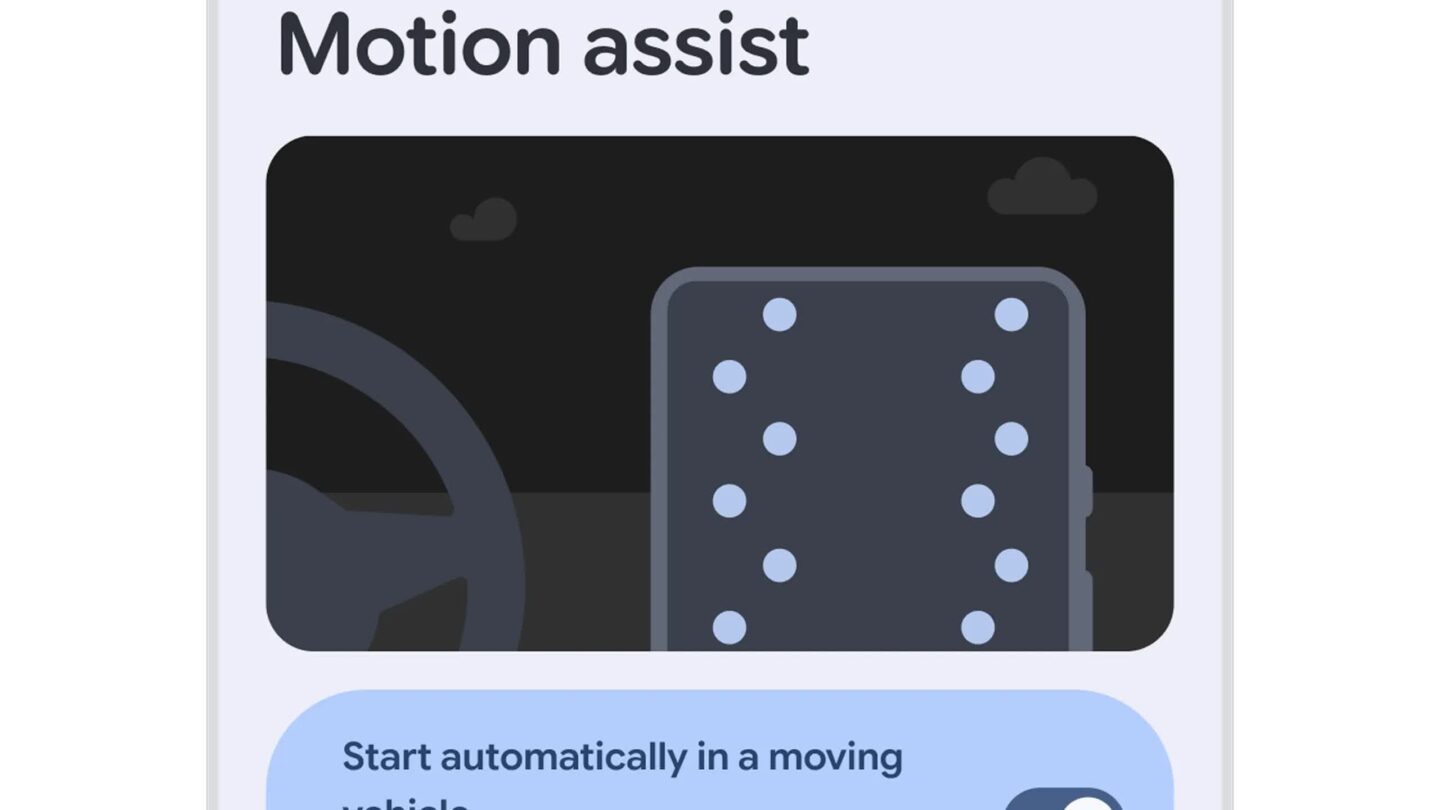
Motion Assist is Google’s passenger-mode overlay for Android. It puts a soft bubble on your screen that moves with the vehicle so your eyes get a motion cue while you scroll. Officially it is part of the September 2026 Android Drop, and Google says to try it on phones running Android 17.
We tried it the way most people will: back seat of a cab, Maps open, scrolling messages. Here is what it is, how to turn it on, and whether it is worth keeping.
What Motion Assist actually does
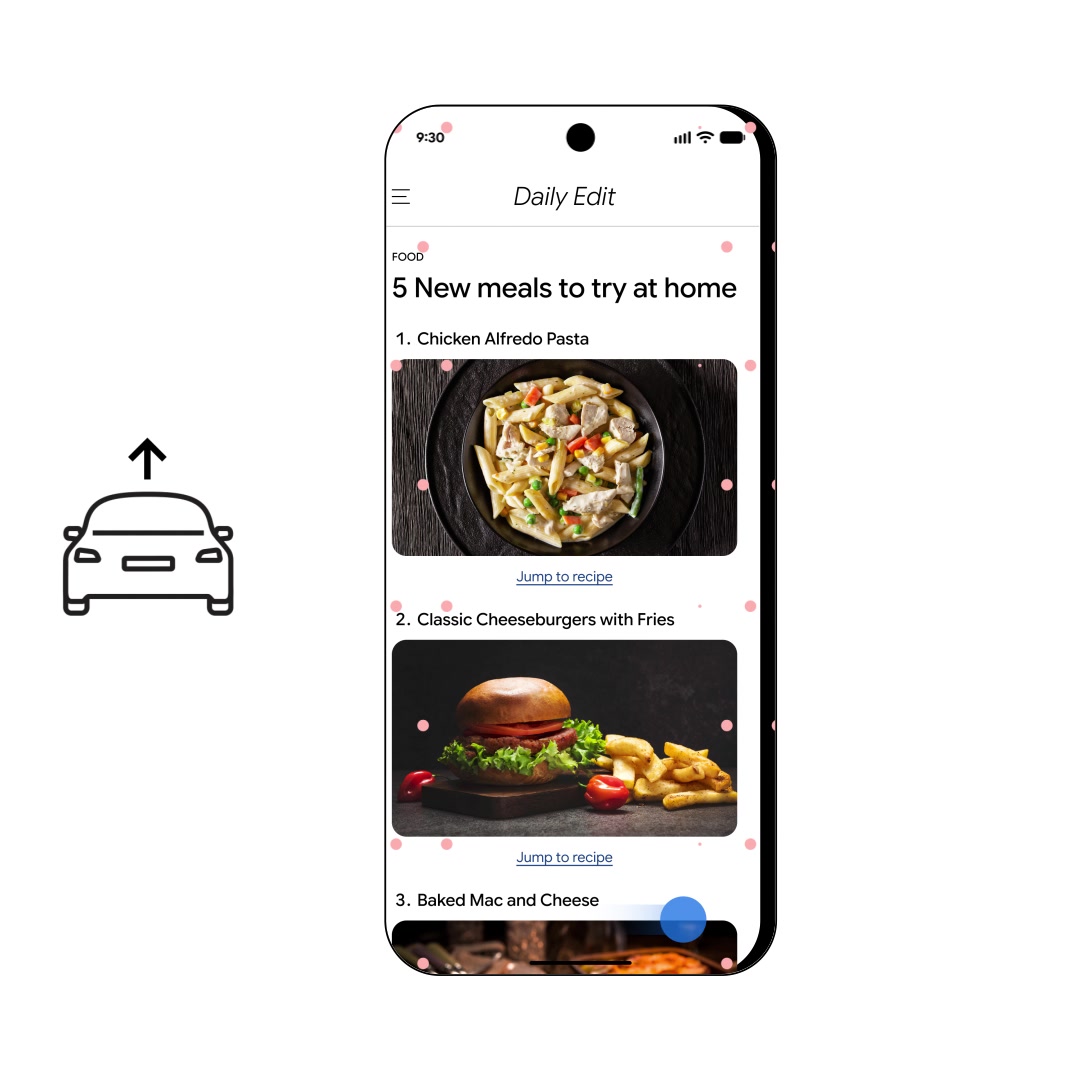
Google describes it as a subtle bubble overlay that moves with the vehicle. The idea is simple: when your inner ear feels the car move but your eyes are locked on a static phone UI, you feel sick. The bubble gives your eyes something that moves with the ride.
It is for the passenger seat, not for driving. Do not use your phone behind the wheel.
How we used it
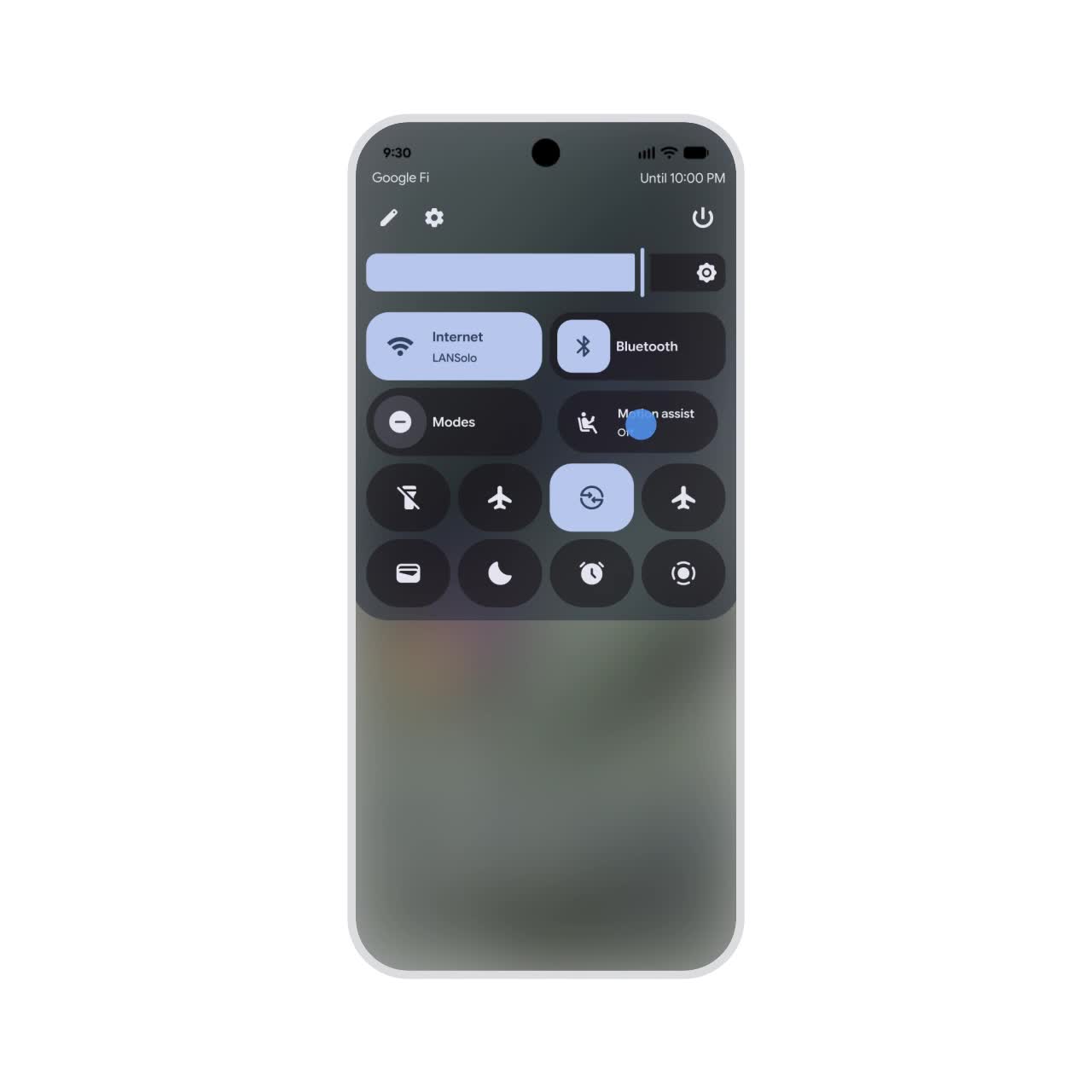
On a short city ride we turned Motion Assist on from Quick Settings, left opacity mid-range, and kept reading chat. The bubble is easy to ignore once you are used to it. On a bumpier stretch it felt more useful. On a smooth highway crawl it was optional.
Your results will depend on the road, the app, and how sensitive you are. Treat this as a comfort tool, not a cure.
How to turn on Motion Assist
Exact menu names can vary slightly by phone maker, but the flow matches Google’s Drop guidance:
- Make sure the phone is on Android 17 (or has received the Drop that includes Motion Assist).
- Open Settings, then look under Display, Digital Wellbeing, or the system search bar for Motion Assist.
- Turn Motion Assist on.
- Add it to Quick Settings so you can toggle it from the shade before a ride.
- Optional: set it to turn on automatically when the phone detects you are a passenger in a moving vehicle (if your build offers that toggle).
- Customize the bubble shape, color, and opacity until it is visible enough to help without covering text.
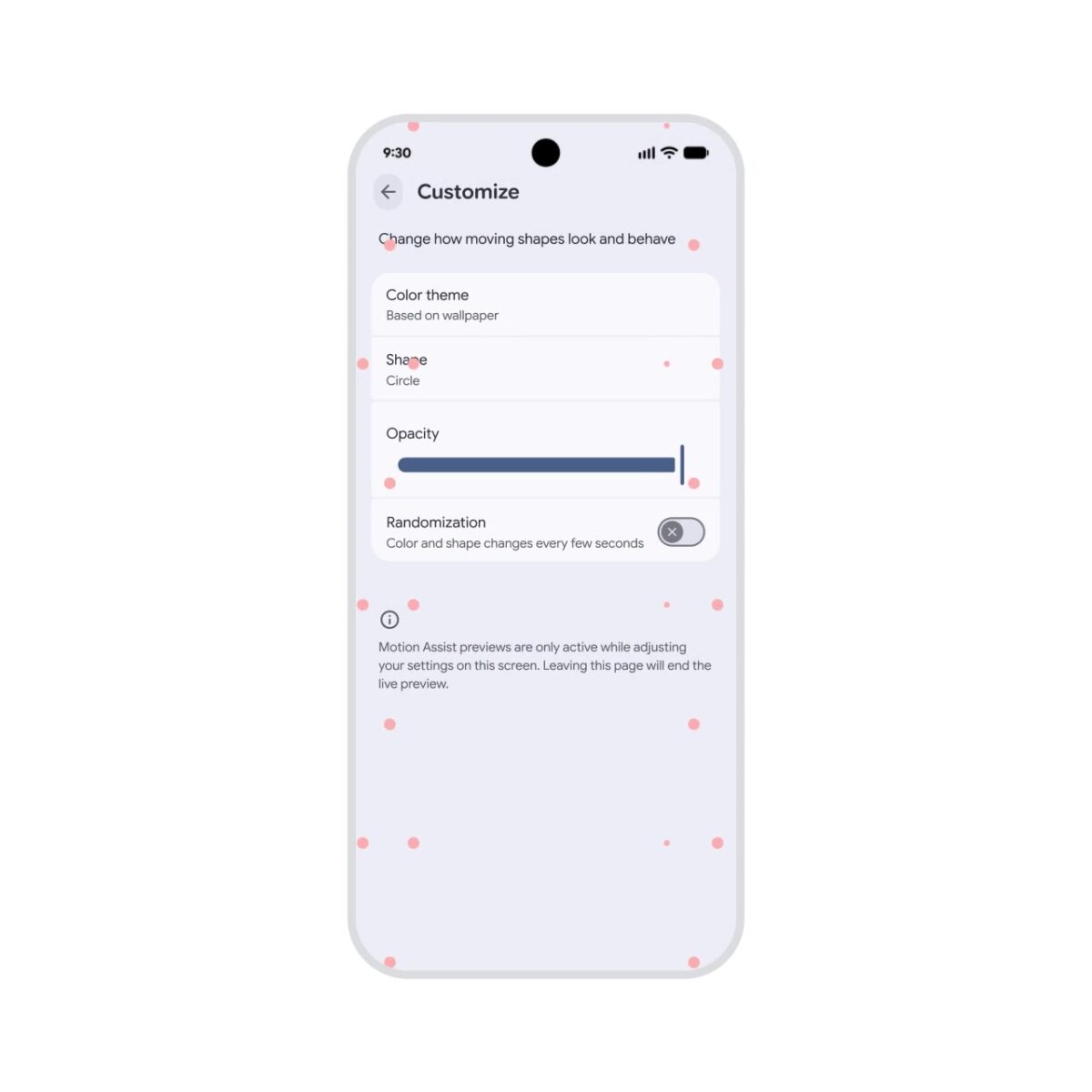
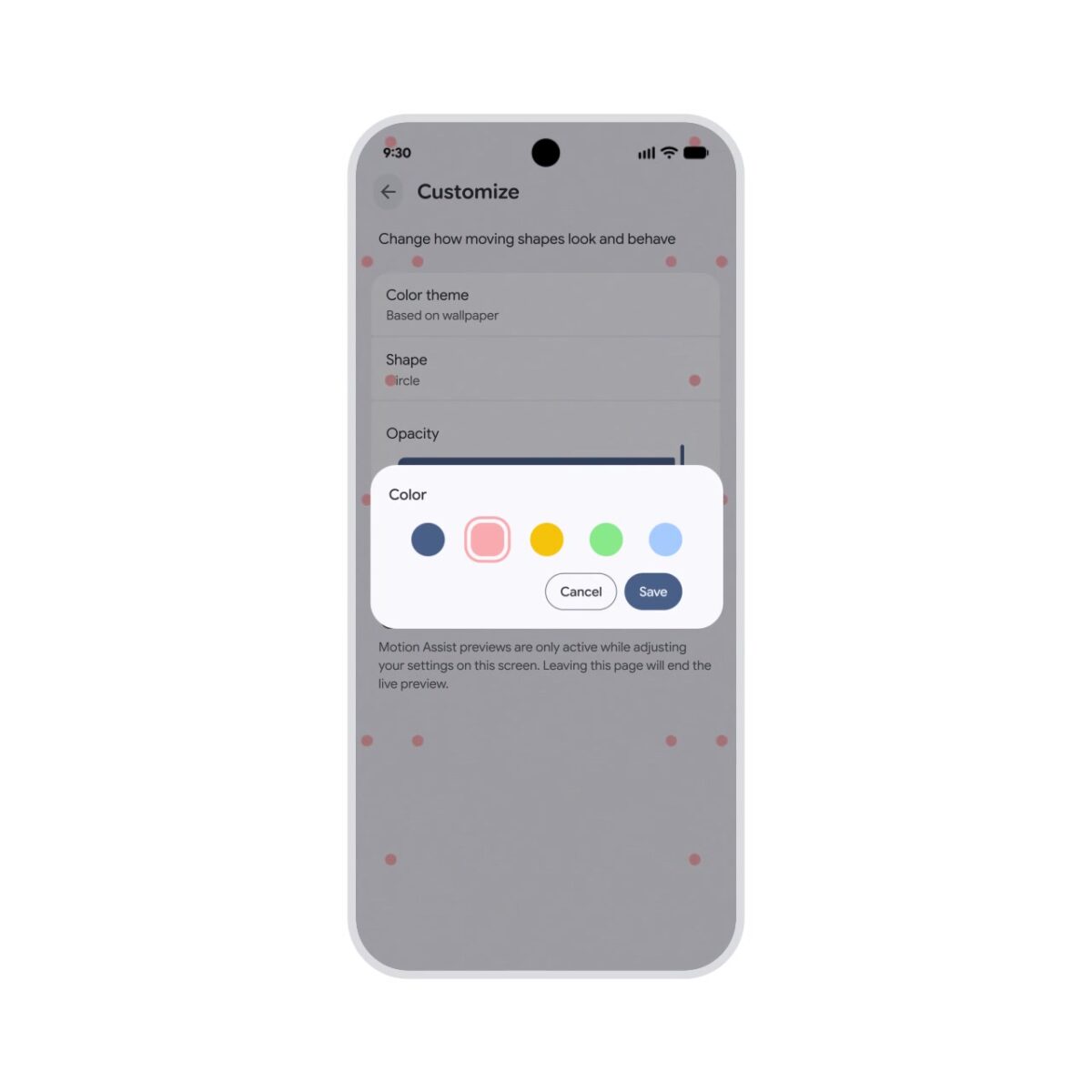
If you cannot find it yet, the Drop is rolling out in stages. Check Settings → System → System update and wait for your OEM’s build.
Tips that made it usable for us
- Start with medium opacity. Too strong and it fights the content; too weak and you forget it is there.
- Toggle from Quick Settings at the start of the ride, not mid-nausea.
- Pair it with larger text or dark mode if you read a lot in cabs.
- Turn it off when you are parked. You do not need the overlay at a desk.
Who should bother
Yes, if you get queasy reading in autos, Ubers, or metro rides and you already have Android 17 with the feature.
Skip for now if your phone is still on Android 16 or the toggle is missing. The rest of the September Drop (Find Hub memory, Guided vision, Messages themes) may land on a different schedule than Motion Assist.
For a wider look at that Drop, see our roundup: 5 new Android features you can try now.
FAQ
No. It is meant for passengers using the phone while the vehicle moves. Do not use your phone while driving.
Google points to phones on <strong>Android 17</strong> for Motion Assist in the September 2026 Drop.
Yes. Google says you can customize shape, color, and opacity, and add the control to Quick Settings.
If your device has received the Drop with Motion Assist and Gemini or platform features for your region, the toggle should appear like any other system tool. Rollouts are staged by OEM, so Pixel and Galaxy timing can differ.
Bottom line
Motion Assist is a small, practical Android 17 comfort feature. Turn it on from Quick Settings before a cab ride, keep opacity sensible, and keep it for passenger use only. That is the whole how-to.
- SourceGoogle / Android Drop