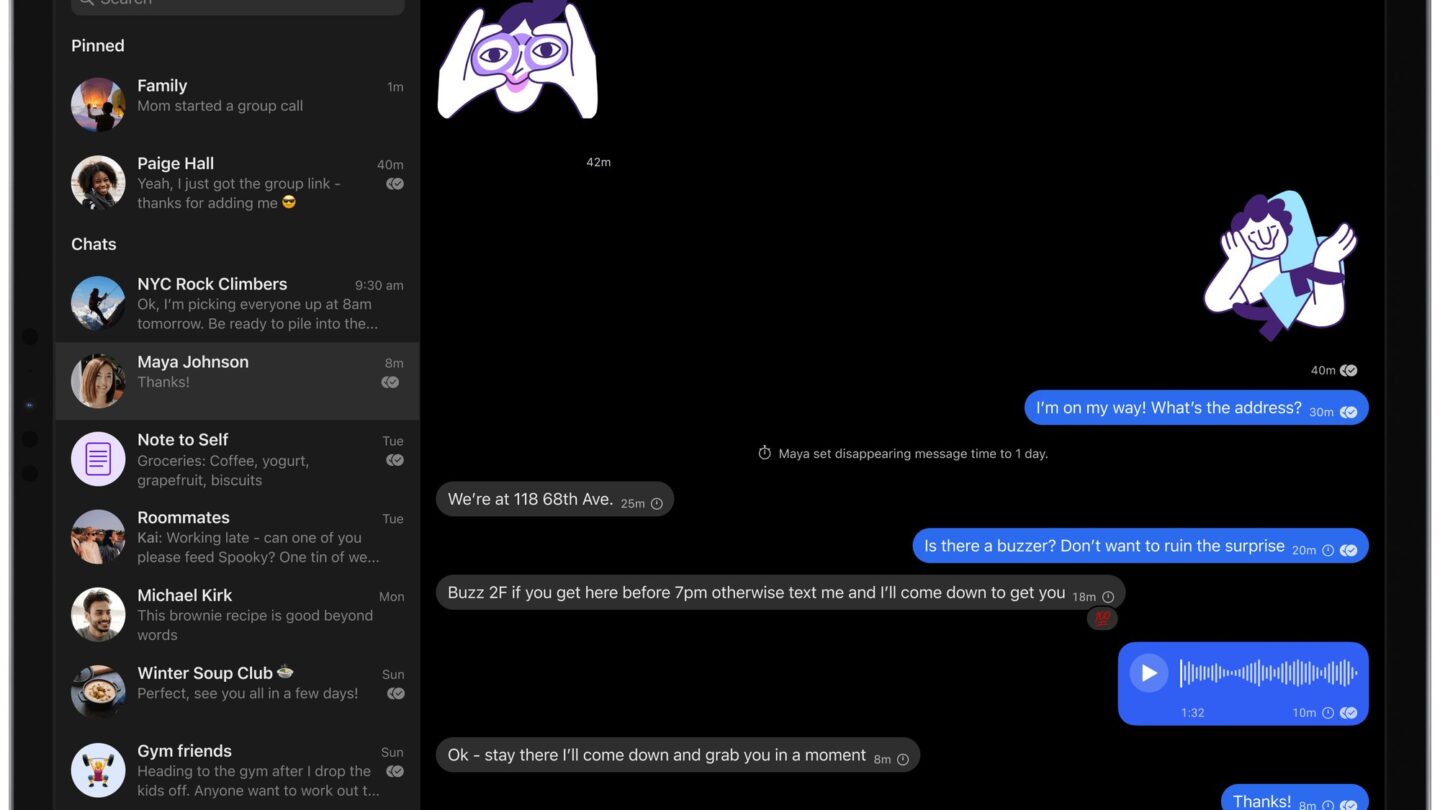
Signal now blocks screenshots by default on iPhones running iOS 27 with Signal 8.37 or later. On supported Android devices, Signal 8.35.1 or later turns on Screen security when it detects an AI assistant trying to read the app. The change is meant to keep Siri AI and Gemini from capturing what appears in your chats.
You can turn the protection off in a couple of taps, or pause it for 10 minutes on iPhone. It does not change how your messages are encrypted, and it still has gaps, including no equivalent screenshot-blocking protection on Mac.
Why Signal is blocking screenshots now
The new assistants built into phones work by looking at your screen. Apple’s Siri AI uses onscreen awareness, and Google’s Gemini can read the screen on Android to answer questions or act for you. Signal president Meredith Whittaker announced the change on 20 November and argues that this undoes what Signal is built for. Your messages are end-to-end encrypted on the way, but once an AI agent captures what is shown on screen, that content can be stored and handed to whatever local database or remote server the agent uses. Signal has no control over it from that point.
Signal has done this before. Last year it blocked screenshots by default in its Windows app so that Microsoft Recall, which captures the screen every few seconds, could not keep copies of Signal chats. Signal also names Meta’s Muse as a worry, saying third-party agents use accessibility permissions as a “skeleton key” into other apps. That concern is about permissions granted to an agent, rather than a weakness in message encryption.
What Signal screen security blocks
Signal screen security covers three things while it is switched on:
- Screenshots and screen recordings inside Signal.
- Your chats showing up in the recent apps list on Android or the App Switcher on iPhone.
- On-device AI assistants reading what is on screen in Signal.
Message encryption is unchanged. The protection controls screen capture and on-device scanning; it cannot stop another participant from sharing content they can already read.
iPhone vs Android: how it works on each
| Feature | iPhone | Android |
|---|---|---|
| Signal version | 8.37 or later, on iOS 27 or later | 8.35.1 or later |
| Setting name | Block Siri AI | Screen security |
| On by default? | Yes | Turns on the first time an AI assistant tries to read Signal |
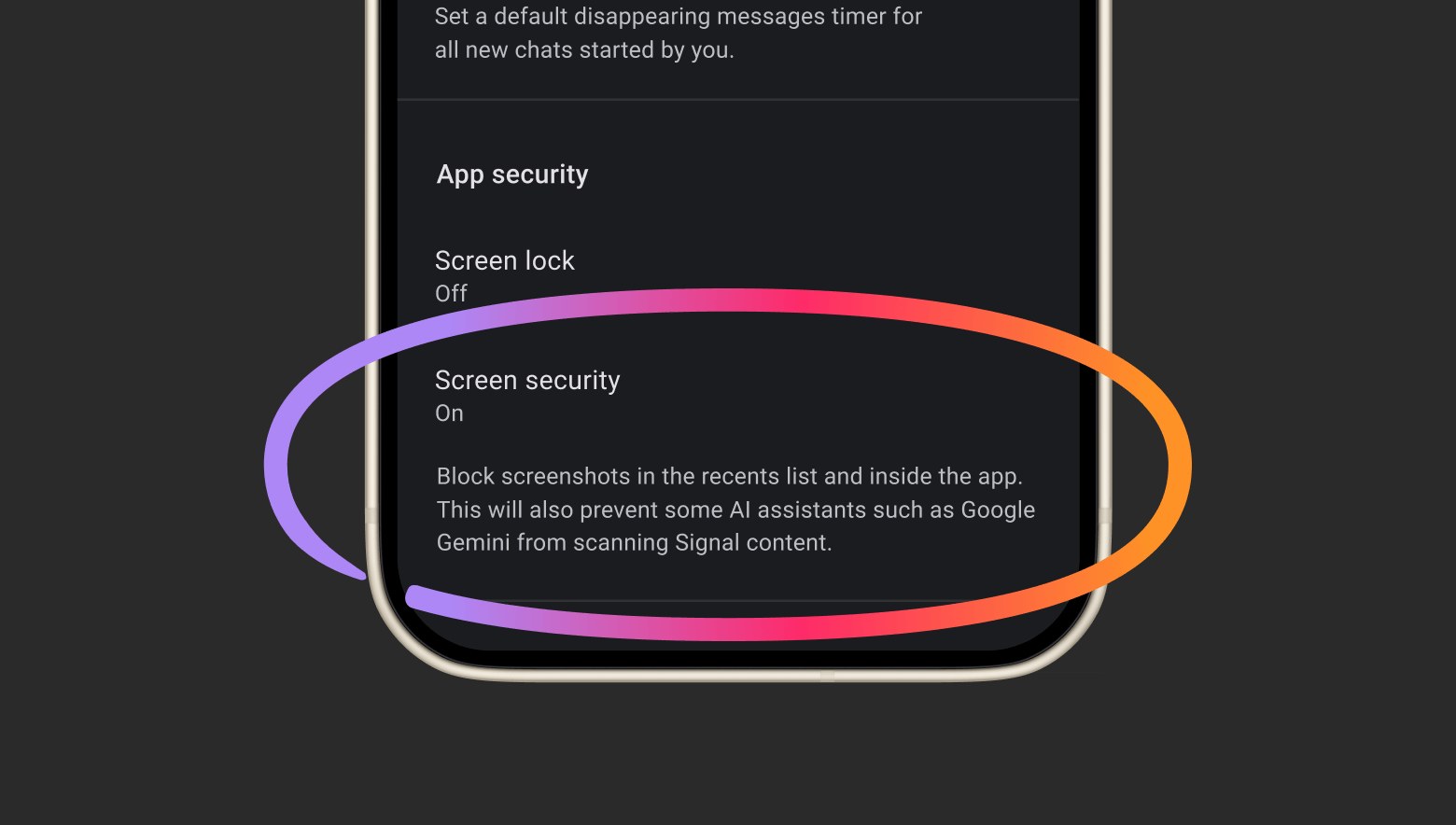
| Where to find it | Settings > Privacy > Block Siri AI | Settings > Privacy > App security > Screen security |
| Options | On, Off, or Off for 10 Minutes | On or off |
| If you take a screenshot | Signal shows a message with Options | The phone simply does not take it |
The Android approach is different for a practical reason. Many phone makers ship their own versions of Android, and Signal says that on many of them it cannot reliably tell when a screenshot was attempted. Rather than have screenshots silently fail for everyone, it watches for an AI assistant accessing the screen and then turns on Screen security, with a message explaining what happened. If you want it on from the start, you can switch it on yourself.
How to take a screenshot in Signal again
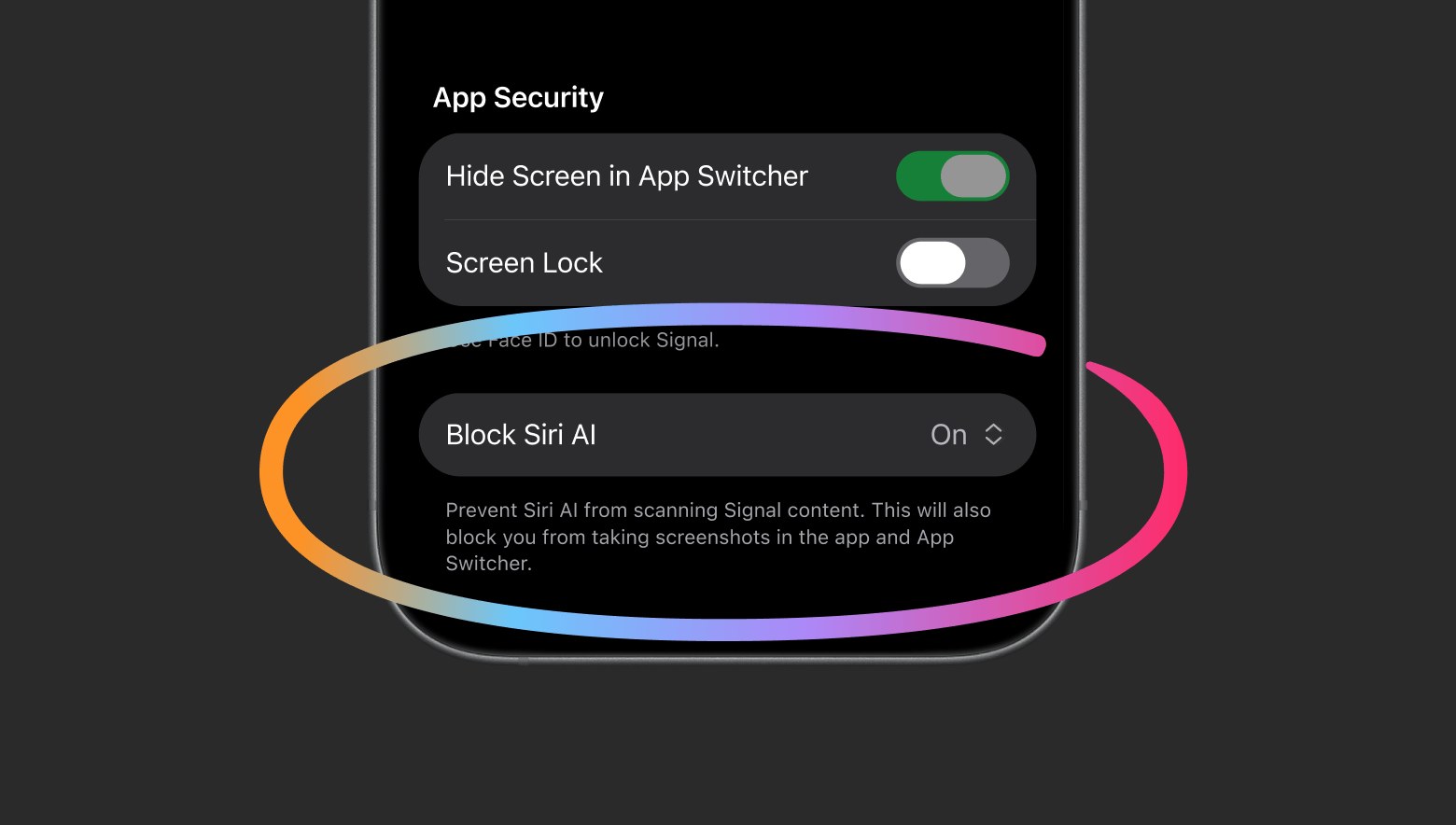
On iPhone, Signal shows a message when it blocks a screenshot. Tap Options and choose one of three things: leave it on, turn it off, or turn it off for 10 minutes. For a one-off capture, the 10-minute option restores the protection automatically afterwards.
To turn it off permanently on iPhone, go to Settings > Privacy > Block Siri AI in Signal. On Android, go to Settings > Privacy > App security > Screen security. Either way, Signal asks you to confirm first, because AI assistants could then scan your Signal content.
One Android detail is easy to miss. If you switch Screen security off from the prompt that appears with the message, Signal turns it back on after 90 days. If you switch it off yourself in Settings, it stays off and Signal will not remind you again.
What it cannot protect
Signal is open about the limits. Blocking screenshots does not stop an AI agent from reaching content already on the device through other routes, such as the file system. On Android, it only works on versions where Signal can detect the assistant. On Mac, Signal says it cannot reliably block screenshots. That gap does not mean Signal’s encryption is disabled.
For Mac users on macOS 27, Signal’s only advice is to add Signal to the Excluded Apps section in System Settings > Siri. Signal recommends this to restrict proactive Siri AI access to message content; it is not a general block on every possible route an agent could use.
Remember that a chat has two ends. Your setting only protects what appears on your phone. If the person you are talking to turns the protection off, or uses a Mac, an assistant on their device may still see the same conversation.
Should you leave it on?
For most people, yes. You lose very little: the 10-minute switch covers the odd screenshot, and Siri and Gemini keep working in your other apps. If you use Signal for work, family or medical conversations, keeping those chats away from an AI assistant is a sensible default. If you are still deciding whether to turn on Siri AI in India, this is a good example of what onscreen awareness can reach.
If you regularly capture chats for work records, remember that disabling this setting also removes its protection against AI screen scanning. On iPhone, the temporary option avoids leaving it off indefinitely. Android does not have that 10-minute switch. If you rely on Siri AI acting on what is on screen, our guide to Siri AI app actions shows what it can already do in other apps.
Signal’s wider point is that app makers have no simple, documented way to keep their apps out of AI agents. It wants Apple, Google and Microsoft to offer developers a clean opt-out and to explain how these agents access data. The current screenshot block is a workaround for that missing control, with limits Signal itself acknowledges.