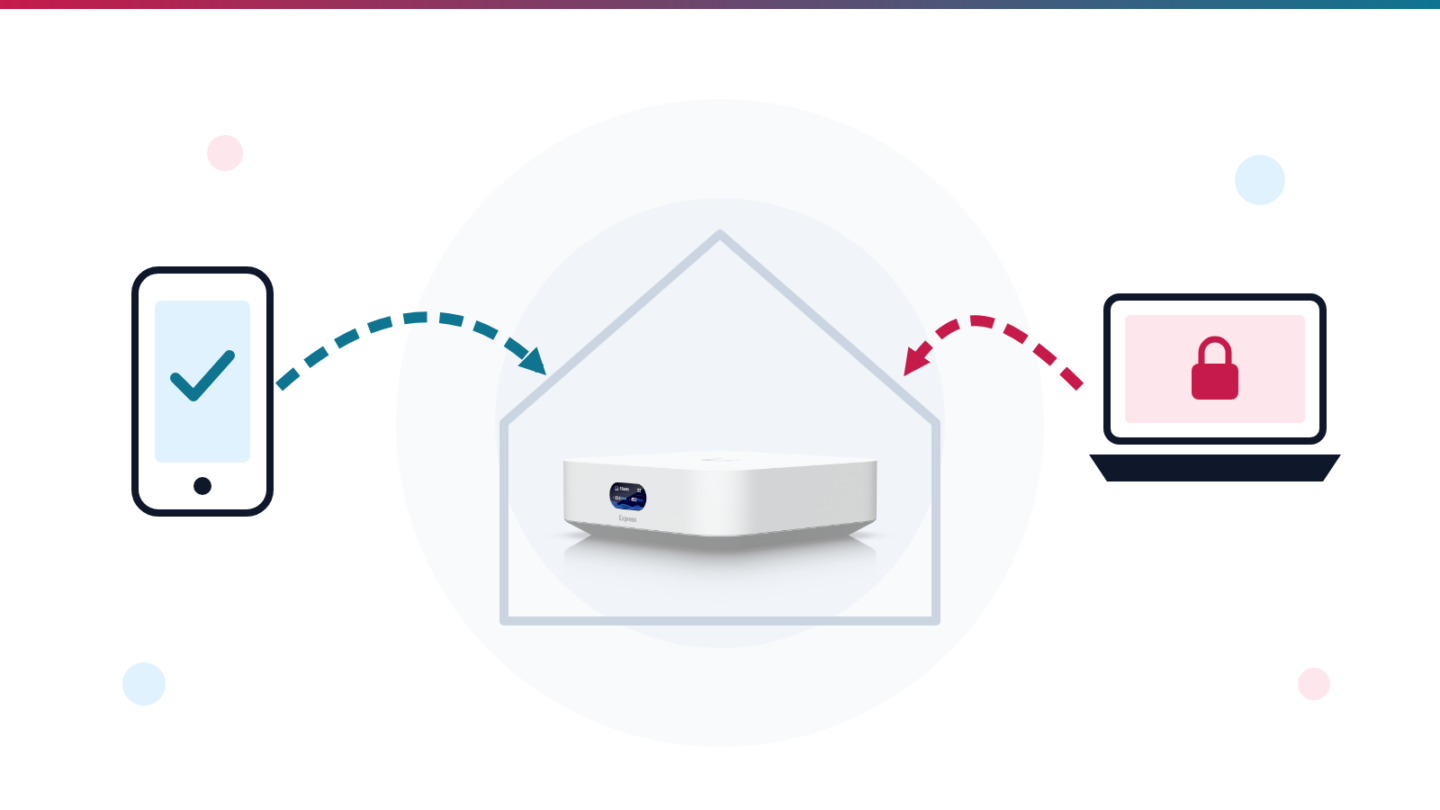
If you own a UniFi Express or another UniFi gateway, the quickest UniFi VPN for reaching your home network from outside is Teleport: switch it on in the UniFi Network app, send yourself an invite link, and connect from the WiFiman app. No port forwarding is needed, and it works even when your gateway sits behind NAT. Set up the built-in WireGuard VPN Server instead when your connection has a real public IP and you want standard WireGuard apps, split tunnelling or devices that cannot run WiFiman.
Site Magic is a different tool: it joins two or more UniFi gateways into one network, say your home and your parents’ house. And when your ISP gives you no public IPv4 address, when the far end is not UniFi, or when you want per-device access rules, Tailscale running on a small machine behind the gateway is often the cleaner answer. The steps below cover each option. Check gateway compatibility before planning a Site Magic link: Ubiquiti’s current SD-WAN setup guide excludes the original UniFi Express.
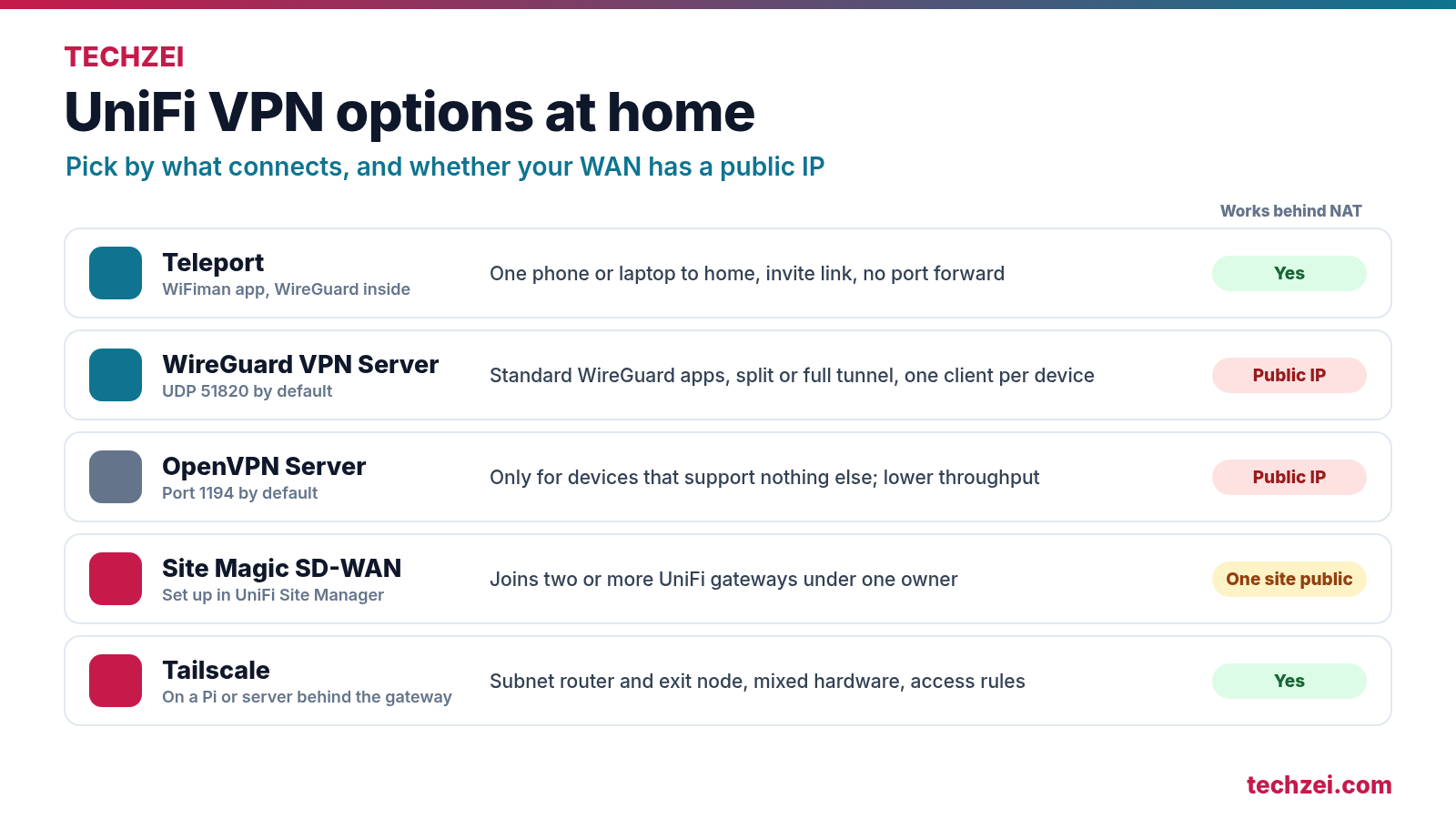
UniFi VPN options at a glance
Ubiquiti groups its VPN features into three kinds. A VPN Server runs on the gateway so your phone or laptop can dial in. A VPN Client sends traffic from your home network out through a commercial or self-hosted VPN provider. A Site-to-Site VPN links two networks so they behave like one. Teleport is Ubiquiti’s one-click take on the first, and Site Magic is its automated take on the third.
| Option | Connects | Needs a public IP or port forward? | Client app | Best for |
|---|---|---|---|---|
| Teleport | One phone or laptop to your home | No, works behind NAT | WiFiman (mobile or desktop) | Quick remote access for you and family |
| WireGuard VPN Server | Any WireGuard device to your home | Yes, UDP 51820 by default | Official WireGuard apps | Split tunnels, routers, non-UniFi users |
| OpenVPN Server | Any OpenVPN device to your home | Yes, port 1194 by default | OpenVPN clients | Devices that only speak OpenVPN |
| Site Magic (SD-WAN) | Two or more supported UniFi gateways; not the original Express | At least one site needs a public IP | None, gateway to gateway | Home plus a second home or office |
| Tailscale (on a device behind the gateway) | Devices in your tailnet, plus subnets you share | No | Tailscale apps | CGNAT, mixed hardware, access rules |
Ubiquiti’s own advice is short: Teleport for mobile devices, and Teleport or WireGuard over OpenVPN for desktops and laptops. L2TP is still listed, but Ubiquiti notes that it is losing support on several operating systems and has trouble when the server is behind NAT, so it is best left alone for new setups.
What the UniFi Express supports
The UniFi Express is a small Wi-Fi 6 gateway with one gigabit WAN port and one gigabit LAN port, a dual-core 1 GHz ARM Cortex-A53 processor and 1 GB of memory. Its useful remote-access choices include:
- VPN Server: Teleport, WireGuard, OpenVPN and L2TP.
- VPN Client: WireGuard and OpenVPN.
- Site-to-Site VPN: Check the supported manual VPN options for your firmware. The current Site Magic SD-WAN guide excludes the original Express.
- Related extras: policy-based WAN and VPN routing, OSPF dynamic routing and IPv6 ISP support.
The Express needs to be your gateway for its VPN server features. Ubiquiti’s current Site Magic requirements exclude the original Express, so use another supported gateway if you want an automatic link between two UniFi sites.
For remote access to a small home network, start with Teleport. If you need standard WireGuard clients, check whether your ISP gives you a reachable public IP.
Step 1: Check whether your connection has a public IP
Every choice below depends on one question: can the internet reach your gateway directly? Ubiquiti’s check is simple. Open your site in UniFi Site Manager or the Network app, note the WAN IP shown under your gateway on the dashboard, then search for “what is my IP” from a device on the same network. If the two addresses match, your gateway has a public IP.
If they do not match, something else is doing NAT in front of you. A WAN address in 100.64.0.0/10 (100.64.0.0 to 100.127.255.255) means your ISP is using carrier-grade NAT. A WAN address in 10.0.0.0/8, 172.16.0.0/12 or 192.168.0.0/16 usually means the ISP’s fibre router or ONT is still routing, with the UniFi gateway plugged in behind it, which is double NAT inside your own home. That is a common arrangement when the ISP’s fibre router is left in routing mode. If you are sitting behind CGNAT on a fixed-wireless or fibre plan, there is no port forward you can add that will make an inbound VPN work.
| What you see | What it means | What to use |
|---|---|---|
| WAN IP matches “what is my IP” | Public IP on the gateway | Any option, including the WireGuard VPN Server |
| WAN IP is 192.168.x.x or 10.x.x.x | Double NAT behind the ISP router | Teleport, or bridge mode / port forward on the ISP router for WireGuard |
| WAN IP is in 100.64.0.0/10 | Carrier-grade NAT at the ISP | Teleport or Tailscale; ask the ISP for a public IP for WireGuard |
| Public IP that changes now and then | Dynamic public IP | WireGuard with Dynamic DNS |
For double NAT, Ubiquiti’s fix is to put the upstream router in bridge mode, or to forward the VPN port on the upstream router to the UniFi gateway’s WAN address. For CGNAT, the only direct fix is asking your ISP whether a public or static IPv4 address is available on your plan.
How to set up Teleport on a UniFi gateway
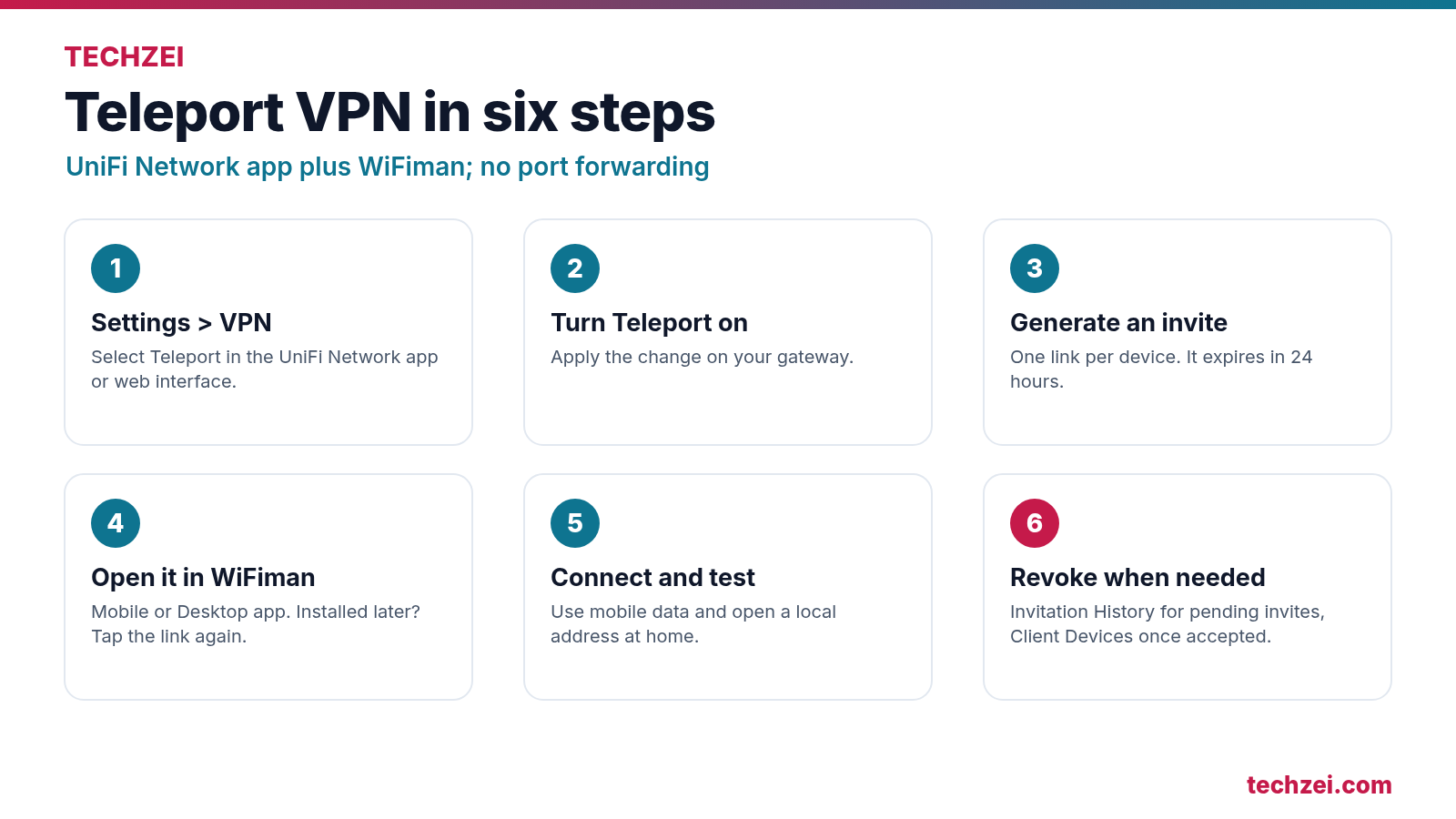
Teleport is a zero-configuration VPN built on WireGuard. You never see keys, ports or config files; the invitation link carries everything. Ubiquiti says it works when both the gateway and the remote device are behind NAT.
- In the UniFi Network app or web interface, open Settings > VPN and select Teleport.
- Turn Teleport on and apply the change.
- Generate an invitation link and send it to the device that will connect. Treat the link like a password.
- On the phone or laptop, install WiFiman (iOS, Android, or WiFiman Desktop for Windows, macOS and Linux), then open the invitation link. If WiFiman was not installed when you first tapped the link, open the link again after installing it.
- Accept the VPN configuration prompt from the operating system, then connect from the Teleport tab in WiFiman.
- Test it on mobile data: open your gateway’s local address, a NAS share or a camera app that only works on the home network.
A few rules from Ubiquiti’s documentation shape how you use it. An invitation expires after 24 hours and can be used by one device at a time, so each family member’s phone and laptop needs its own link. Pending invites can be revoked from Invitation History; once accepted, you revoke access by finding the Teleport client in the Client Devices list. Teleport can run alongside the other VPN servers, and it may need an IPv6 connection on your gateway’s WAN in some circumstances, although IPv6 on your LAN is not required.
Two behaviours are easy to miss. Teleport switches the connected device’s DNS servers to the gateway’s own, so lookups go through your home gateway and any filtering you run there applies while you are away. If you rely on encrypted DNS on the phone, check which resolver wins while the tunnel is up. And according to Ubiquiti’s Trust Center, Teleport prefers a direct device-to-device connection but may proxy through Ubiquiti’s cloud when the gateway is behind a firewall, with traffic still end-to-end encrypted. If you want nothing passing through Ubiquiti’s servers, use the manual WireGuard server instead.
How to set up the UniFi WireGuard VPN Server
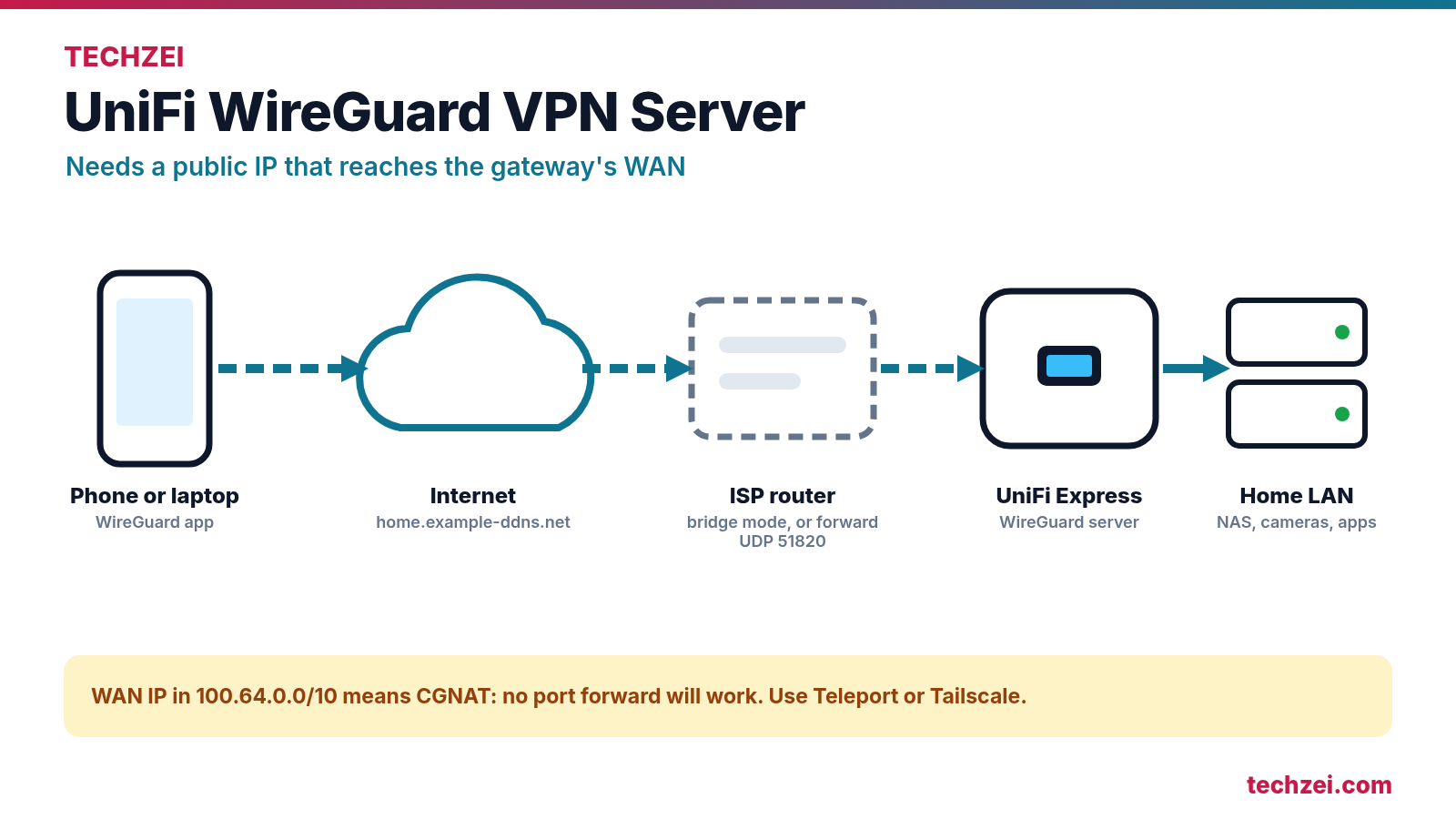
The WireGuard VPN Server is the more traditional option. It needs a public IP that reaches the gateway, but in return it works with the official WireGuard apps on almost every platform, including travel routers, and you control exactly which traffic goes through the tunnel.
Give the gateway a stable name with Dynamic DNS
Most home connections get a public IP that changes from time to time. Rather than editing every client each time, create a Dynamic DNS hostname with a supported provider (Ubiquiti lists afraid, cloudflare, dnspark, dslreports, dyndns, easydns, namecheap, noip, sitelutions and zoneedit). Then in the Network app go to Settings > Internet, select your primary WAN, find Dynamic DNS, create a new entry with the service, hostname, username and password, and save. Ubiquiti notes that Dynamic DNS needs a public IP on the gateway; a WAN address in a private or CGNAT range will not work.
Create the server and add clients
- Go to Settings > VPN, open the VPN Server section and create a new server.
- Choose WireGuard, give it a name and keep the default port, UDP 51820, unless you have a reason to change it.
- Add a client (one per device) and save. The gateway creates a configuration for that client.
- Download that client’s configuration file for a laptop, or scan its QR code with the WireGuard mobile app.
- Before importing, check the
Endpointline in the file. If it shows a raw IP address, replace it with your Dynamic DNS hostname so the client keeps working when the IP changes. - Connect from mobile data and test a local address.
If the ISP router stays in front of the gateway, add this forward on the ISP router so the port reaches the UniFi WAN, as Ubiquiti’s WireGuard guide describes:
Protocol:      UDP
External port: 51820
Internal port: 51820
Internal IP:   <WAN IP address of the UniFi gateway>
Full tunnel or split tunnel
A WireGuard client file follows the standard format below. The AllowedIPs line decides what travels through the tunnel. 0.0.0.0/0 sends everything through home, which is useful on hotel or airport Wi-Fi. Listing only your home subnet sends just home traffic through the tunnel and leaves the rest of your browsing on the local connection, which is lighter on your home upload speed.
[Interface]
PrivateKey = <generated by the gateway>
Address = <tunnel address for this client>
DNS = <your gateway's tunnel or LAN address>

[Peer]
PublicKey = <server public key>
Endpoint = home.example-ddns.net:51820
# Full tunnel: everything goes home
AllowedIPs = 0.0.0.0/0
# Split tunnel instead: only the home LAN
# AllowedIPs = 192.168.1.0/24
Keep one client per device so you can remove a lost phone without touching the others. Ubiquiti says WireGuard can run alongside Teleport and the other VPN types, and recommends running it on a gateway with direct access to a public IP, since performance or forwarding problems on an upstream router can make the tunnel drop.
When OpenVPN or L2TP still make sense
The OpenVPN server works the same way: enable it, pick a port (1194 by default), add a user and share the configuration file, which the recipient imports into an OpenVPN app. It needs UniFi Network 7.4 or newer and the same public IP or upstream port forward as WireGuard. Ubiquiti states plainly that OpenVPN gives lower throughput than WireGuard, so it only earns its place when the device on the other end supports nothing else, such as an older router or a work machine with a fixed OpenVPN client.
L2TP exists for legacy clients. Ubiquiti calls it a traditional VPN that is losing support on several operating systems and that runs into trouble behind NAT, so skip it unless an old device leaves you no choice.
Linking two homes with Site Magic SD-WAN
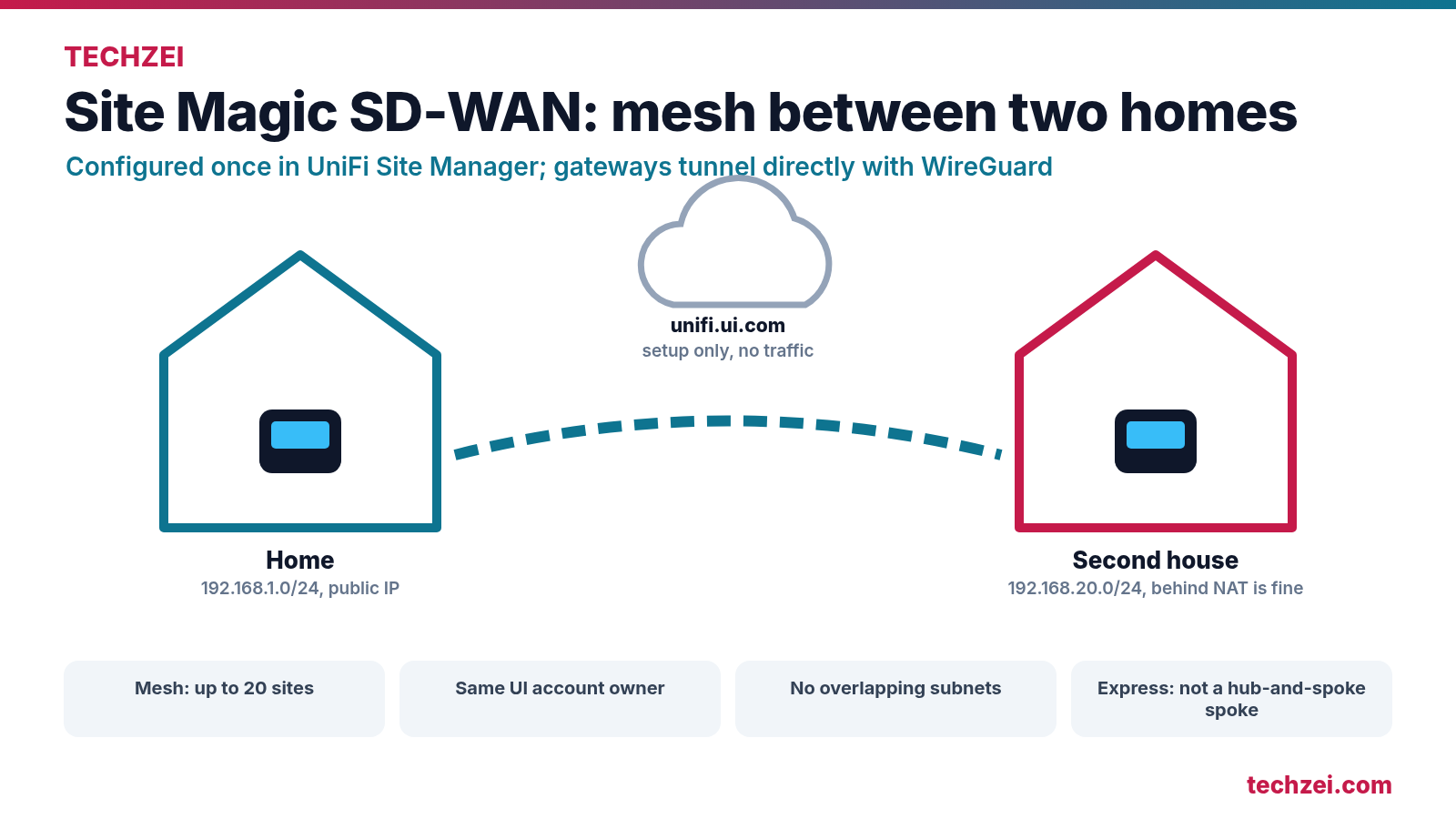
Site Magic connects whole networks rather than single devices. It is useful if you run UniFi gateways at home and at a second home, a parents’ place or a small office, and want a NAS in one place to show up in the other without any app on each device. It is configured once from UniFi Site Manager at unifi.ui.com, and the gateways then build WireGuard tunnels directly between themselves. Ubiquiti says traffic does not pass through its cloud, which is only used for setup and coordination, and existing tunnels stay up if the cloud has a problem, though you cannot change the configuration until it is back.
Ubiquiti now calls the feature SD-WAN in Site Manager, with two layouts:
- Mesh: every site connects directly to every other, up to 20 sites. Only supported Cloud Gateways can take part; the original Express is excluded, and at least one gateway must have a public IP, all gateways must have the same UI account owner, and subnets cannot overlap because NAT is not supported in this mode.
- Hub and Spoke: spokes connect to a central hub, and overlapping subnets can be handled with automatic NAT. The hub must be one of the larger models with a public IP, and Ubiquiti’s list of spokes covers most Cloud Gateways, excluding Express.
For owners of supported gateways, mesh setup follows these steps:
- Make sure both sites use different LAN ranges, for example
192.168.1.0/24at home and192.168.20.0/24at the second house. Change one before you start if they clash. - Sign in to
unifi.ui.comwith the account that owns both gateways. - Open Settings > SD-WAN, choose Mesh and name the group.
- Pick the sites, then select the networks each site should share. Leave guest or IoT networks out unless you need them.
- Click Connect and test by opening a device at the other site by its local IP.
If the tunnel shows as up but the far subnet is unreachable, Ubiquiti points to custom firewall rules. SD-WAN uses OSPF to exchange routes, and a VPN-to-gateway rule that blocks OSPF stops the routes from being installed even though the tunnel looks healthy. Site Magic also only links UniFi gateways under one owner; for a third-party router or a cloud network, Ubiquiti points you to OpenVPN or IPsec site-to-site instead.
When to use Tailscale instead of a UniFi VPN
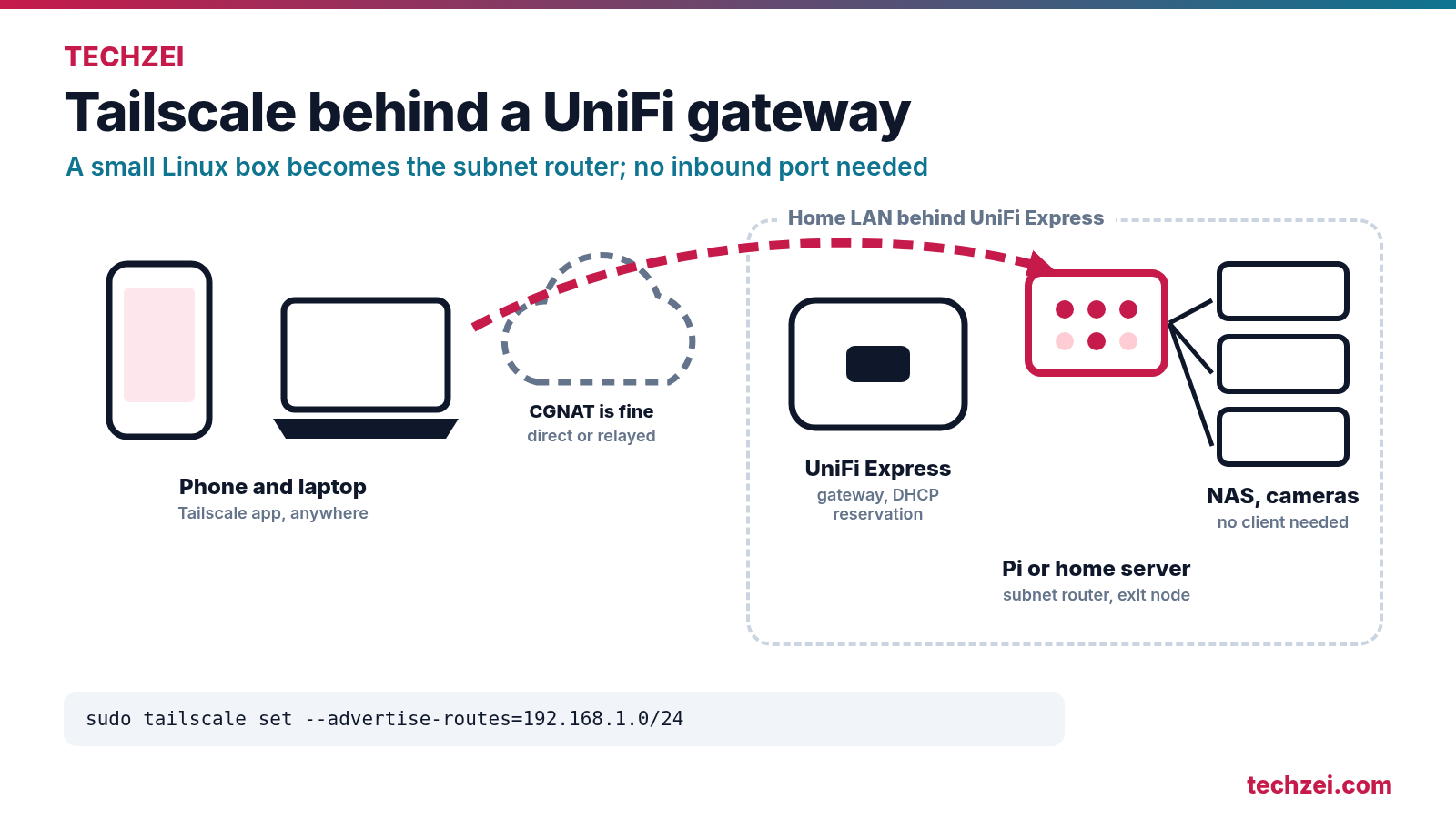
Tailscale is not one of the VPN types on the UniFi Express, so you run it on a small always-on machine behind the gateway, such as a Raspberry Pi, a mini PC or a home server or NAS. That machine becomes a subnet router for your home LAN, and optionally an exit node so your phone can send all its traffic home.
Pick Tailscale over the UniFi options in these cases:
- Your ISP uses CGNAT and Teleport is unreliable for you. Tailscale needs no inbound port at all. It tries to build a direct WireGuard connection with NAT traversal and falls back to its relay servers if that fails, with traffic end-to-end encrypted either way.
- Not everything is UniFi. A friend’s network, a cloud VM or a work laptop can join the same tailnet, which Site Magic cannot do.
- You want rules per person or per device, such as letting a family member reach only the Jellyfin server and nothing else. Subnet routes follow Tailscale’s access control policies.
- You already use Tailscale for servers and only need one more route to the LAN.
On a Linux machine behind the Express, the subnet router setup from Tailscale’s documentation is three commands after installing the client. Replace the subnet with your own LAN:
echo 'net.ipv4.ip_forward = 1' | sudo tee -a /etc/sysctl.d/99-tailscale.conf
echo 'net.ipv6.conf.all.forwarding = 1' | sudo tee -a /etc/sysctl.d/99-tailscale.conf
sudo sysctl -p /etc/sysctl.d/99-tailscale.conf

sudo tailscale set --advertise-routes=192.168.1.0/24
# Optional: also offer this machine as an exit node
sudo tailscale set --advertise-exit-node
Approve the route (and the exit node, if used) for that machine in the Tailscale admin console. To check whether a remote device is connected directly or through a relay, run tailscale status or tailscale ping and look for direct or relay in the output. Tailscale’s India relay (DERP) servers moved from Bengaluru to Mumbai in November 2026, and that is the region devices in India will usually use when a direct path fails. Give the Pi or server a fixed DHCP reservation in UniFi so the route never moves.
My take: if your gateway has a public IP, the built-in WireGuard server is hard to beat for a handful of family devices, because nothing else has to stay powered on. If you are behind CGNAT, Teleport is the first thing to try and Tailscale on a small always-on box is the dependable fallback. Running both is fine; neither stops the other from working.
Troubleshooting UniFi VPN problems
| Problem | Likely cause | Fix |
|---|---|---|
| Teleport invite does nothing | WiFiman was not installed when the link was opened | Install WiFiman, then open the same link again within 24 hours |
| Teleport invite already used | Each invite works for one device at a time | Generate a new invitation for the second device |
| WireGuard handshake never completes | No public IP, or the ISP router is not forwarding UDP 51820 | Compare WAN IP with “what is my IP”; set bridge mode or forward the port to the UniFi WAN IP |
| WireGuard worked, then stopped after a few days | Public IP changed | Set up Dynamic DNS and use the hostname as the client endpoint |
| Dynamic DNS shows the wrong address | Gateway WAN is private or in 100.64.0.0/10 | Fix double NAT, or ask the ISP for a public IP |
| Connected, but local devices do not load | Home and remote network use the same subnet, or split tunnel misses the LAN | Move home to a less common range like 192.168.20.0/24; check AllowedIPs |
| Site Magic tunnel up, remote subnet unreachable | Firewall rule blocking OSPF from the VPN to the gateway | Review custom VPN-to-gateway rules |
| Tailscale shows “relay” instead of “direct” | Hard NAT or blocked UDP | Enable UPnP or NAT-PMP port mapping on the router, or accept the slower relayed path |
UniFi VPN FAQ
Does the UniFi Express support Teleport and WireGuard?
Yes. The Express can provide Teleport and WireGuard remote access when used as a gateway. Ubiquiti’s current SD-WAN setup guide excludes the original Express from Site Magic.
Does Teleport work behind CGNAT?
Ubiquiti says Teleport works when both the gateway and the remote device are behind NAT, and it does not need port forwarding. It may need IPv6 on the gateway’s WAN in some cases, and it can fall back to proxying through Ubiquiti’s cloud when a direct path is not possible.
Is Teleport or WireGuard faster?
Both use WireGuard, so the encryption is the same. The difference is the path: the manual WireGuard server always connects straight to your public IP, while Teleport may be relayed when a direct connection is not possible. Your home upload speed is usually the real limit for either.
Can I use Teleport and the WireGuard VPN Server at the same time?
Yes. Ubiquiti says Teleport does not reserve addresses or ports and can be used alongside other VPNs, and the WireGuard and OpenVPN servers can also run alongside each other.
Can I link my UniFi Express to a friend’s UniFi network with Site Magic?
No. Ubiquiti’s current SD-WAN requirements exclude the original UniFi Express. Site Magic also requires supported gateways under the same UI account owner. For an Express, consider Tailscale on a device behind it or a compatible manual site-to-site VPN.
Is a UniFi VPN the same as a VPN service like Proton or NordVPN?
No. A VPN server on your gateway lets you reach home, and with a full tunnel your traffic leaves through your home connection. A commercial VPN is set up with the gateway’s VPN Client feature instead, which sends chosen traffic from your home network out through the provider.