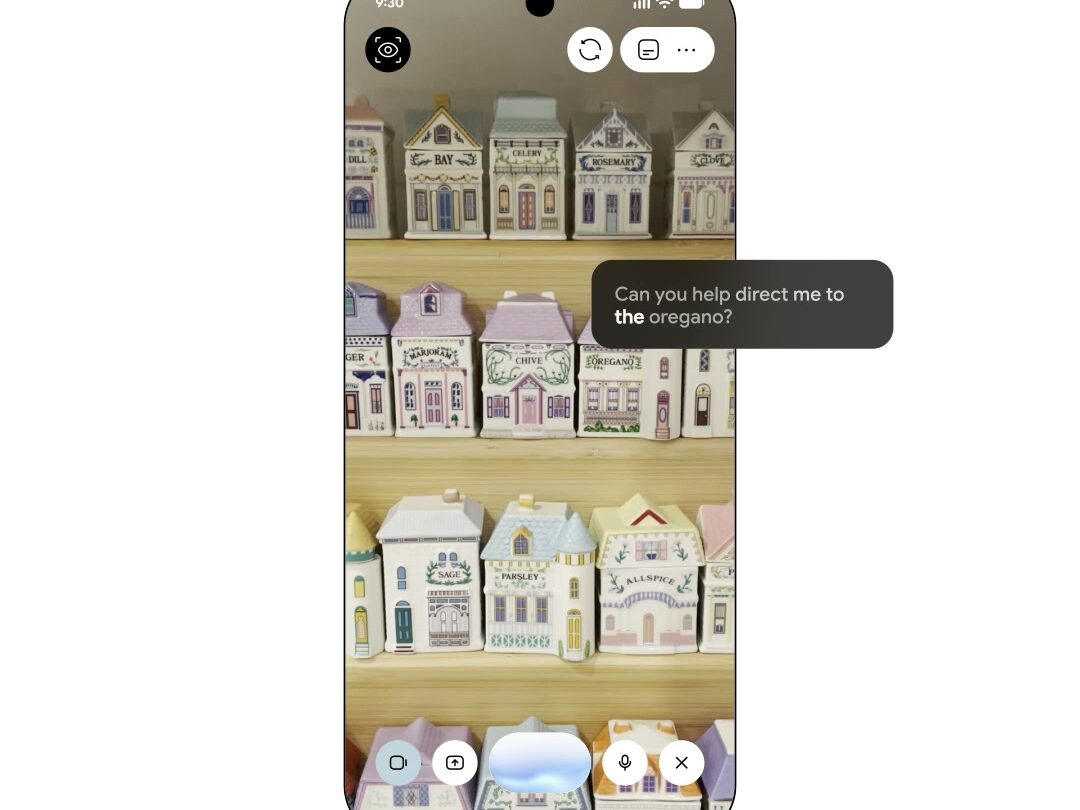
Gemini Guided Vision is a new accessibility feature that uses your Android phone camera to help describe what is in front of you. It can be useful for reading small text, identifying everyday objects and getting a little more context from the world around you.
It is important to understand what it is not. Google says Guided Vision is not a navigation tool, an obstacle detector or a medical service. It should support a person, not replace their judgment.
What you need before you start
Google says the feature works on Android 9 and newer where Gemini is available. You will need the Gemini app set up on your phone, an internet connection and camera access enabled for the app. Availability can vary by country and language.
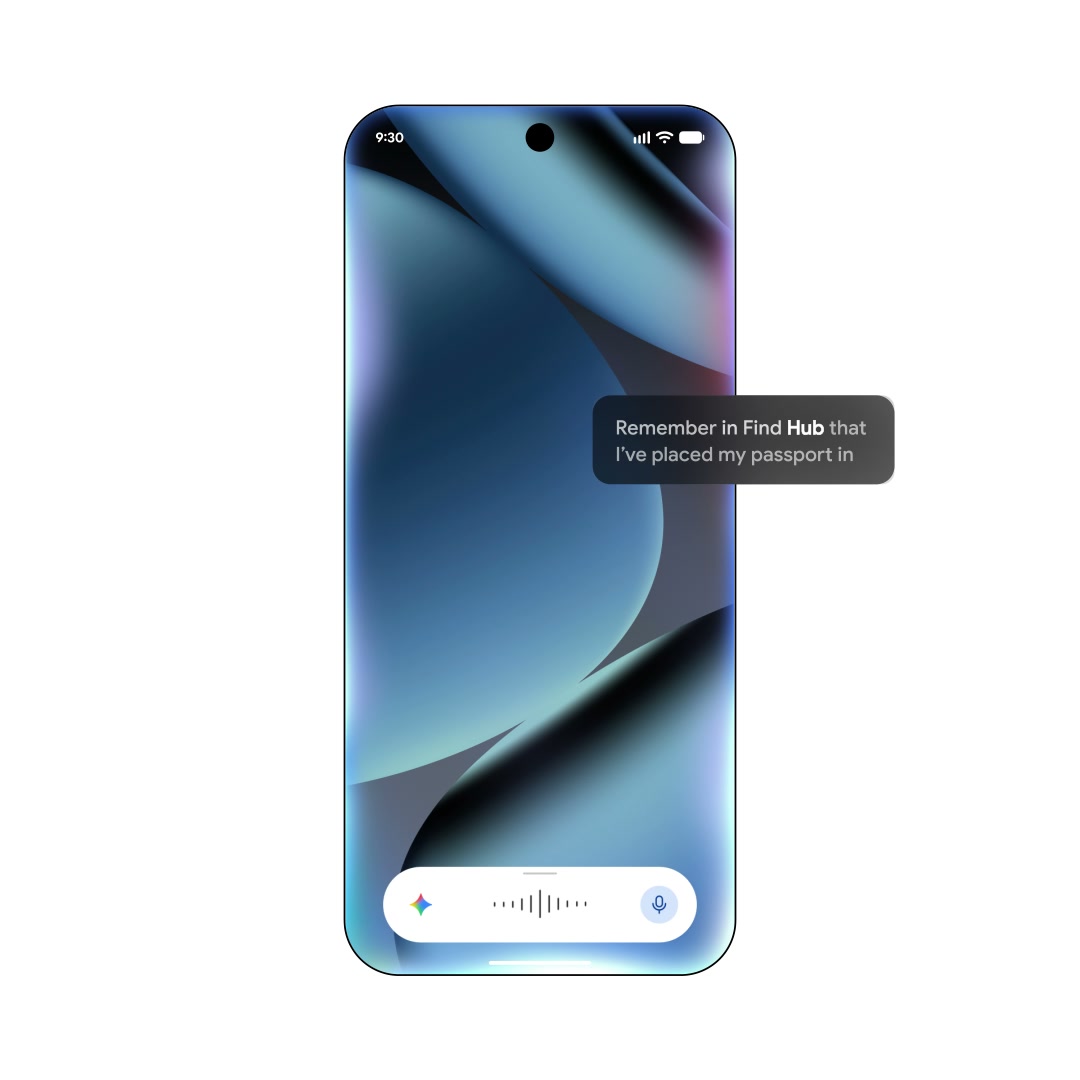
How to use Gemini Guided Vision
- Open the Gemini app on your Android phone.
- Start a Gemini Live conversation.
- Use the camera option to show Gemini what you want help with.
- Ask a direct question, such as “What does this label say?” or “Describe the items on this shelf.”
- Follow up if you need more detail.
When it is useful
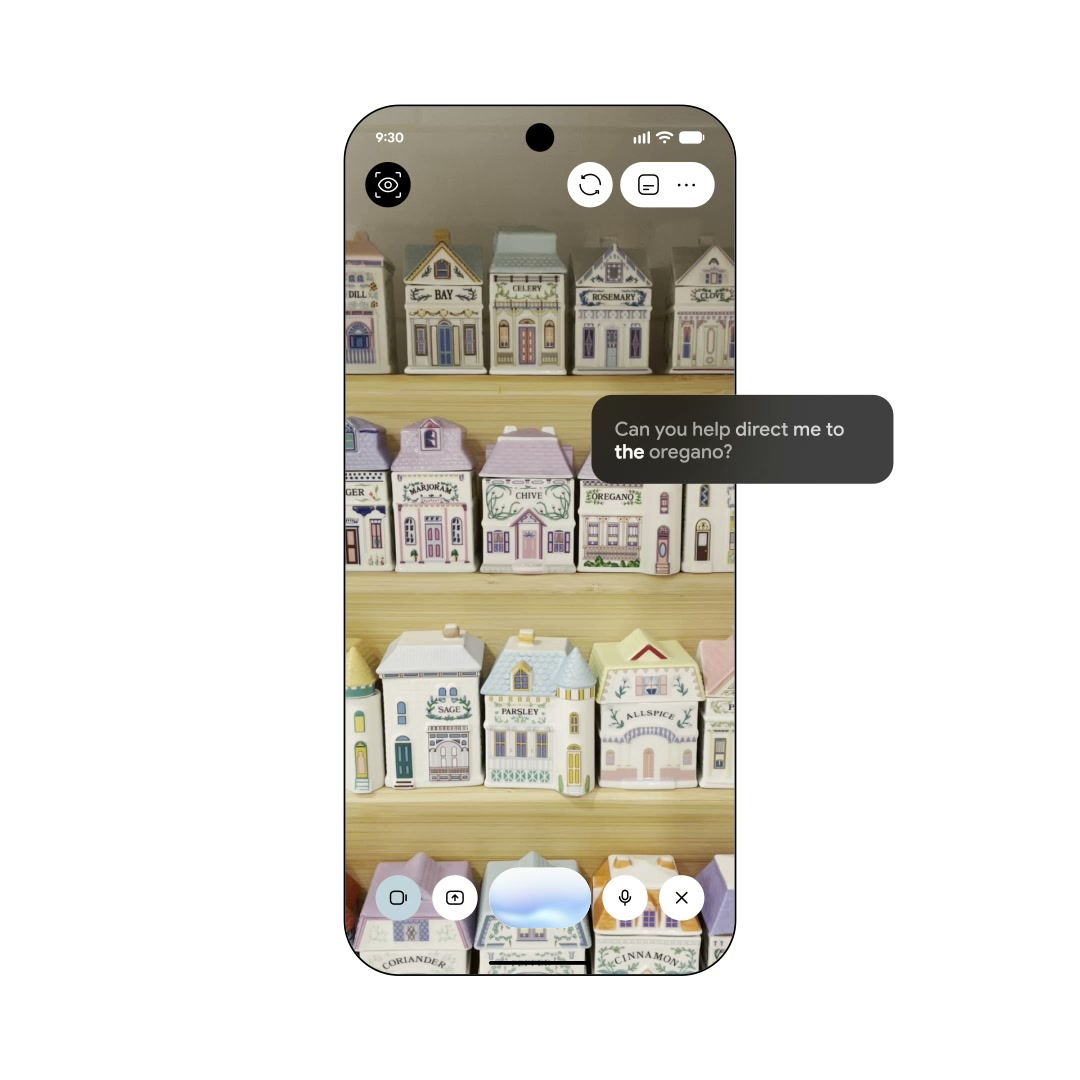
Guided Vision makes the most sense for ordinary tasks: checking a package label, finding the right item in a cupboard or getting help with small print. Ask precise questions and give the camera a clear, well-lit view. You will get a better answer than if you simply point the phone at a busy room and ask it to explain everything.
Know its limits
Do not use it to navigate streets, cross roads, identify hazards or make a medical decision. Gemini can be helpful, but it can also misunderstand an image or miss context. For anything safety-critical, use the appropriate accessibility tool or get help from a person.
My take
When it works well, Guided Vision is the sort of feature that can make a phone feel less like a screen and more like an assistive tool. Start with a simple task at home, learn how to frame what you are showing it and keep its limitations in mind.