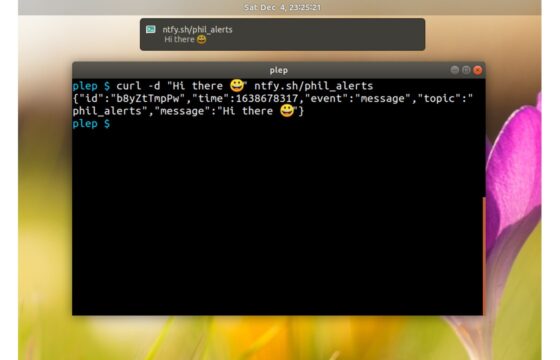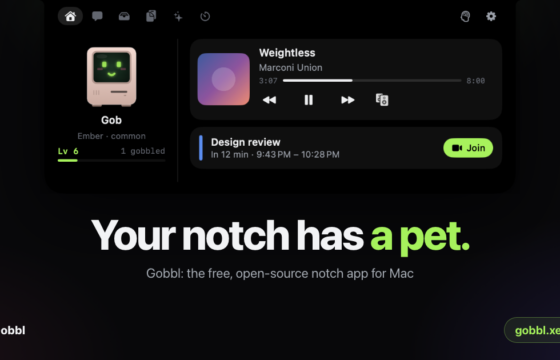
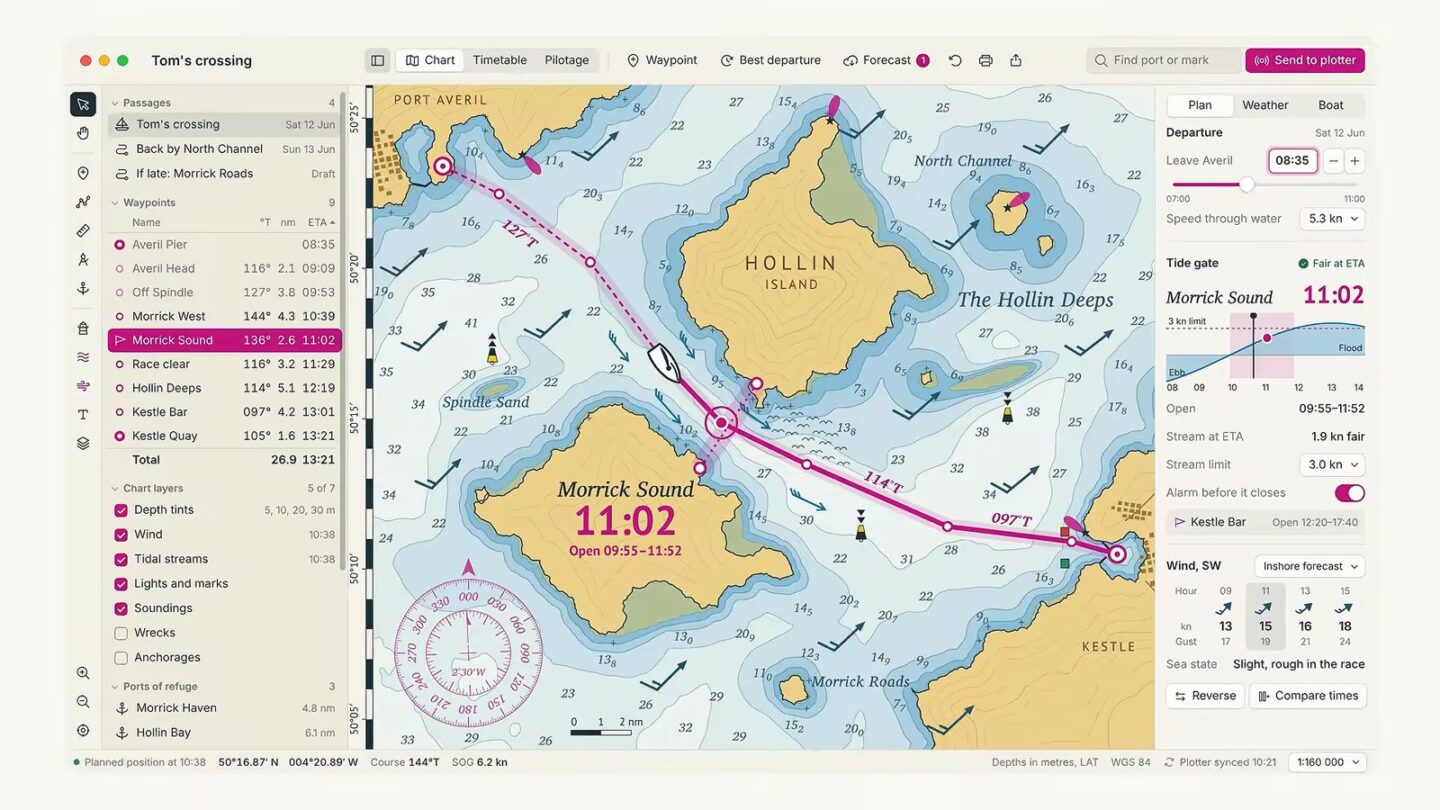
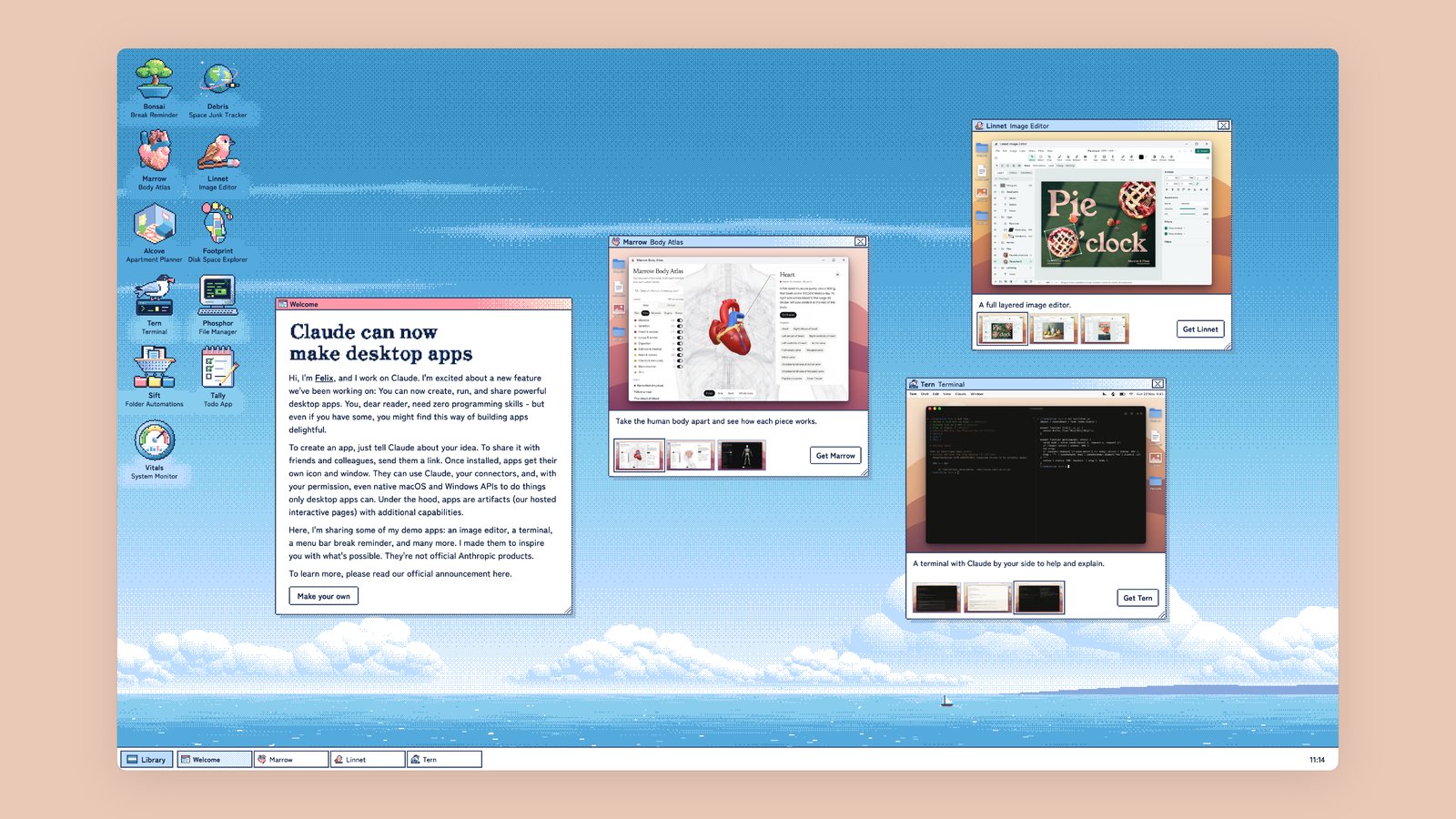
Claude Desktop can turn an artifact into a Mac or Windows app with its own icon and window. A timer you built in chat can sit in your Mac’s menu bar, and a tracker can open from the Windows Start menu. You still need an internet connection and a signed-in Claude Desktop session to open either one.
Build the artifact in chat, open it in Claude Desktop and choose Install as app. Anthropic is rolling out the beta on free and paid plans.
What an installed Claude app can do
An installed app is the same artifact, just shown in a window of its own. It opens from the Applications folder, Spotlight or the Start menu like anything else on your computer. Because it is still linked to the artifact, any edit you or another editor makes shows up in the installed app too, so there is no reinstalling after every change.
The apps can also call Claude and use your connectors the way the artifact does in a chat. The difference from a browser shortcut is the desktop access: with your permission, an app can send notifications, sit in the macOS menu bar or Windows system tray, respond to keyboard shortcuts, float above other windows and, at the highest level, run programs and read or change files.
Who can use it
Install as app is rolling out in beta on every Claude plan, but the defaults differ:
| Plan | Install as app | Full computer access |
|---|---|---|
| Free, Pro, Max, Ultra | Rolling out in beta | Only for apps you made yourself |
| Team | On by default | Off until an admin enables it |
| Enterprise | Off until an owner turns it on | Controlled by the organisation |
You need Claude for Mac or Claude for Windows version 6.28899.0 or later. The feature is unavailable for HIPAA-ready organisations.
How to install a Claude artifact as an app on Mac or Windows
- Update Claude Desktop. On a Mac, go to Claude > Check for Updates. On Windows, open the menu button (☰) and choose Help > Check for Updates.
- Ask Claude for the app in a chat, for example “Make a Pomodoro timer that lives in my menu bar” or “Make a Windows app that renames the photos in a folder by date”.
- Open the finished artifact in the main Claude Desktop window and test it there first.
- Open the artifact’s title menu or right-click it, then choose Install as app. The same option sits under Share.
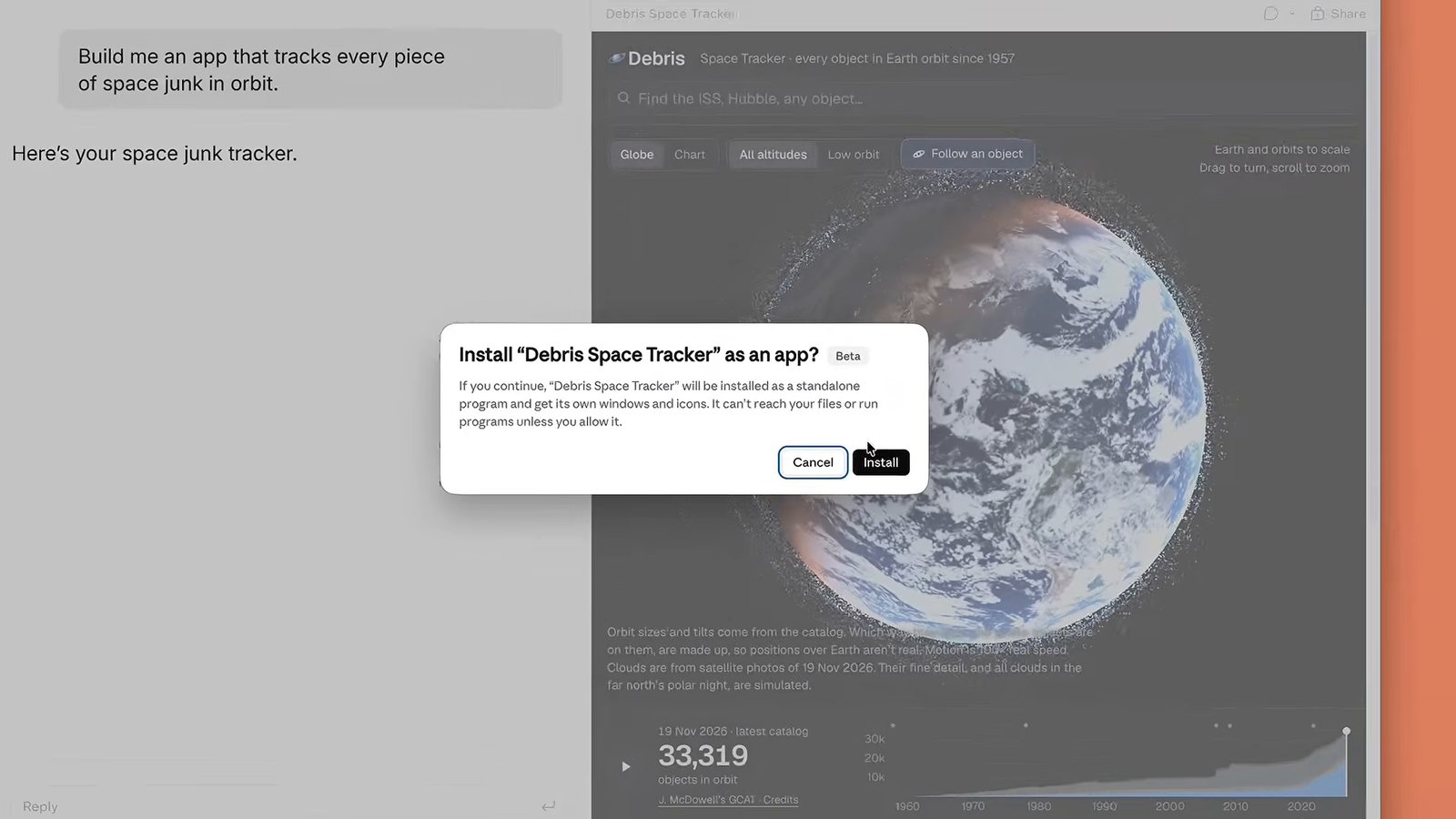
- Click Install to confirm.
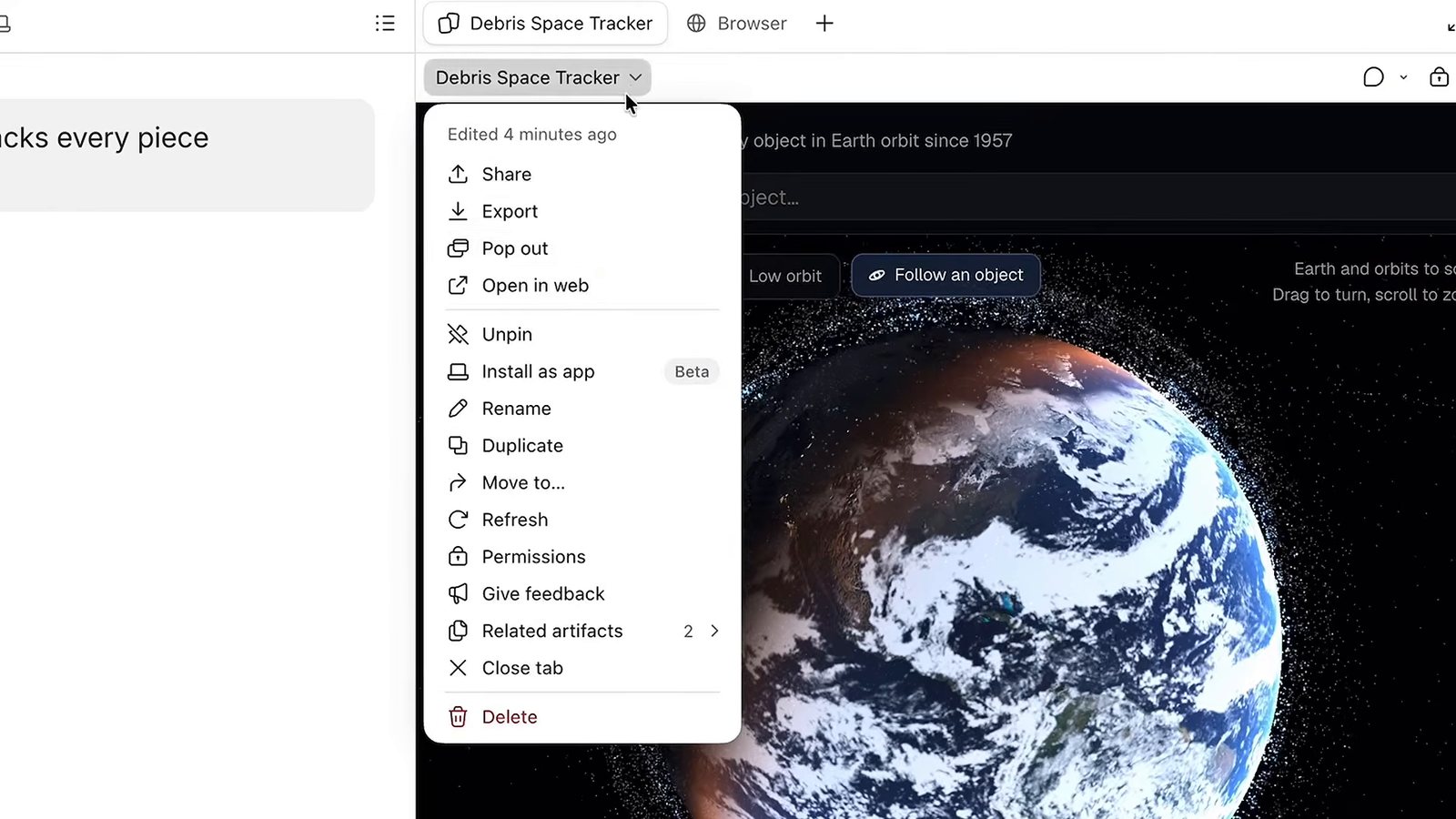
Claude asks for that confirmation even if the artifact draws its own install button. Artifacts made from the Docs, Slides or Sheets templates cannot be installed, and neither can legacy artifacts or live artifacts from Claude Cowork.
Where your Claude apps live
On a Mac, installed apps go into a Claude Apps folder inside the Applications folder in your home folder, and they show up in Spotlight and the Apps launcher. Right-click the Dock icon and choose Options > Keep in Dock to pin one. On Windows, they appear in a Claude Apps folder in the Start menu, with a desktop shortcut. Inside Claude Desktop, File > Apps lists everything you have installed.
Apps with a menu bar or tray icon keep running after you close the window. Quit them with Cmd+Q or from the Dock on a Mac, or with Exit in the tray menu on Windows. To remove one, go to File > Apps, select it and choose Uninstall. That clears its permissions but does not delete the artifact.
Permissions, and why full access needs care
By default an installed app can only do what it could do in a browser tab. Everything beyond that is a request you answer with Allow or Don’t allow: notifications, keyboard shortcuts, floating windows, a menu bar or tray item, and full access to the computer.
Claude asks again when someone updates the artifact, including after your own edits. On personal plans, full access is generally available only for apps you made yourself. Anthropic does not review these apps, and code an app loads from another site can change without a fresh permission prompt.
If you already let AI agents work on your Mac, the same caution behind the macOS 27.3 Full Disk Access changes applies here. A shared app that asks for full access is a reason to stop, not click through. You can change or withdraw any permission later from the app’s menu (Permissions) or from File > Apps in Claude Desktop.
What you need to run a Claude app
- Online only: you must be online and signed in to Claude Desktop to open an installed app.
- Desktop only: there is no Linux, web or mobile version yet.
- Usage counts: building the app and every request it makes to Claude come out of your plan’s usage limits.
- Shared apps can vanish: if the owner stops sharing an artifact, the app and any programs it started stop too, within about 20 minutes.
The usage point matters most on the Free plan. An app that calls Claude every few minutes will burn through the free Claude limits much faster than an occasional chat, so the best first projects are tools that run mostly on their own: a stretch reminder, a file renamer, a focus timer.
Is it worth trying?
I’d start with a small utility I can build myself, like a timer that only needs permission to show a notification. A shared app that asks to run programs or change files deserves a closer look at who built it and what it needs to do.
For a tool you rely on while travelling or when your internet is down, use a standalone app that can open offline.
FAQ
Is Install as app free?
Yes. It is rolling out in beta on the Free plan as well as Pro, Max, Ultra, Team and Enterprise, but app activity counts toward your usage limits.
Can I share a Claude app with someone else?
Yes. Shared apps work like shared artifacts, but the other person will see a warning on permission requests and generally cannot grant full computer access to an app they did not make.