
Android lets you install apps from unverified developers through Advanced Flow or Android Debug Bridge (ADB). Where developer verification checks apply, Advanced Flow adds a one-time 24-hour setup delay before on-device installs are allowed. ADB installs from a computer do not use that waiting period.
The first enforcement phase began on 30 September 2026 for participating stores in Brazil, Indonesia, Singapore and Thailand, on certified devices running Android 8 or later. Google plans broader enforcement in 2027. India is outside that first group; our Android developer verification explainer covers the regional rollout.
What an unverified developer means on Android
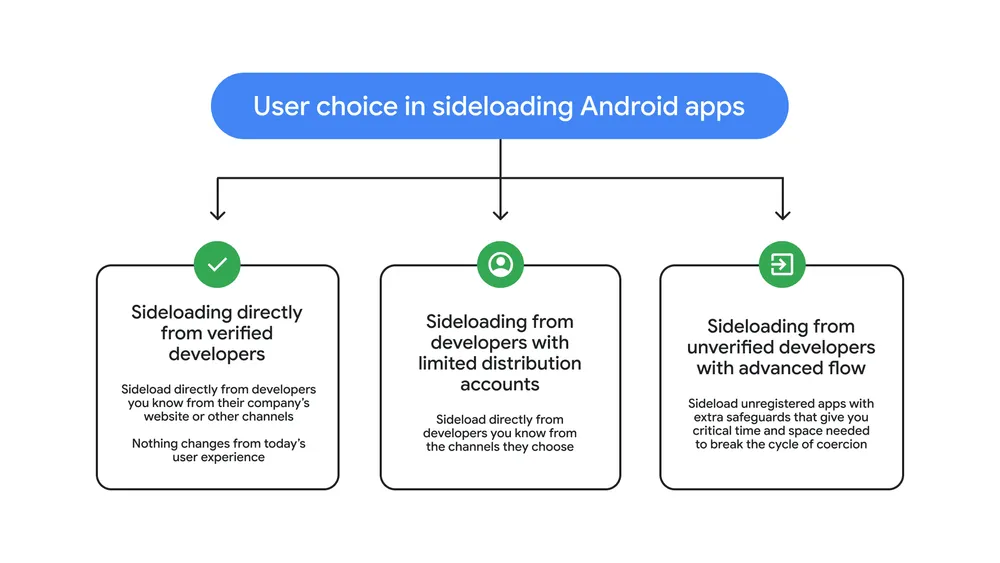
Android developer verification is an identity check on the person or organisation behind an app, not a full review of what the app does. Google describes it like an ID check at the airport: it confirms who is distributing the package, separate from scanning the contents. Verified developers register the package names they distribute. Apps that are not registered by a verified developer are what the Advanced Flow help pages call apps from unverified developers.
That is different from a few older labels people mix up:
- Google Play Protect scans apps and devices for harmful behaviour. It can warn you, disable or remove malware, and may block some unverified installs that request sensitive permissions commonly abused in fraud. It is on by default and is separate from developer identity registration.
- Unknown sources / install unknown apps is the older per-source permission to install outside the Play Store. Device-level Advanced Protection can block installs and updates from unknown sources. That setting is not the same as the new unverified-developer Advanced Flow.
- Advanced Protection (account and device) stacks stronger defaults: Play Protect stays on, unknown-source installs can be blocked, and several network and messaging protections harden. Account Advanced Protection still allows installs from Google Play, ADB and preinstalled Android app stores.
Play Protect asks whether the software looks harmful. Developer verification asks whether a real, accountable developer registered the package. Advanced Flow is the installation option when the package is not registered.
Who is affected, and when
Google’s developer verification overview puts the consumer-facing timeline in three beats:
- August 2026: developer APIs, limited distribution accounts and the power-user Advanced Flow launch.
- 30 September 2026: protections began for users who install apps from participating stores in Brazil, Indonesia, Singapore and Thailand on certified Android 8+ devices.
- 2027 and beyond: verification expands globally for apps on certified Android devices.
For that September phase, Google lists these participating stores: Google Play, HONOR App Market, OPPO App Market (OPlus), Samsung Galaxy Store, Transsion Palm Store, vivo V-Appstore and Xiaomi GetApps. If a store is not on that list, the FAQ says the September deadline does not enforce the new requirements for apps distributed only through that store. Direct sideloads and non-listed stores are also outside that first cut, though Google still asks developers to prepare before the 2027 expansion.
A few other official boundaries matter if you are planning ahead:
- Enforcement for the September phase focuses on mobile and tablet form factors in the selected regions for distribution outside Play. Play developers still need their apps registered across form factors.
- Managed enterprise apps from an organisation store on managed devices do not need verification for that managed path, though Google recommends registering them anyway for other install routes.
- ADB installs do not require the developer to be verified. That keeps local builds, tests and modified packages workable for developers.
- In comprehensively sanctioned countries, Google says verification checks will not run on certified devices physically located there, because developers in those regions cannot complete verification.
How to install apps from unverified developers with Advanced Flow
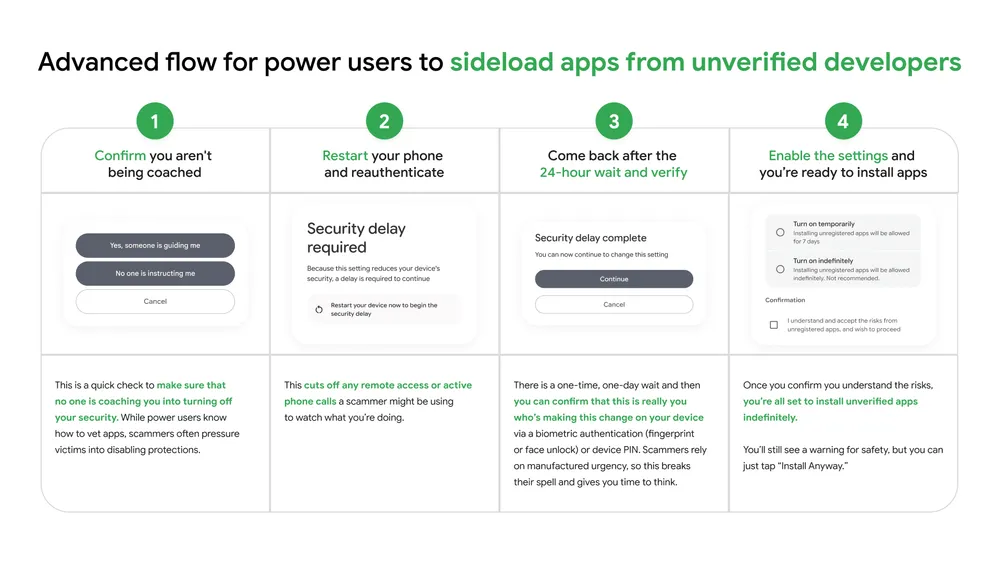
Advanced Flow is the on-device, one-time setup for people who knowingly want to keep installing from unverified developers. Google designed the friction for scam resistance: high-pressure coaching calls rely on urgency, remote watching and one-tap bypasses. The flow forces developer options, a confirmation you are not being coached, a restart, a one-day wait and a fresh biometric or PIN confirmation before the setting sticks.
Before you start
- Use a lock screen with a PIN, pattern, password or biometrics. You will need to reauthenticate.
- Read Google’s warning: scammers often pose as bank fraud agents, technical support or delivery services and push inauthentic apps. If someone on a call is rushing you into this setting, stop and contact the organisation on an official number from its website.
- Know that the process takes about 24 hours end to end the first time. There is no supported ADB command to skip that wait for Advanced Flow itself.
Step 1: Turn on developer options
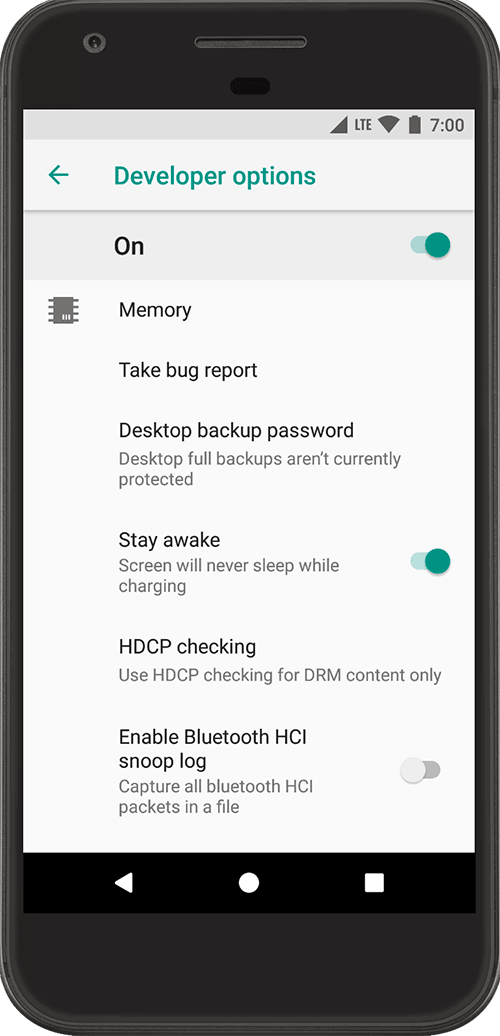
On Android 4.2 and higher, Developer options is hidden until you unlock it. Google’s developer options guide uses this pattern (menus vary slightly by brand):
- Open Settings and find Build number. On Google Pixel that is Settings > About phone > Build number. Samsung Galaxy S8 and later put it under About phone > Software information. OnePlus puts it under About phone.
- Tap Build number seven times until you see the developer confirmation message.
- Go back and open Developer options (often under System or System > Advanced).
Step 2: Allow apps from unverified developers
Google’s Android Help article “Allow app installs from unverified developers” gives the setting path and the delay:
- Open the Settings app.
- Tap System > Developer options.
- Turn on Allow apps from unverified developers.
- Follow the on-screen instructions. That sequence includes the coaching confirmation, a restart and reauthentication, then the 24-hour security delay.
- After the delay finishes, confirm again with biometrics or your device PIN, and choose whether to keep Advanced Flow on for seven days or indefinitely.
You do not have to leave Developer options enabled afterwards. Google’s FAQ says once Advanced Flow is enabled on the device, you can turn developer options back off. That matters for banking apps that refuse to run while developer mode is on.
Step 3: Install the app and tap Install anyway
Advanced Flow does not silence every warning. When you install an app from an unverified developer, Android still shows that the developer is unverified. To continue, tap Install anyway. Treat that prompt as a last chance to abort, not a bureaucratic leftover.
Updates while Advanced Flow is on or off
Unregistered apps can be installed or updated only while Advanced Flow is enabled, or via ADB. If you turn Advanced Flow off, updates to those unregistered apps fail until you enable the flow again or update them with ADB. If you chose the seven-day window, put a reminder on your calendar before it expires.
Method B: Install and update with ADB (no 24-hour wait)
ADB is unchanged by the Advanced Flow waiting period. Google’s verification FAQ states you can install applications with ADB as usual, including modified APKs on your own device, and that ADB does not require the developer to be registered. That is the practical path for builders, security researchers and anyone who already flashes test builds from a computer.
Step 1: Install platform-tools on your computer
ADB ships in the Android SDK Platform-Tools package. Install it through Android Studio’s SDK Manager, or download the standalone Platform-Tools package from the Android Developers site and extract it. Add the folder to your PATH, or run ./adb on macOS/Linux and .\adb in Windows PowerShell from that folder.
Step 2: Enable USB debugging
- Unlock Developer options as in Method A.
- In Developer options, turn on USB debugging. On Android 9 and higher the path is typically Settings > System > Advanced > Developer options > USB debugging. Wear OS 6 and higher labels a related toggle ADB debugging.
- Connect the phone with a data-capable cable. On Android 4.2.2 and higher, accept the RSA key dialog so that computer may debug the device.
Step 3: Confirm the device and install the APK
From the platform-tools directory (or any terminal where adb is installed):
adb devices -lYou want a line that ends in device, not unauthorized or offline. Then install:
adb install path/to/app.apkUseful variants from the official ADB documentation:
adb install -r path/to/app.apkreinstalls an existing app and keeps its data (the usual update path for a package you already sideloaded).adb install -d path/to/app.apkrequests a version-code downgrade; Android normally restricts this to debuggable packages, and it does not bypass signature checks.adb install -t path/to/test.apkis required for test-only APKs.adb install-multipleinstalls a split APK set downloaded for a specific device.- With several devices attached, target one with
adb -s SERIAL install path/to/app.apk.
Wireless debugging (optional)
On Android 11 and higher you can pair wireless debugging from Developer options, then use adb pair ip:port with the pairing code shown on the phone. Android 17 with recent platform-tools also documents ADB Wi-Fi 2.0 automatic reconnect on trusted networks. Wireless debugging is convenient; it also widens the attack surface if you leave it on untrusted Wi-Fi, so turn it off when you are done.
adb pair 192.168.1.20:37123
adb devices
Advanced Flow vs ADB
| Advanced Flow | ADB | |
|---|---|---|
| Wait before first use | About 24 hours, one time | None for installs |
| Restart required | Yes, during setup | Not for a normal install |
| Biometrics / PIN | Required to finish enabling | RSA prompt / unlock when authorizing a computer |
| Where you work | On the phone alone | Computer with platform-tools |
| Updates to unregistered apps | Only while the flow stays enabled | Yes, with adb install -r even if the flow is off |
| Bypass the 24-hour Advanced Flow wait | Not supported via ADB today | ADB installs never enter that wait |
| Typical risk surface | Broader sideloading from browsers and chat apps once enabled | Limited to packages you push from a machine you control |
| Leave developer options on? | No, not required after enable | USB or wireless debugging must be on while you install |
Advanced Flow and Advanced Protection are different
Two Google programs share a similar name and both show up in security settings, so keep them straight.
Device Advanced Protection on Android (Settings > Security & privacy > Advanced Protection) turns on a bundle of defenses. Under Apps, Google says it blocks installation from unknown sources and blocks updates for apps that were originally installed from unknown sources. Play Protect cannot be turned off while that device protection is on. USB protection also restricts what a locked phone will accept over USB.
Google Account Advanced Protection adds automatic Play Protect scanning and limits most new installs outside the Play Store. Google’s account help page still lists three allowed install routes: Google Play, Android Debug Bridge (ADB) and preinstalled Android app stores. Apps you already installed from outside Play are not removed and can still update under that account program’s rules.
If you rely on unverified or unknown-source apps and also want Advanced Protection, expect friction. Prefer verified developers and Play or a preinstalled store when you can. Use ADB only for packages you built or carefully vetted. Do not let a stranger walk you through turning protections off.
Safety: when you should not enable this
The 24-hour wait exists because coaching scams collapse without urgency. Fraudsters stay on the line, claim your bank account is draining, and dictate every tap. Restarting the phone cuts many remote-assist sessions. Waiting a day gives you time to hang up, sleep on it and call the bank on a number from the official site or app you already trust.
Skip Advanced Flow and refuse the install when:
- Anyone you do not already trust is instructing you in real time to enable developer options or Allow apps from unverified developers.
- The APK arrived from a random SMS, WhatsApp blast or lookalike banking site.
- You only need one mainstream app that should have been on Play or another verified store listing.
- The app asks for accessibility, screen sharing or other powerful permissions that do not fit its purpose.
Message and call scams often start before the APK stage. Google’s tighter scam detection in Messages is one layer on that path; our note on Google Messages enhanced scam detection in India covers how those warnings show up. Browser warnings matter too when a site pushes a download button for a “security app.” Chrome’s suspicious-site warnings are explained in our Chrome suspicious site warnings guide.
Troubleshooting
The Allow apps from unverified developers toggle is missing
Google scheduled Advanced Flow for August 2026, before the first enforcement phase. Availability can still depend on the device and its software. If your device has not received the Play services / system update that surfaces the toggle, you cannot enable it yet. ADB remains available on current devices for development installs. Also confirm you opened Developer options, not only the older per-app “Install unknown apps” screen.
Still waiting after 24 hours
Keep the phone powered and connected enough to finish the countdown. After the delay, open the same Developer options entry again and complete the biometric or PIN step. If the seven-day window expired, you must renew Advanced Flow before unregistered installs and updates work again without ADB.
adb devices shows unauthorized
Unlock the phone, check for the RSA allow prompt, and tap allow. If it never appears, revoke USB debugging authorisations in Developer options, reconnect and try again with a known good data cable and port.
Install fails for an unregistered app without Advanced Flow
That is expected once verification checks apply to that install path. Either finish Advanced Flow or install with adb install. Remember there is still no supported ADB shortcut that enables Advanced Flow without the wait.
Updates to a sideloaded app suddenly fail
Check whether Advanced Flow was set for seven days and lapsed, or whether device Advanced Protection is blocking unknown-source updates. Update with adb install -r, re-enable Advanced Flow, or move to a build registered by a verified developer.
Banking apps complain about developer options
Turn Developer options off after Advanced Flow is enabled, or after you finish the ADB session. USB debugging can stay off until you need it again.
My take
Google says developer verification is intended to make repeat malware distribution harder by linking apps to an accountable developer. That identity check is not a guarantee that an app is safe. For your own builds, ADB remains useful; for an APK someone sends you, the source and requested permissions still deserve scrutiny.
The install route matters as much as the country: the first enforcement phase targets participating stores, while Google has documented separate paths for unverified apps. Check the current rollout and the prompt on your device before assuming that every sideload requires Advanced Flow.
FAQ
Is Android banning sideloading?
No. Google’s FAQ says Android remains an open ecosystem with multiple distribution channels. Most people who install apps from verified, registered developers will not see a change. Power users can still sideload unverified apps after Advanced Flow, and developers can keep using ADB.
Does the 24-hour wait apply to ADB?
No. Official FAQ wording is that there are no changes to how ADB works for installs, and the waiting period does not apply to ADB installs. Separately, there is still no supported ADB command to bypass the Advanced Flow wait if what you want is the on-device toggle.
Do I need Advanced Flow to keep using alternative app stores?
Not for apps from verified developers. Google says alternative stores keep working, and verified developers should produce the same install experience as before. Advanced Flow is for apps from unverified developers.
What happens if I only need to share an app with a few friends?
Google offers limited distribution accounts aimed at students and hobbyists, launching with the August 2026 wave, to share apps with up to 20 specific devices without a government ID or the full distribution fee. Registration is still the smoother path if anyone outside that small set needs the app.
Did the September 2026 rollout include India?
The first enforcement countries named on Android Developers are Brazil, Indonesia, Singapore and Thailand. India is not on that list. The same documentation points to a global expansion in 2027, so treat the Advanced Flow and ADB steps as forward-looking reference rather than an India-only emergency.
Can I update an old unverified APK already on my phone?
Only with Advanced Flow enabled or with ADB. If Advanced Flow is off, updates to unregistered apps fail according to Google’s FAQ.