You can use Codex CLI and OpenCode with Ollama to read a project, suggest edits and run coding tasks with a model on your own computer. Local inference avoids a cloud model’s API charges, but it is not automatically an offline setup: web tools, connected services and shell commands can still use the network.
Start with a model that supports tool calling and enough memory for its context window. Ollama recommends at least 64,000 tokens for coding agents. A smaller window can leave too little room for the agent’s instructions, your files and its tool results, even when ordinary chat seems to work.
Use an up-to-date Ollama installation and the current CLI releases. The OpenCode configuration below uses version 2; version 1 examples use different provider and permission keys.
Codex CLI vs OpenCode with Ollama: which should you use?
Both agents work in a terminal and can talk to the same Ollama server, so you can install both and switch whenever you like. They differ in how they find local models and how you configure them.
| OpenAI Codex CLI | OpenCode | |
|---|---|---|
| Quick setup | ollama launch codex | ollama launch opencode |
| Built-in local route | codex --oss with Ollama or LM Studio | Auto-discovers Ollama on 127.0.0.1:11434 |
| Config file | ~/.codex/config.toml plus profile files | opencode.jsonc in a project or ~/.config/opencode/ |
| API it uses on Ollama | OpenAI Responses (wire_api = "responses") | OpenAI-compatible /v1 plus Ollama’s model discovery |
| Model selection | Choose explicitly with -m | Select a discovered model with /models |
| Safety controls | --sandbox and --ask-for-approval | Ordered permissions rules (allow, ask, deny) |
| Remote Ollama box | Custom provider with a base_url | settings.baseURL on the ollama provider |
If you already use Codex with a ChatGPT plan, the --oss flag is the least disruptive way to add a local option. If you want one agent that mixes local and cloud models from a single picker, OpenCode offers a single model picker for both.
What you need before you start
- Ollama installed and running on macOS, Windows or Linux. If you are new to it, our guide to run AI models locally with Ollama covers the install and first model.
- A model with tool support. Agents work by calling tools (read a file, run a command, apply a patch). Models without the tools capability can chat but cannot act. Ollama’s model search has a tools filter for exactly this.
- Enough memory for the model plus a 64k context. Context costs memory on top of the model download. A model download that fits on disk may still need substantially more GPU or unified memory once you load a long context.
- A Git repository to test in. Save your existing changes in a commit and use a separate branch so you can review or revert the agent’s edits.
These are reasonable starting points from Ollama’s library, all tagged with tool support. Sizes are the download size of the default tag, not the total memory used once the context is loaded.
| Local model | Listed download size | Why consider it |
|---|---|---|
mimo-v2.6:9b | 6.6–8.7 GB, depending on backend | A smaller model with tool support for code and agent tasks |
gpt-oss:20b | 14 GB | OpenAI’s open-weight model with tool calling |
qwen3-coder:30b | 19 GB | A coding-focused model with a larger memory requirement |
A model’s maximum context is a ceiling, not what you get. Ollama only allocates what you ask for, which is the next step.
Step 1: Install Ollama and pull a tool-capable model
Install Ollama from ollama.com/download. The macOS and Windows apps run the server in the background; on Linux, Ollama’s docs recommend running it as a systemd service. Then pull a model that fits your hardware:
ollama pull gpt-oss:20b
# or, on a smaller machine
ollama pull mimo-v2.6:9b
Run it once with ollama run gpt-oss:20b and ask a simple question. If that is already slow, expect a coding task with several model turns to take longer. Pick a smaller model now rather than after a frustrating session.
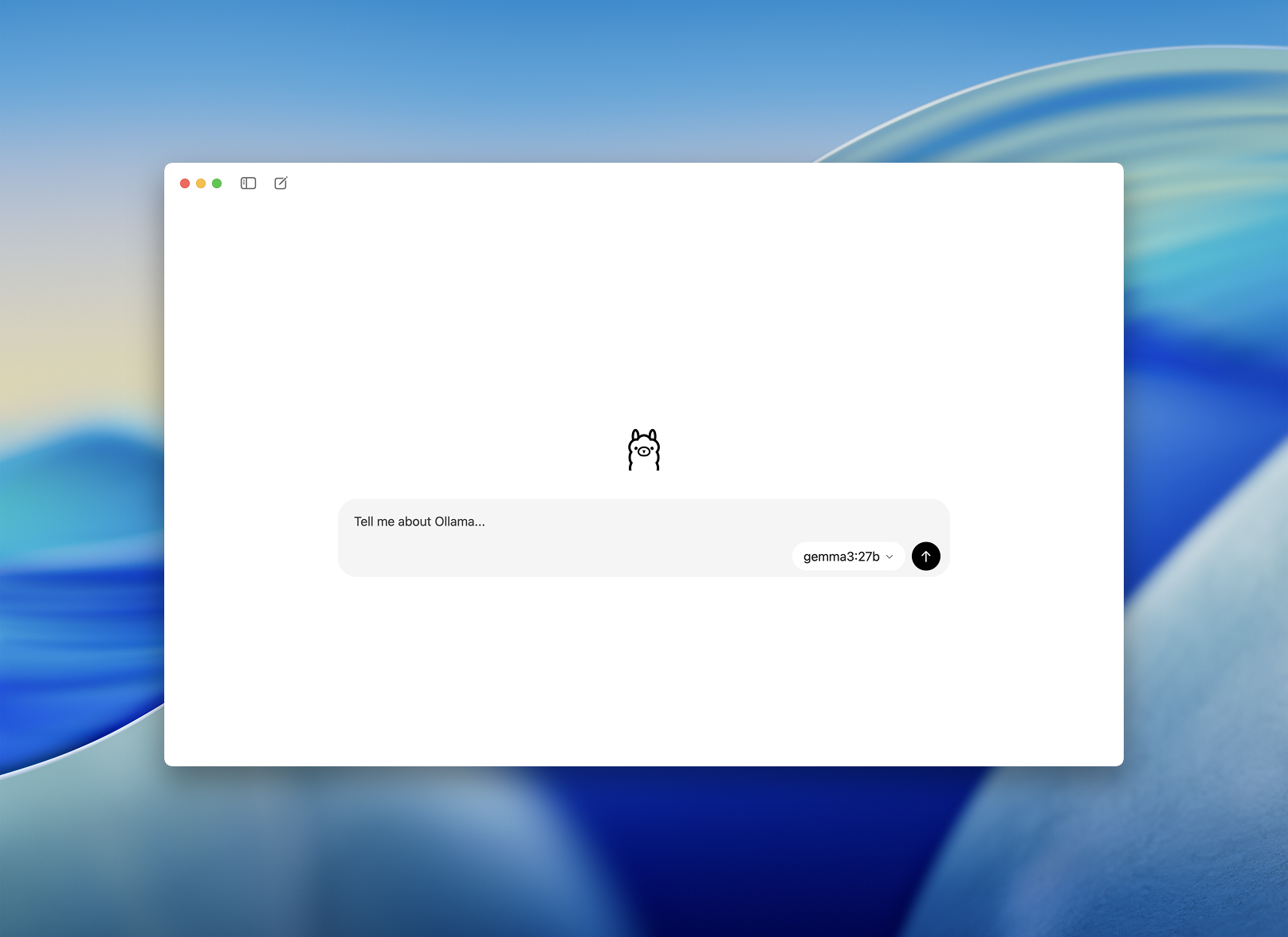
Step 2: Raise the Ollama context length to 64k
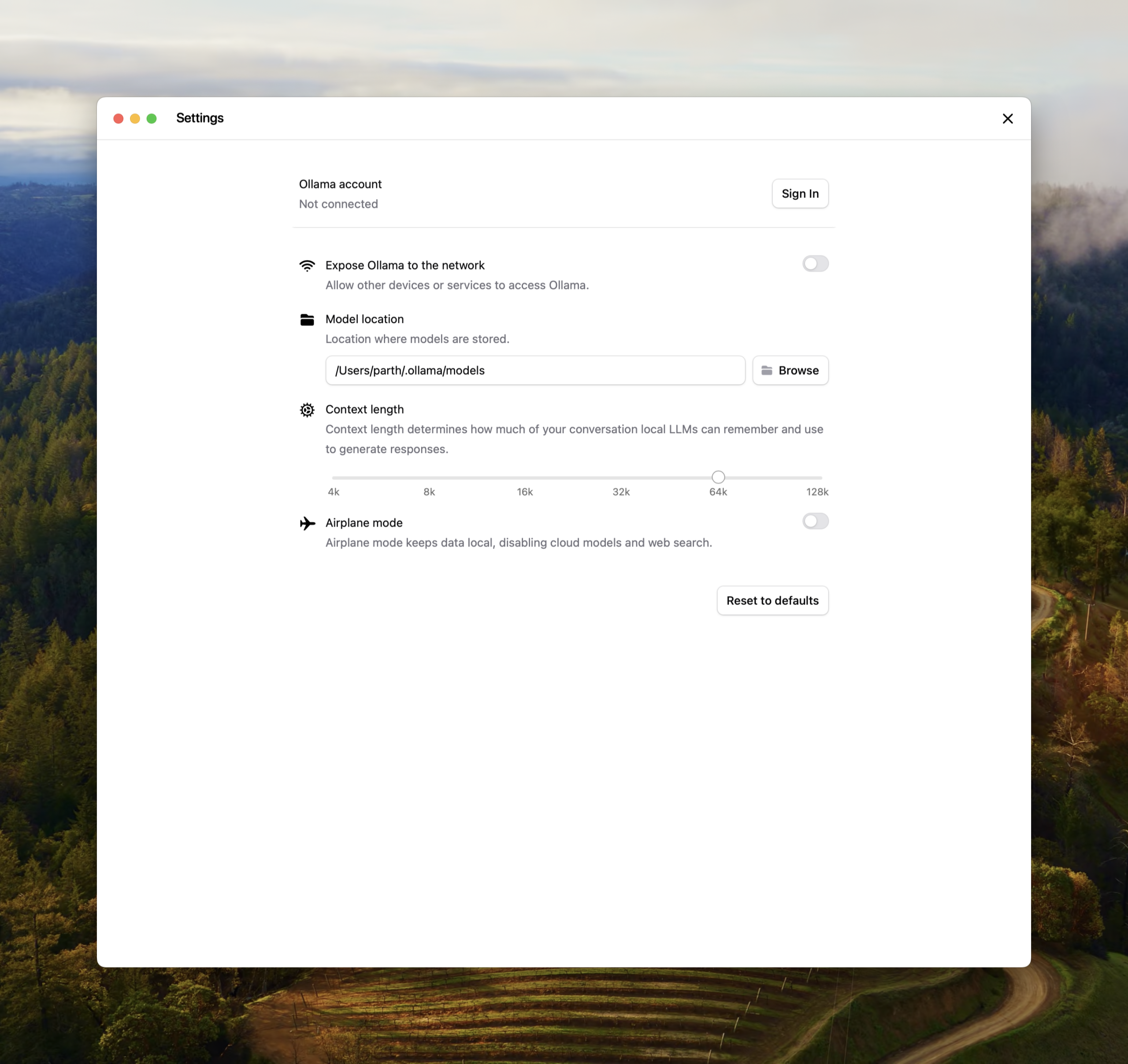
Check this before troubleshooting the agent itself. Ollama sets its default context by VRAM: 4k below 24 GiB, 32k from 24 to 48 GiB, and 256k at 48 GiB or more. Ollama’s context length documentation says coding tools and agents need at least 64,000 tokens, and both its Codex and OpenCode pages repeat the 64k minimum. Too little context can cause errors, repeated tool calls or incomplete work. It is one possible cause, not a diagnosis of every failed task.
In the desktop app: open Settings and move the Context length slider to 64k (or 128k if you have the memory).
From a macOS or Linux terminal, set the variable when starting the server. If the Ollama app or a system service is already running, use its settings or the service instructions below instead of starting a second server on the same port:
OLLAMA_CONTEXT_LENGTH=64000 ollama serveOn Linux with the systemd service, add it to the service instead so it survives reboots. Run sudo systemctl edit ollama.service, add these lines, then reload and restart:
[Service]
Environment="OLLAMA_CONTEXT_LENGTH=64000"
sudo systemctl daemon-reload
sudo systemctl restart ollamaOn Windows, quit Ollama from the taskbar, search Settings for environment variables, choose Edit environment variables for your account and add OLLAMA_CONTEXT_LENGTH with a value of 64000. Then start Ollama again from the Start menu.
Now load your model and check what Ollama actually allocated:
ollama run gpt-oss:20b "hello"
ollama ps
In the output, check CONTEXT and PROCESSOR. CONTEXT should show 64000 or more. PROCESSOR should ideally read 100% GPU; a split such as 48%/52% CPU/GPU means the model is loaded partly on CPU and partly on GPU. Limited GPU memory is a common reason, although hardware support and your configuration also matter. If that happens, use a smaller model rather than cutting the context below 64k.
One more memory trap: Ollama multiplies memory by parallel requests. Its FAQ notes that required RAM scales with OLLAMA_NUM_PARALLEL times OLLAMA_CONTEXT_LENGTH, so leave parallelism at its default of 1 on a single-GPU machine.
Step 3: The quick route with ollama launch
Ollama can configure the connection for you. ollama launch configures a supported coding tool to use Ollama and starts it, without manually writing the provider configuration. You still need a suitable model and context setting. Run it on its own for a menu, or name the tool directly:
ollama launch            # pick from Claude Code, Codex, OpenCode and others
ollama launch codex
ollama launch opencode
ollama launch opencode --model qwen3-coder:30b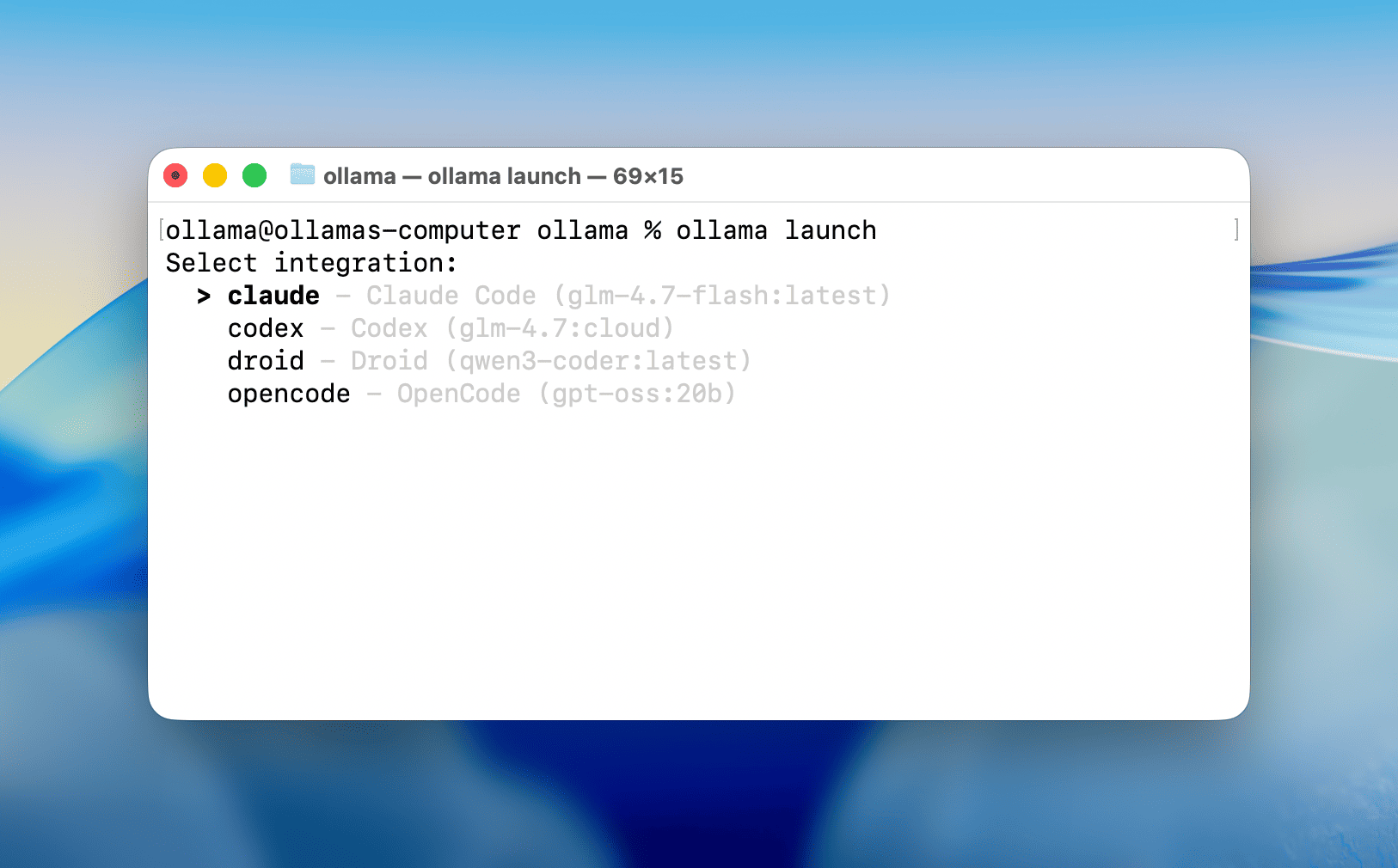
A few details are worth knowing before you rely on it:
- Codex:
ollama launch codexrefreshes the model catalog and uses a dedicated Codex profile for that session. Inside Codex,/modelswitches between your installed tool-capable models without restarting, so pull extra models before launching. - OpenCode:
ollama launch opencodepasses an inline config for the chosen model and does not overwrite~/.config/opencode/opencode.json. Models you defined only in that file do not appear in the launch picker. - Configure without starting: add
--config, for exampleollama launch codex --config. To undo the Codex profile and generated catalog, runollama launch codex --restore.
If you have already set up Claude Code this way, the flow is identical; our Claude Code with Ollama guide covers that tool’s specifics. The manual steps below matter when you want a permanent setup, a remote Ollama server or tighter safety settings.
Step 4: Set up Codex CLI with Ollama using --oss
Choose one installation method. The npm command works where Node.js is installed; Homebrew is another option on macOS:
# npm
npm install -g @openai/codex

# Or Homebrew on macOS
brew install --cask codex
Codex has a built-in local mode. The --oss flag tells it to use a local open-source provider, either Ollama or LM Studio, instead of OpenAI’s servers. Select the provider and model explicitly so the command does not depend on a saved default:
cd ~/projects/my-app
codex --oss --local-provider ollama -m gpt-oss:20b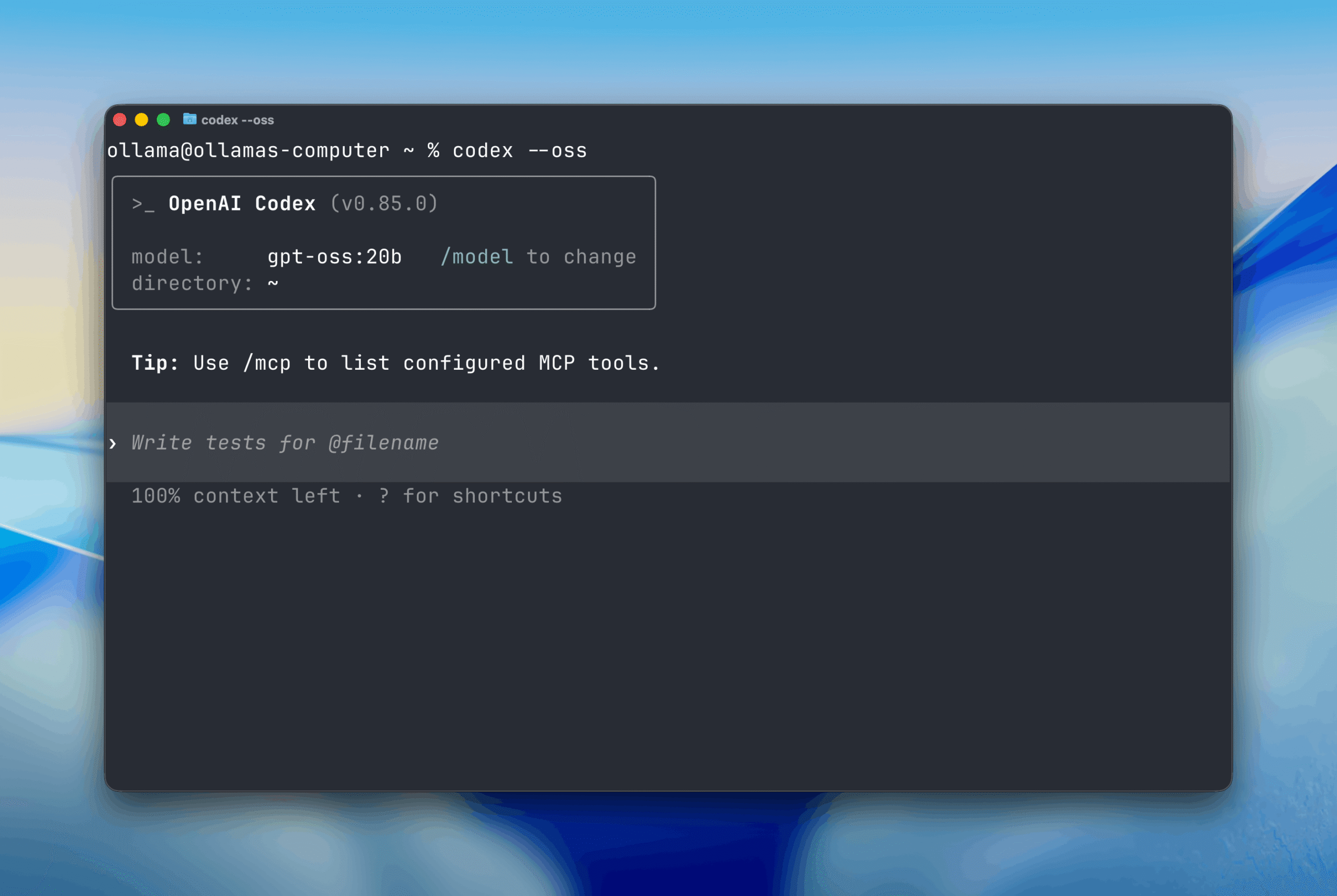
Unless you set a default, interactive Codex asks whether to use LM Studio or Ollama. Make Ollama the default in ~/.codex/config.toml so you never see the prompt:
# ~/.codex/config.toml
oss_provider = "ollama"
This matters more for scripts. In non-interactive mode, codex exec --oss exits with an error if neither oss_provider nor --local-provider is set, so pass it explicitly in automation:
codex exec --oss --local-provider ollama -m gpt-oss:20b "list the TODO comments in this repo"Codex runs model-generated commands inside a sandbox. Keep it there with a local model, which can still make unwanted changes. --sandbox workspace-write limits writes to your project, and --ask-for-approval on-request lets the agent request approval when it needs additional access. It does not prompt before every command; ordinary work within the sandbox can proceed. Avoid --yolo, which OpenAI describes as running every command without approvals or sandboxing.
codex --oss -m qwen3-coder:30b --sandbox workspace-write --ask-for-approval on-requestStep 5: Make a Codex profile for a remote Ollama server
A common home-lab setup is a desktop with a big GPU running Ollama and a laptop doing the coding. Codex’s built-in ollama provider ID is reserved and cannot be overridden, so add your own provider with a new name in a user-level profile. Codex profiles are separate TOML files: codex --profile name loads ~/.codex/config.toml and then overlays ~/.codex/name.config.toml. The settings below follow the profile Ollama documents for Codex, with the address changed:
# ~/.codex/ollama-gpu.config.toml
model = "qwen3-coder:30b"
model_provider = "ollama-gpu"
model_context_window = 64000

[model_providers.ollama-gpu]
name = "Ollama on the GPU box"
base_url = "http://192.168.1.50:11434/v1/"
wire_api = "responses"
codex --profile ollama-gpuReplace the IP address with your Ollama machine’s address. wire_api = "responses" is the only protocol Codex supports for providers, and Ollama’s OpenAI-compatible API serves the Responses endpoint. model_context_window tells Codex the available context budget. It does not allocate memory in Ollama, so match it to the server’s actual setting.
On the Ollama machine, it only listens on 127.0.0.1:11434 by default. Turn on Expose Ollama to the network in the app’s settings, or set OLLAMA_HOST=0.0.0.0:11434 the same way you set the context length. Ollama ignores the API key on a local server, so anyone who can reach that port can use your models. Keep it on your home network or a private VPN such as Tailscale, never on an open port on your router.
Web search: when Codex runs through the Ollama profile, its web searches are executed by Ollama’s web search service, which needs ollama signin. If you want a session with no outside lookups at all, disable it:
codex --profile ollama-gpu -c 'web_search="disabled"'Step 6: Set up OpenCode with Ollama
OpenCode 2 is the current major version. Install it with the official script or npm:
# macOS and Linux
curl -fsSL https://opencode.ai/v2/install | bash

# npm
npm install -g @opencode/cli
OpenCode says Windows package managers are not supported for version 2; download the standalone Windows binary from its site instead. Older guides, including Ollama’s own OpenCode page, still show the version 1 package opencode-ai.
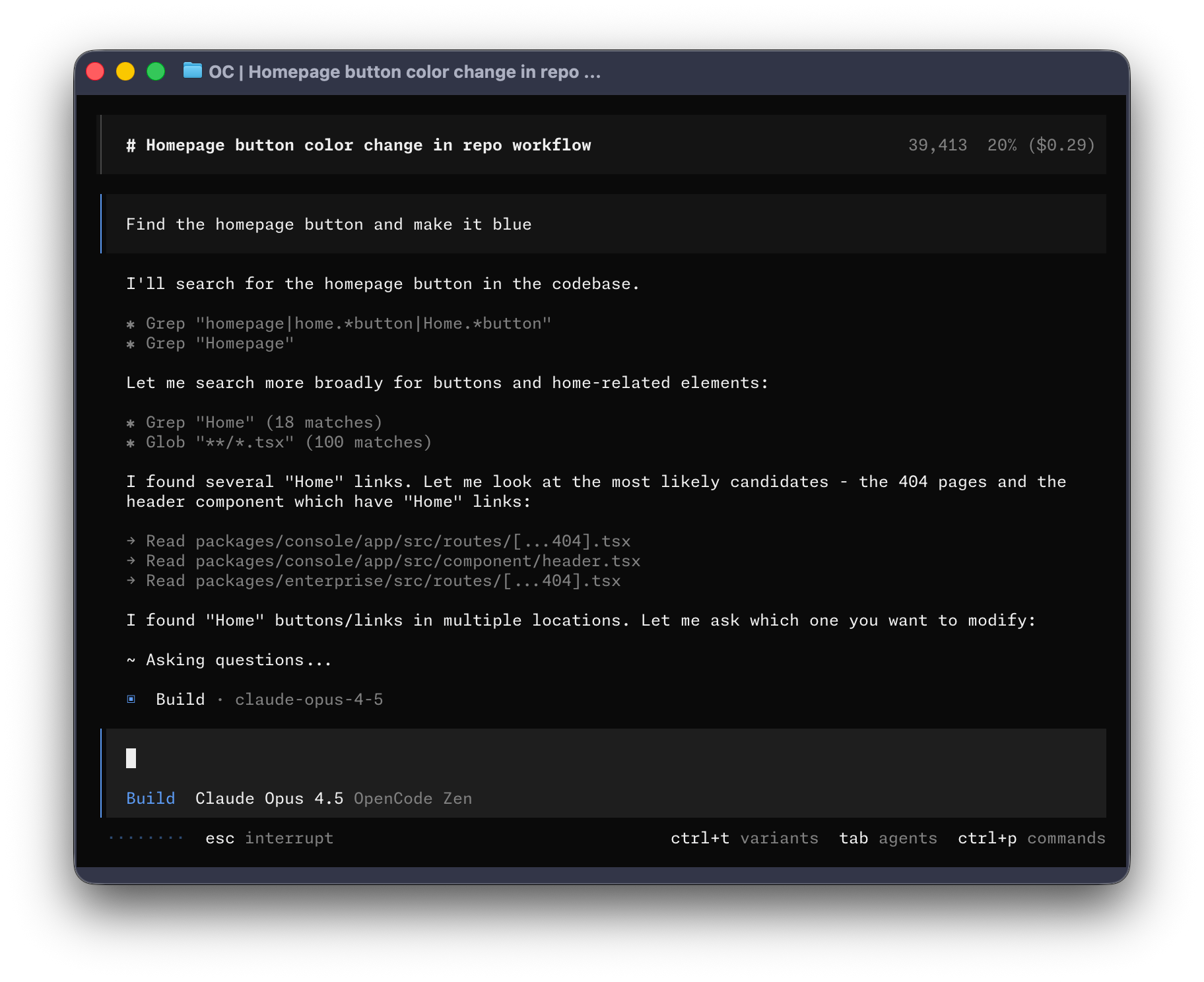
With Ollama running on the same machine, there is nothing to configure. OpenCode probes http://127.0.0.1:11434, discovers your completion models and reads their context, vision and tool capabilities from Ollama. Embedding-only models are left out. Start it in your project and pick a model:
cd ~/projects/my-app
opencode
# inside OpenCode
/models
Local models appear with the ollama provider ID, such as ollama/qwen3-coder:30b. To make one the default for a project, add it to opencode.jsonc in the repository, or to ~/.config/opencode/opencode.json for every project:
{
  "$schema": "https://opencode.ai/config.json",
  "model": "ollama/qwen3-coder:30b"
}
You may also see a longer config in Ollama’s docs that defines an ollama entry under a singular provider key with the @ai-sdk/openai-compatible package. That is the version 1 format. Use the format for your installed version. The examples here follow OpenCode 2’s provider documentation.
Step 7: Point OpenCode at another machine and set safe permissions
For an Ollama server elsewhere on your network, set its OpenAI-compatible URL. Include /v1; OpenCode derives Ollama’s discovery paths from it, so models still appear automatically:
{
  "$schema": "https://opencode.ai/config.json",
  "providers": {
    "ollama": {
      "settings": {
        "baseURL": "http://192.168.1.50:11434/v1"
      }
    }
  }
}
Add "apiKey": "{env:OLLAMA_API_KEY}" inside settings only if you put Ollama behind a proxy that checks a bearer token. A plain Ollama server does not need one.
Next, decide what the agent may do without asking. OpenCode 2 uses an ordered list of rules where the last match wins, and anything not matched falls back to ask. This set asks before shell commands except for routine Git inspection, and denies commands matching git push. These are tool permission rules, not an operating-system sandbox:
{
  "$schema": "https://opencode.ai/config.json",
  "permissions": [
    { "action": "shell", "resource": "*", "effect": "ask" },
    { "action": "shell", "resource": "git status *", "effect": "allow" },
    { "action": "shell", "resource": "git diff *", "effect": "allow" },
    { "action": "shell", "resource": "git push *", "effect": "deny" }
  ]
}
Do not approve a shell command that reads or uploads secrets. A permission rule for a file-reading tool does not, by itself, prevent a shell command from accessing the same file. Version 1 uses different keys, so use the version 2 permission examples with this setup. Once the basics work, our roundup of OpenCode plugins and themes covers add-ons that work the same with local models.
Getting better results from a local model
Give the model a small, specific task. Both agents can use project instructions in AGENTS.md. Put the essentials there: how to run the tests, the build command, folders the agent should not touch and your code style in a few lines. A short, specific file costs fewer tokens than a long one, which matters with a 64k window.
- Ask for one change at a time. “Add input validation to the signup form and a test for it” works far better than “clean up the auth module”.
- Start with a read-only question. Ask the agent to explain a file first. If it cannot do that well, it will not edit it well either.
- Review every diff and commit often. A checkpoint makes it easier to separate your work from the agent’s changes. Check uncommitted work before reverting anything.
- Start a fresh session for a new task. Old conversation eats context that the next job needs.
Troubleshooting local coding agents
- The agent forgets instructions, repeats itself or stops mid-task. Check context first, then model compatibility and the error message. Run
ollama pswhile the agent is working and confirm CONTEXT is 64000 or more. - It replies in text but never edits files or runs commands. The model probably lacks tool support. Switch to a model with the tools label in Ollama’s library.
- Everything is very slow. Check PROCESSOR in
ollama ps. CPU offloading can slow generation. Check GPU support and available memory, then consider a smaller model or quantization. codex exec --ossfails immediately. Setoss_provider = "ollama"or pass--local-provider ollama.- OpenCode does not list a model. Make sure Ollama is running and the model is a chat model; embedding models are filtered out. For a remote server, check that
baseURLends in/v1. - Connection refused from another machine. Check that the server is running, its listening address is reachable from your client, and your firewall permits the connection. Keep access limited to your private network.
What stays on your machine
With a downloaded local model selected, the model inference runs on your hardware. That covers the model request, not every feature of the coding agent. Ollama cloud models (tags ending in -cloud or :cloud, such as gpt-oss:120b-cloud) run on Ollama’s servers. Web search and web fetch tools send queries and URLs out. And any shell command the agent runs, like a package install, behaves exactly as it would if you typed it. MCP servers, plugins and telemetry settings need checking too. For offline work, download dependencies first, select a local model and disable or disconnect network-dependent tools. Approvals alone do not guarantee that no data leaves your computer.
Start with a small coding task
For most people with a single consumer GPU, the honest expectation is a capable assistant for focused jobs: explaining a module, writing tests for one file, a contained refactor. Long multi-file tasks are where local models still trail the big cloud ones, and a 64k context fills up quickly in a large repository. Start with ollama launch, check the context setting and ask the agent to explain one file before giving it an edit. Keep Codex’s sandbox or OpenCode’s permission prompts enabled and review the diff yourself. A larger model may help, but leave enough memory for context rather than choosing by parameter count alone.
FAQ
Do I need a ChatGPT or OpenAI account to use Codex CLI with Ollama?
No. Codex CLI can use your local Ollama model without a paid ChatGPT plan or an OpenAI API key. Select Ollama explicitly with --oss --local-provider ollama. Ollama cloud models and its web-search service have separate account requirements.
What is the minimum context length for Codex and OpenCode?
Ollama recommends at least 64k tokens for both, and for coding tools in general. It is a recommended budget, not a guarantee of good results. Increase it only within the model’s supported limit and your available memory.
Can I use LM Studio instead of Ollama?
Yes. Codex’s --oss mode supports LM Studio through oss_provider = "lmstudio" or --local-provider lmstudio, and OpenCode auto-discovers LM Studio at http://127.0.0.1:1234/v1. The context and tool-support rules are the same.
Which is better with local models, Codex CLI or OpenCode?
Neither changes what the model can do; the model and context length decide quality. OpenCode is easier for switching between many local and cloud models, while Codex suits people who already use it with ChatGPT and want a local fallback with its sandbox.
- SourceOllama Docs: Codex CLI
- SourceOllama Docs: OpenCode
- SourceOpenCode Docs: Providers
- SourceOllama: Context length
- SourceOllama: Local FAQ
- SourceOpenCode 2: Permissions
- SourceOpenCode 2: Installation