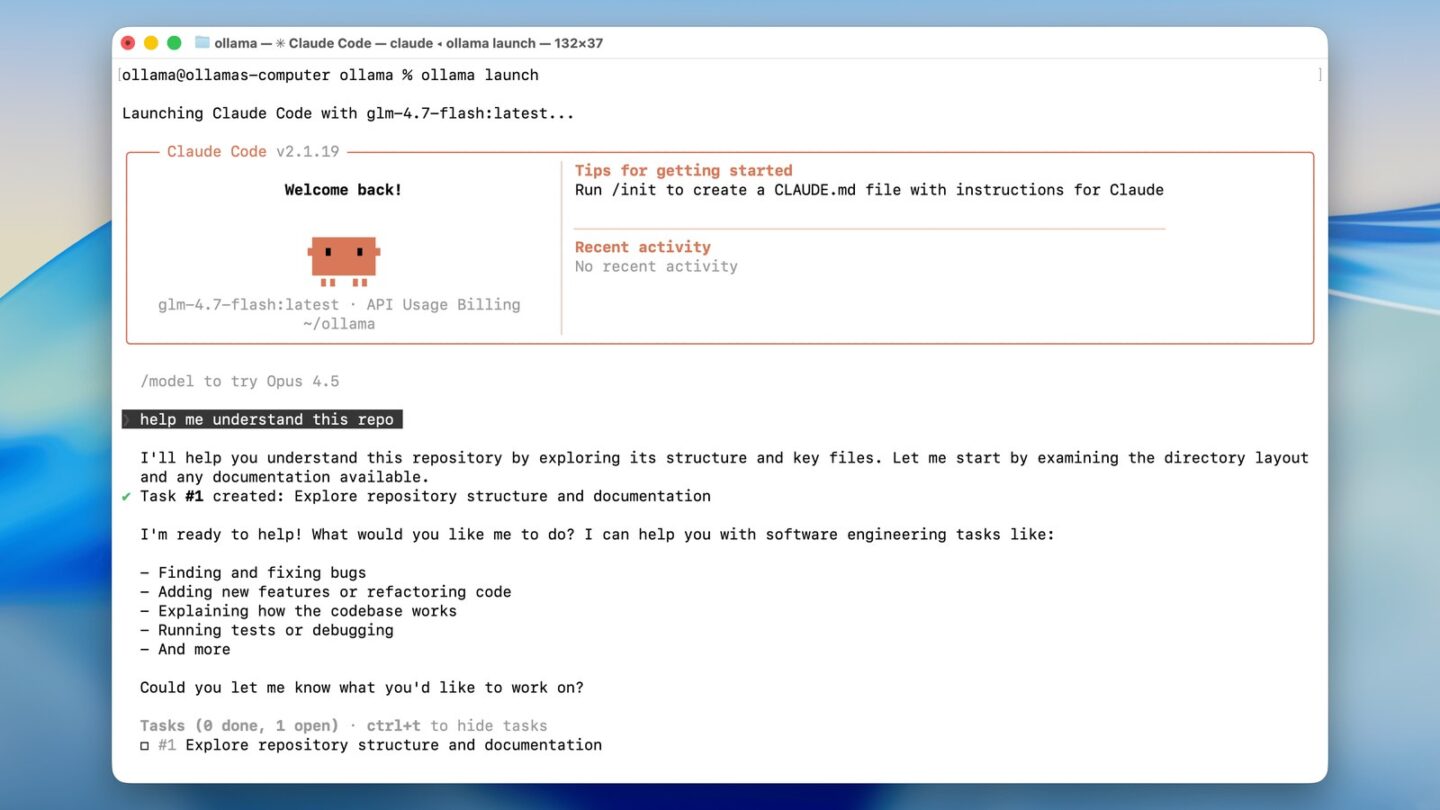
Claude Code can run with a local Ollama model through Ollama’s Anthropic-compatible API. The quickest setup is ollama launch claude. You will still use Claude Code’s interface, but the model answering your requests runs through Ollama. This is useful for trying a coding assistant on your own machine, provided the model has tool support and your computer has enough memory.
There is an important limit: Anthropic does not support routing Claude Code to non-Claude models through a gateway. Ollama documents this integration, and a local model will not necessarily handle the same tasks as Claude. Start with a small project and review every file change.
What you need
- Claude Code and Ollama installed.
- A local model that supports tool calling.
- Enough memory to run that model with a context window of at least 64,000 tokens, as Ollama recommends for coding tools.
- A project folder where you can test the setup safely.
Ollama lists qwen3-coder, gpt-oss:20b and glm-4.7-flash among its local coding suggestions. Model downloads and memory needs differ. Pick one your computer can run rather than assuming the largest model will be best.
Set the Ollama context length
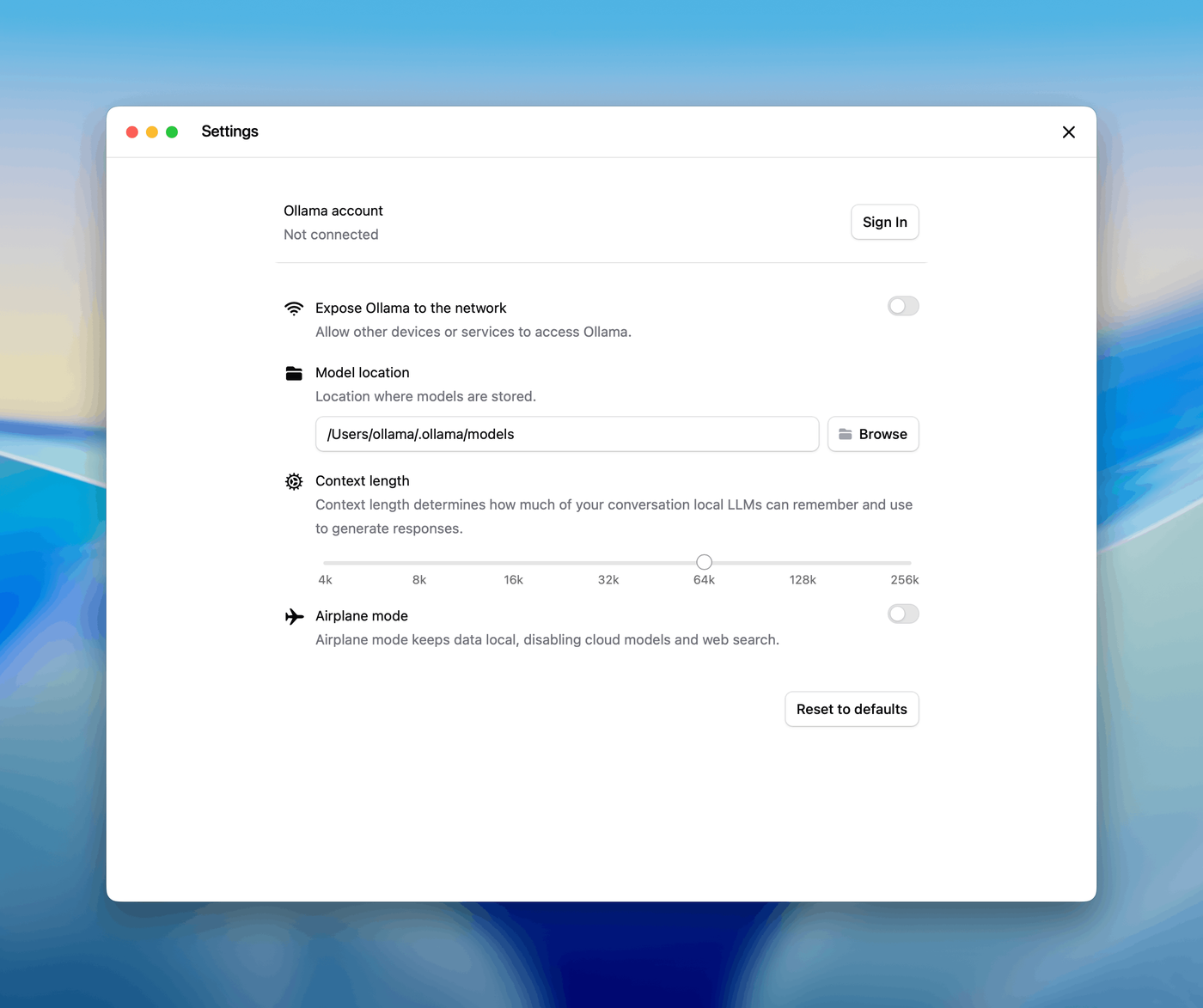
Open Ollama settings and set the context length to at least 64k. Ollama says coding tools need this much context to work across files. A longer context uses more memory. If the model slows down or falls back to the CPU, choose a smaller model. You can run ollama ps to check its allocated context and processor.
Launch Claude Code with Ollama
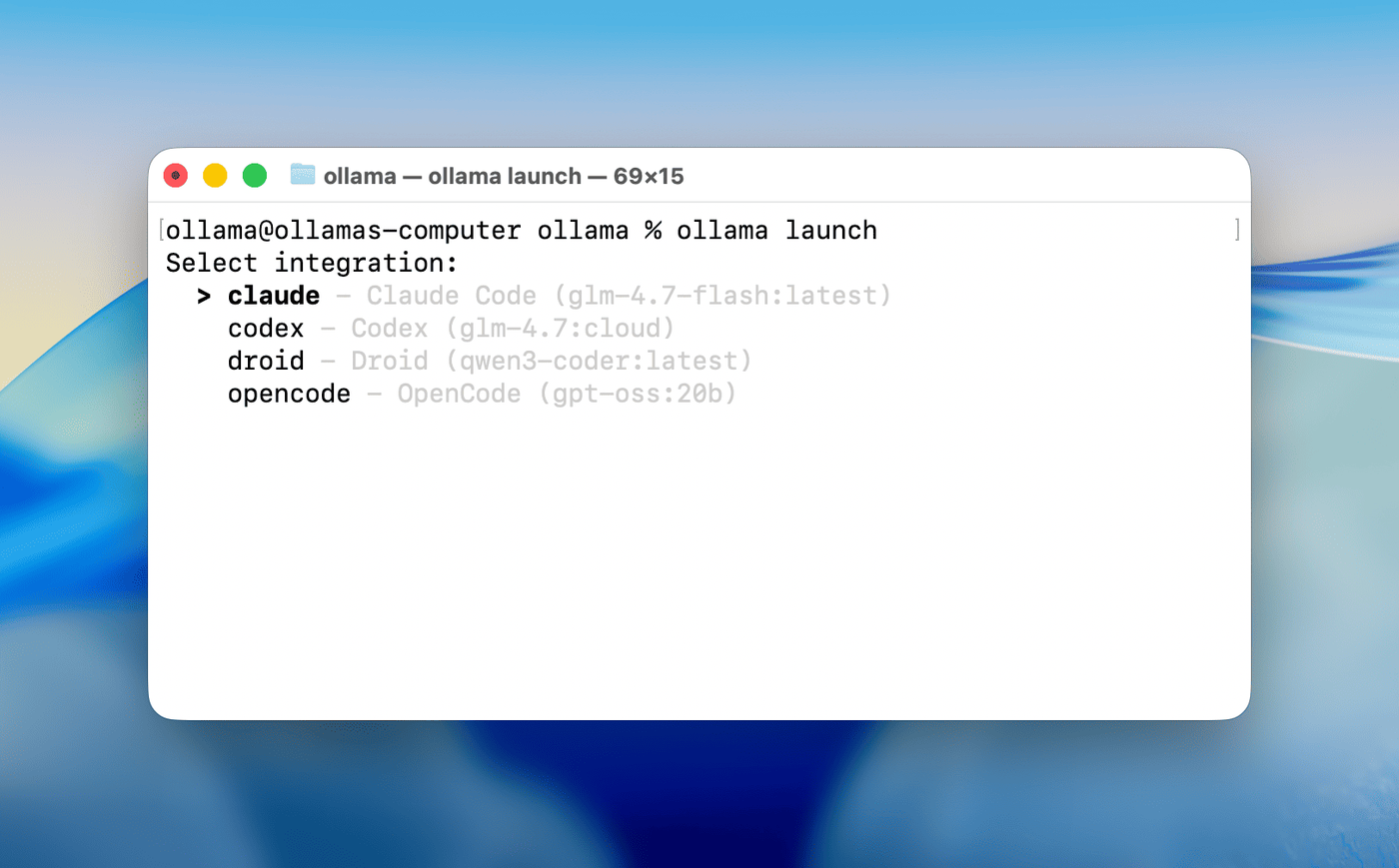
Open a terminal in your project folder and run:
ollama launch claudeOllama will guide you through choosing a model and opening Claude Code. You do not need to edit a configuration file for this route. If the model is not downloaded, follow Ollama’s prompt to pull it first.
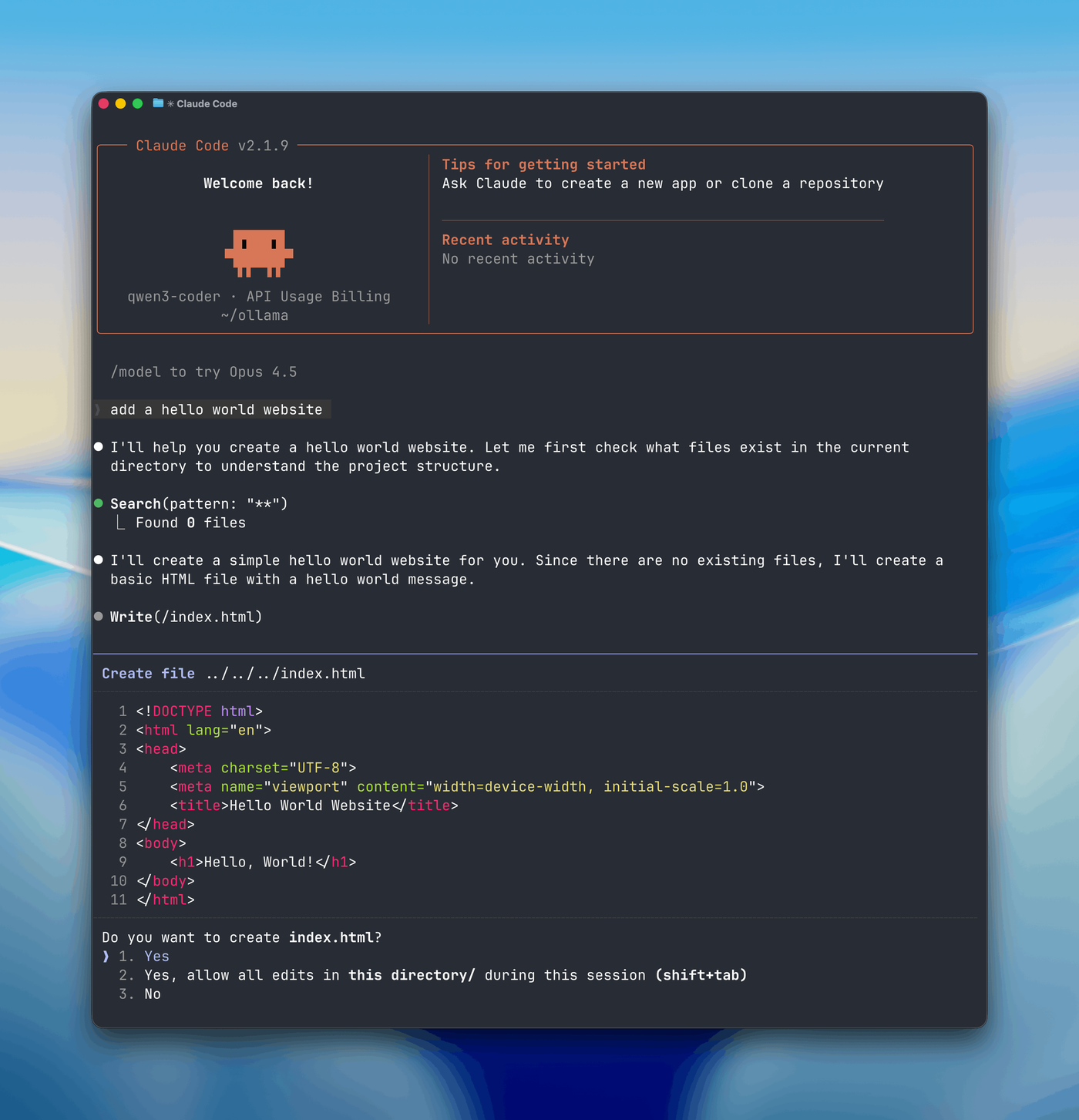
Start with a read-only request such as asking the assistant to explain a file. Then try a small edit and inspect the diff before accepting it. Claude Code can still ask permission before running commands or changing files; using a local model does not remove that responsibility.
Manual setup if you need it
Ollama also documents a direct connection to its local server. In Bash or Zsh, set the following variables in the terminal where you will start Claude Code:
export ANTHROPIC_AUTH_TOKEN=ollama
export ANTHROPIC_API_KEY=""
export ANTHROPIC_BASE_URL=http://localhost:11434
claude --model qwen3-coder
The ollama token is a placeholder for the local server, not an Anthropic key. Use the exact model name that you have installed. If Claude Code connects to the wrong service, check its settings for an existing base URL or credentials, then run /status in Claude Code.
What stays local?
When you select a downloaded local model, its inference runs on your computer. Do not select an Ollama cloud model if local processing is the reason you chose this setup. Web search, web fetch and other network tools can still send data out when used, so check which tools you enable. Ollama’s cloud models are a separate option.
When this setup makes sense
Use it to explore a repository, draft small changes and learn what a local model can do with tools. A model that works well for a single file may struggle with a large codebase or a long session. If you need the supported Claude Code experience, use Claude itself. If you need a local coding tool with a native model selection flow, our OpenCode plugin guide is another place to start.
The one command worth remembering is ollama launch claude. Set the 64k context first, choose a compatible model and test it on a project where you can review the result.
- SourceOllama: Context length