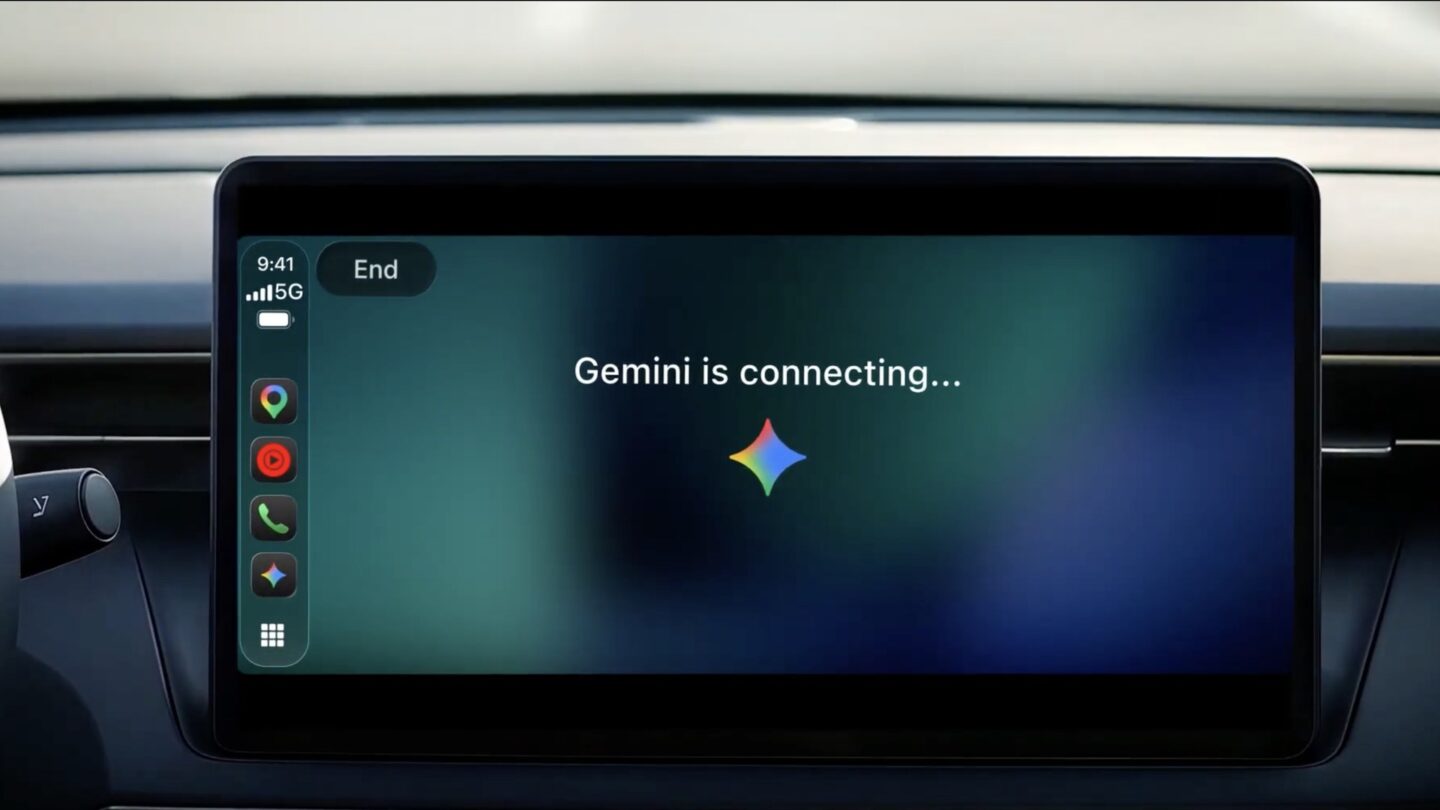
Gemini is now on Apple CarPlay. Google started rolling out the Gemini app for CarPlay on 11 November, worldwide, to everyone using Gemini on an iPhone, in every language Gemini Live supports. You get Gemini Live, Google’s back-and-forth voice mode, on the car’s screen, with access to your Gmail and Google Calendar for briefings. What you do not get is a replacement for Siri: Gemini on CarPlay cannot place calls, send messages or start navigation for you.
Setup takes a minute, though the CarPlay app depends on one step on the phone that is easy to skip: using Gemini Live there at least once.
How to set up Gemini on Apple CarPlay
1. Update the Gemini app on your iPhone from the App Store.
2. Allow microphone access for Gemini when prompted, or turn it on later in the iPhone Settings app under Gemini.
3. Open Gemini on your phone and start a Gemini Live conversation at least once. Google lists this as a requirement, and the CarPlay app may not work until you have done it.
4. Connect your iPhone to the car, by cable or wireless CarPlay.
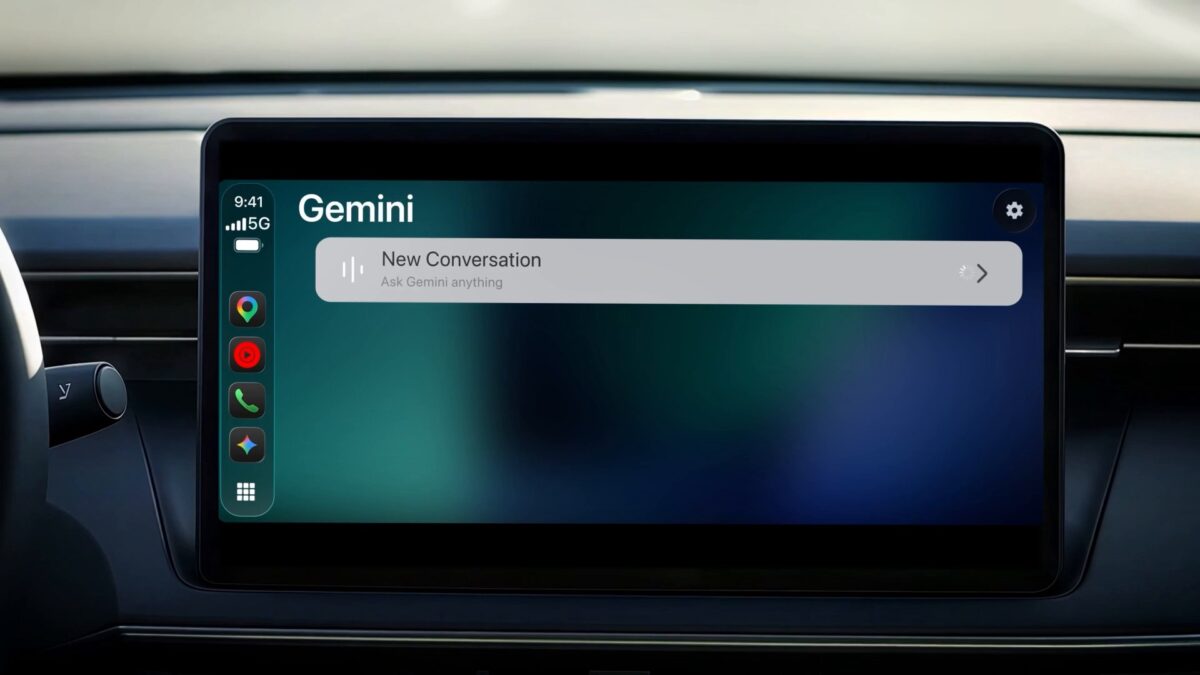
5. Tap the Gemini icon on the CarPlay home screen or the side rail.
6. Choose New Conversation, or pick a recent chat to continue it.
Google has not stated a minimum iOS version for the CarPlay app. If the icon does not appear, update Gemini and iOS, then check again as the rollout reaches more accounts.
Do all of this while parked. Permissions and the first Gemini Live session happen on the phone, not the car screen.
What Gemini can do on CarPlay
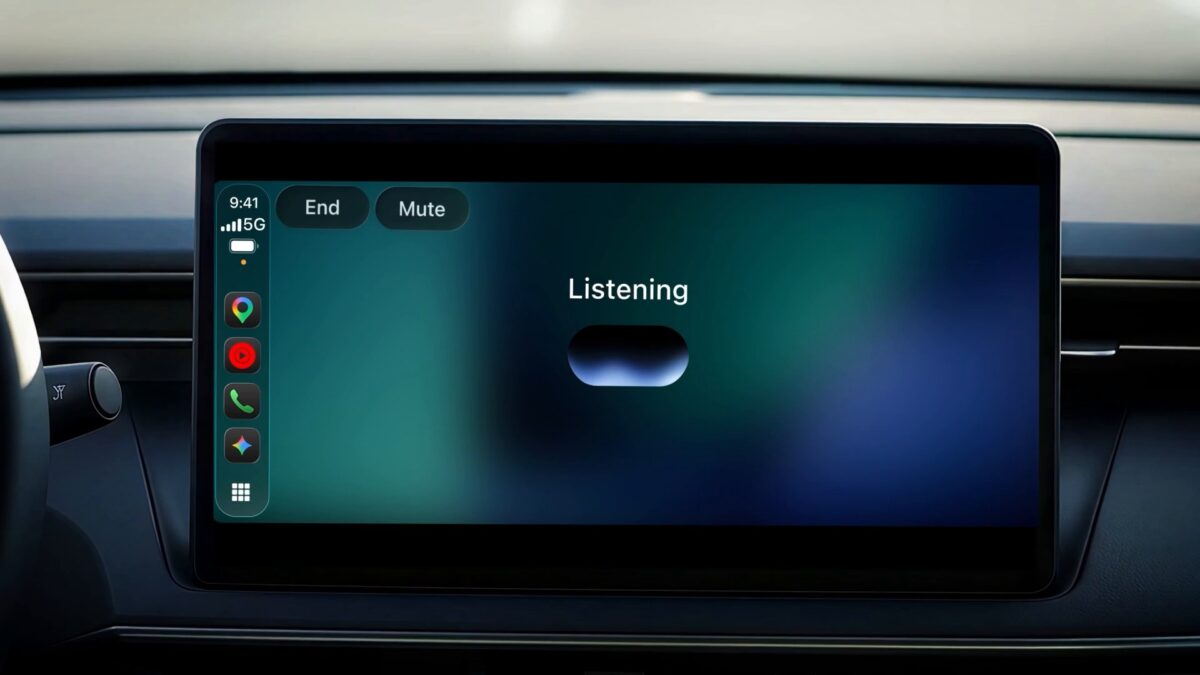
The CarPlay app is built around Gemini Live rather than commands. You talk, Gemini replies, and you can interrupt to add a detail, change the subject or pause when you need to focus on a junction. The screen shows little more than a listening or responding animation with End and Mute buttons.
Google’s suggested uses fall into four groups:
- Plan the day. Ask what is on your calendar, when you need to leave for your next meeting, or rehearse what you want to say.
- Catch up on email. Because Gemini connects to Gmail and Google Calendar, it can read out a daily brief, summarise unread mail or a long thread, and help you talk through a reply.
- Local help. Ask for a quick lunch stop near where you are heading, or the story behind a landmark you pass.
- Think out loud. Practise a presentation, role-play a difficult conversation or have a topic explained simply.
Every CarPlay conversation syncs to the Gemini app on your iPhone, so notes and summaries are waiting in your chat history when you park. That is the most practical feature here. You can brainstorm a client pitch on the drive to the office and find the transcript ready to copy into an email.
A few personal features carry conditions. The Daily Brief has to be switched on first, and Google says it and other personalisation features are not available to users under 18 or in the European Economic Area and Nigeria. Gmail and Calendar access also depends on those apps being connected in Gemini’s settings.
What it cannot do
On CarPlay, Gemini starts when you tap its icon. It does not replace Siri for calls, messages, navigation or music controls. Use Siri or the relevant CarPlay app for those jobs.
| Task | Gemini on CarPlay | Gemini on Android Auto |
|---|---|---|
| Start a conversation | Tap the app icon | Say “Hey Google” or tap the microphone |
| Calls and messages | Use Siri or another CarPlay app | Gemini can handle them |
| Start navigation | Use a maps app | Gemini can start directions |
| Music control | Use Siri or a music app | Gemini can control playback |
The gap with Android Auto is clear. On an Android phone, Gemini replaces Google Assistant in the car and handles calls, texts, navigation and music, as covered in our look at Gemini Personal Intelligence in Android Auto. On an iPhone, Gemini is a conversation partner that sits beside Siri, not instead of it.
Who should try it?
If you already use Gmail and Google Calendar, Gemini can help you prepare for the day or catch up on messages while you drive. Google says the rollout is global across supported Gemini Live languages. It is a way to talk through information, while Siri and your other CarPlay apps handle driving tasks.
Google warns that Gemini can give inaccurate answers. Do not rely on it for critical or safety-related information while driving. You can check anything important on your phone after you park.
Frequently asked questions
Is Gemini on CarPlay free?
Google says it is rolling out to all Gemini users on iOS, so you do not need a paid Google AI plan to use it.
Why don’t I see Gemini on my CarPlay screen?
Update the Gemini app and iOS, allow microphone access, and use Gemini Live on the phone once. The rollout is gradual, so it may not reach every account straight away.
Can I say “Hey Google” to start Gemini in my car?
Not on CarPlay. Third-party chatbot apps on CarPlay have no wake word, so you tap the Gemini icon. “Hey Google” works only on Android Auto and cars with Google built-in.
Can Gemini on CarPlay give me directions?
It can recommend places and talk about where you are heading, but it cannot start navigation. Use Google Maps or Apple Maps on CarPlay for turn-by-turn directions.